

Herd Queries and FQL
What this page helps you do
Section titled “What this page helps you do”Herd Queries lets authorised users ask structured questions of the selected farm’s records. Use FQL to build a reproducible result, inspect the matching animals or numbers, and save or export a useful query.
Open Livestock → Queries. Herd Queries runs Farm Query Language (FQL) against records you are authorised to read for the selected farm. A link from Animals list, an assistant answer or a report can open the page with a ?q= command; Farmlync runs that command automatically. Check the command shown and the notices above its result before treating the answer as evidence. If you edit the command, run it again.
The page is available to farm Owners, Managers and Vets, and to an administrator whose current access covers the farm. Other farm roles do not see the query workspace. Support staff can run queries during an authorised read session, but the support read-only view cannot save, edit, delete or export queries, or send results to the animal selection tray.
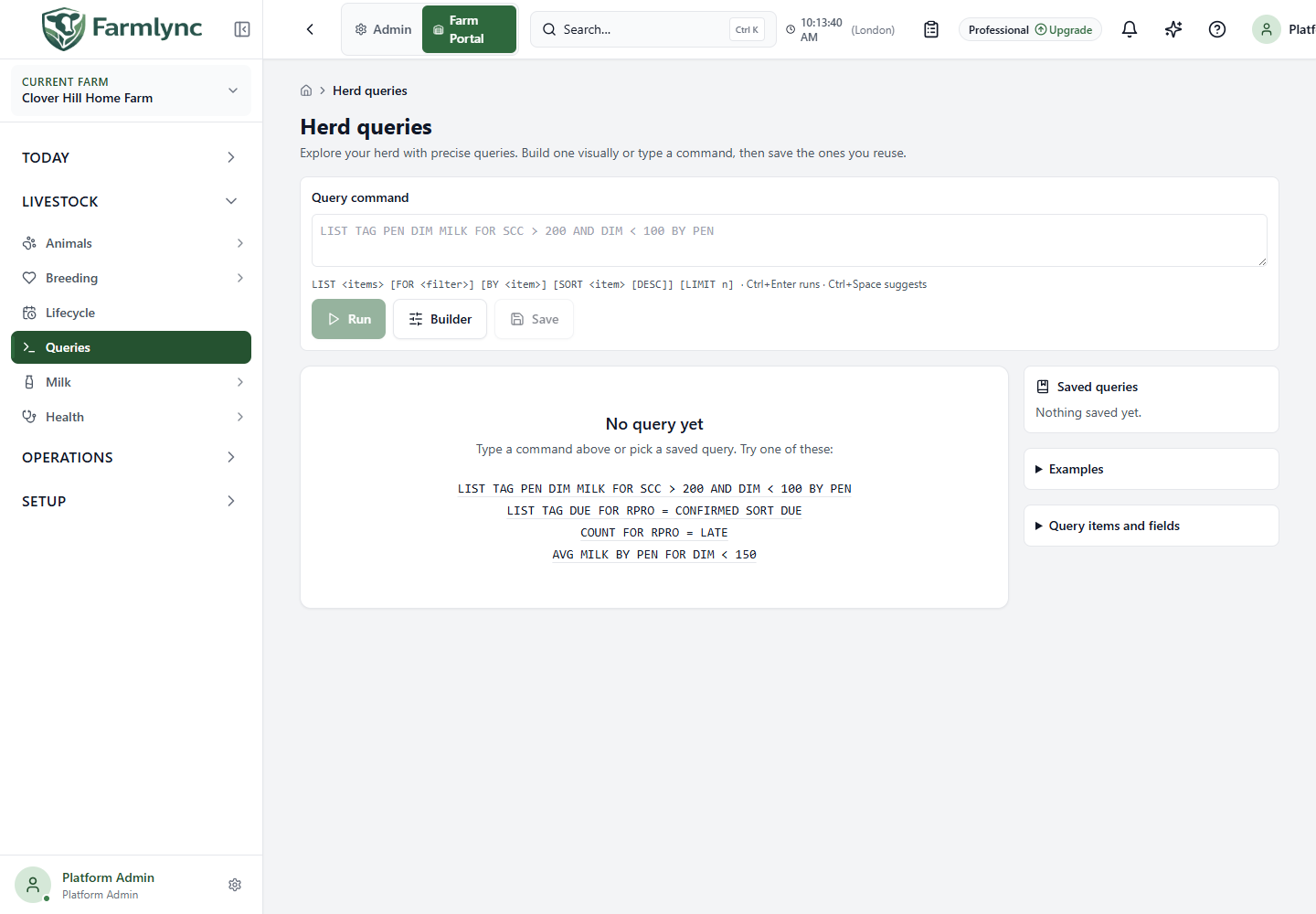
Enter an FQL command in the command bar and choose Run or press Ctrl+Enter. The command is checked by the server while you type. If it is invalid, the page shows the exact line, column and problem beneath the command. Correct those messages before relying on a run.
Autocomplete opens as you type. Use Arrow Up or Arrow Down to move through suggestions, Tab or Enter to insert the highlighted suggestion, and Escape to close the list. Press Ctrl+Space to reopen it. Pen, group and catalogue values come from the selected farm. Group-name suggestions show at most the first 200 groups, but a group typed manually is still checked by the server.
Start from an Example if the syntax is unfamiliar. The separate Query items and fields section lists the vocabulary available for this farm and subscription; filter the list by name or description, then select an item to insert it at the current caret position. Exact fields, operators, grouping dimensions and limits depend on the selected dataset and the server’s current catalogue, so do not reuse an example against unrelated data without checking it.
Visual builder
Section titled “Visual builder”Choose Builder to construct a command without typing all of it. The supported verb choices are LIST, COUNT, SUM, AVG, TREND and BREAKDOWN. LIST chooses output columns and optional ordering; COUNT counts matching records; SUM and AVG choose a measure; TREND uses a measure and day/week/month buckets; BREAKDOWN groups a metric by one dimension. Add filter rows with a field, operator and value, then inspect the generated command before running.
The builder and text editor are connected, but the text is authoritative. More advanced text expressions using features the builder cannot represent remain as text; the builder warns before replacing them with a simpler query. Closing an incomplete builder cannot silently run an old command as if it reflected the visible controls. If Run is blocked, finish the missing measure, grouping or range shown in the builder.
Results and saved queries
Section titled “Results and saved queries”The Results area renders counts, animal rows, trends or grouped breakdowns depending on the command. A trend displays a chart followed by the underlying values; LIST results use a table on wider screens and cards on phones. Check column units and period labels because a LIST row count, a grouped total and an aggregate can use different grains.
Read every notice above a result. An information notice explains disclosures made by the query, while a warning identifies a capped result. A LIST can return at most 10,000 rows, so the number shown can be fewer rows displayed than total matches. CSV export applies the same ceiling and is not a way to retrieve matches beyond it. Refine a capped query before exporting or using it for an operational action.
If you edit the command after a run, Farmlync dims the existing result and labels it with the command that actually produced it. Choose Run again to refresh the answer. Until then, CSV deliberately exports the last executed command, not the unrun text in the editor.
Select results is available only for an uncapped LIST result that contains stable animal identities. It replaces the current animal selection tray with the query result; it does not add to an earlier hand-picked selection. The tray holds at most 500 animals. When a result exceeds that limit, Farmlync keeps the first 500 and warns you to refine the query for the remaining matches. Open the tray and inspect the selected animals before starting a batch recording.
An explicit LIMIT is treated as a complete top-N result rather than a system-capped result, so Select results can be available for it. In that case, only the limited rows are sent to the tray.
Use Save to name the current valid command. A command can contain up to 2,000 characters. Enter a Name of up to 100 characters, an optional Description of up to 500 characters, and choose its visibility:
- Just me creates a personal query visible to you.
- Whole farm shares the definition with authorised users of the farm. This option is available only to users who can manage farm users, including the appropriate tenant administrator.
Saved queries are listed 10 at a time. Select a name to run its stored command. Only the person who saved a query sees its edit and delete controls. Editing can change the name, command, description and visibility. Deleting a whole-farm query asks for confirmation because it disappears for everyone; deleting a personal query is immediate. If another update changed the same saved query first, Farmlync refreshes the list and asks you to review the current version before trying again. Deleting a saved query never deletes farm records.
Saved definitions do not update their dates or business meaning automatically. Review the command before reuse, especially when it contains a fixed date range, group, pen or threshold.
Farmlync records commands that reach the FQL execution engine in its query log, including engine failures, together with the actor, command, outcome, row count and elapsed time. A request rejected before execution because it is unauthorised, empty or over the command-length limit is not currently added to that FQL log. Saving or deleting a query changes only its reusable definition; it does not remove existing execution records.
For routine questions, the report catalogue may be simpler. For a specific cohort, compare the FQL predicate, date range and definition with the source report before explaining a difference in counts.
For command syntax, filter operators, date ranges and the current animal-item names, use the FQL language reference.