

Watch list
What this page helps you do
Section titled “What this page helps you do”The Watch list keeps animals needing closer attention in one place. Use it to review a concern, update the note and remove the animal from the list once the issue is genuinely resolved.
Open Livestock → Animals → Watch list for animals currently flagged for monitoring. Overdue follow-ups sort first, followed by items due today and upcoming work. The due state uses the selected farm’s local date, so a user working in another timezone sees the farm’s operational day.
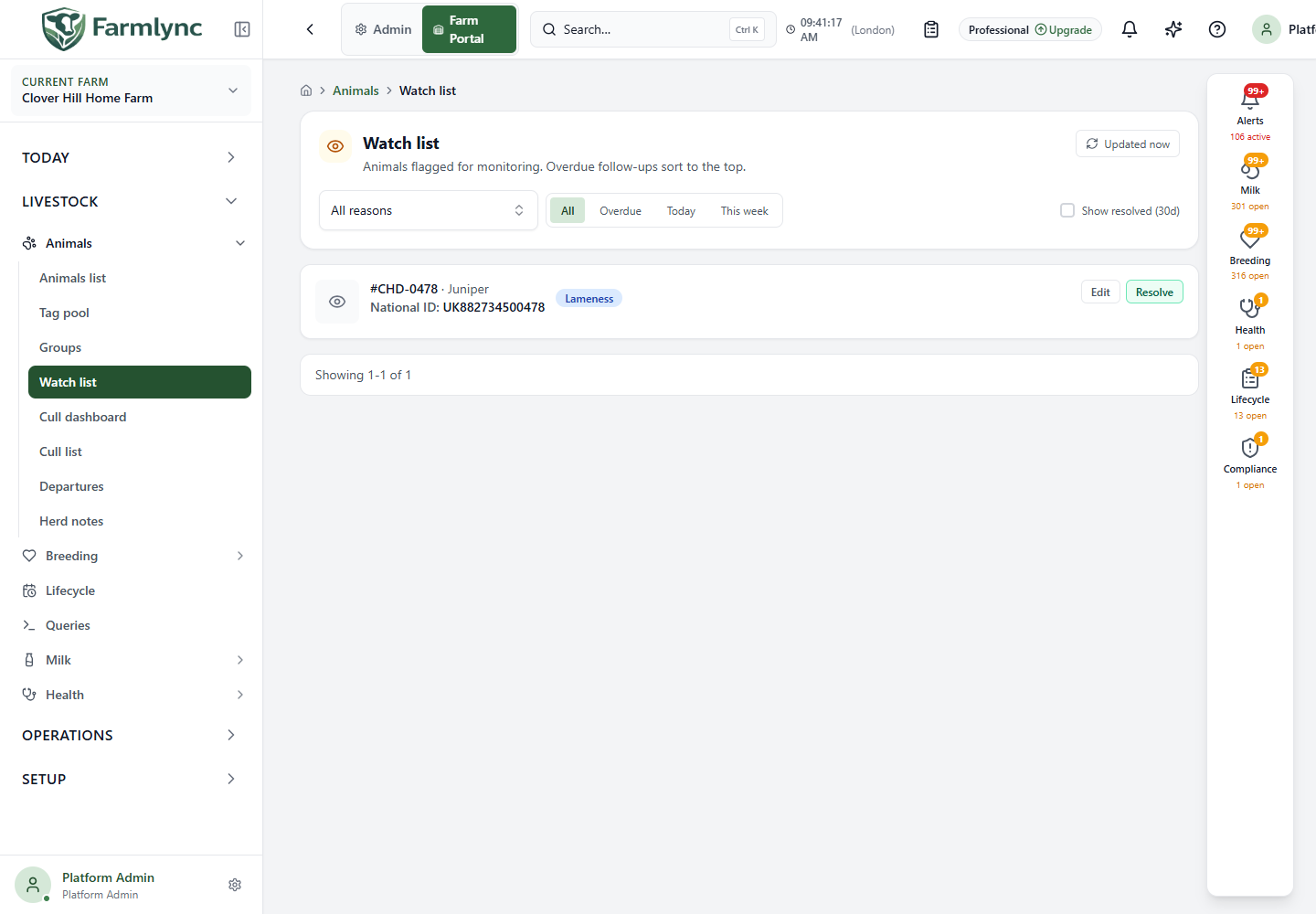
The Watch list is a follow-up register. It does not diagnose an animal and it does not replace a health, breeding, lifecycle or milk record.
Each animal currently has one structured watch state. Editing changes that state; the page does not maintain several simultaneous concerns for one animal. Put lasting clinical or operational evidence in the owning Farmlync record.
Add an animal to the Watch list
Section titled “Add an animal to the Watch list”New watch entries start from an animal rather than from this list:
- open Livestock → Animals list;
- select the animal;
- use Add to watch in the animal overview; and
- complete the follow-up panel.
| Field | Required | What to enter |
|---|---|---|
| Reason | Yes | Select Lameness, Mastitis, Repeat breeder, Low yield, Chronic disease, Body condition or Other. |
| Follow-up due by | No | Farm-local date when the concern should next be reviewed. |
| Follow-up action | No | Clear instruction for the next person, up to 500 characters, such as “Retest SCC after next milking”. |
Select Add to watch list to save. The animal overview and Watch list update after the request succeeds.
The action is disabled on the normal animal page after the animal has been Sold, Culled or marked Deceased. Restore or reverse an incorrect exit before creating another follow-up.
Filter the list
Section titled “Filter the list”| Control | Meaning and action |
|---|---|
| All reasons | Filter by a backend-supplied watch reason, or leave it on All reasons. Changing the reason returns to page 1. |
| All | Removes the due-date bound. |
| Overdue | Shows entries due before the current farm-local date. |
| Today | Shows entries due on the current farm-local date. |
| This week | Shows entries due up to and including today plus seven days. Because it has no lower bound, it also includes overdue entries. |
| Show resolved (30d) | Adds each animal’s latest watch state when it was resolved during the preceding rolling 30 days. Changing it returns to page 1. Reopening that animal removes the resolved state from this view. |
| Refresh | Invalidates the current farm’s Watch list data and requests it again. Use it after a change made from another page or device. |
Filters work together. For example, selecting a reason and Overdue shows overdue open entries for that reason. The page displays 25 entries per page; use the page controls below the list to continue. Page size is fixed on this screen.
Read an entry
Section titled “Read an entry”Each card can show:
- the animal photo when one is available;
- the configured animal identity, such as tag, name and National ID;
- the watch reason;
- the follow-up action;
- a due badge; and
- for resolved history, the resolution note.
Select the animal identity to open the animal details. Use the animal record to check the concern against treatments, tests, breeding events, lifecycle state, milk records and notes before acting.
Due badges
Section titled “Due badges”| Badge | Meaning |
|---|---|
| Overdue | Due date is before the farm’s current date. |
| Today | Due on the farm’s current date. |
| In Nd | Due in the displayed number of calendar days. |
| No due badge | No follow-up date was set. The entry remains open until resolved. |
Resolved entries are faded and show Resolved. They cannot be edited or resolved again from this view.
Edit an open entry
Section titled “Edit an open entry”Users with animal-management permission see Edit on an open entry. It opens the same follow-up fields used when adding the animal:
- Reason remains required;
- Follow-up due by remains optional; and
- Follow-up action remains optional with a 500-character maximum.
Select Update entry to save. Cancel closes without applying the draft. The panel disables its controls while a save is in progress.
Resolve an entry
Section titled “Resolve an entry”Select Resolve when the monitoring concern is complete. The panel identifies the animal and reason and offers Resolution note, an optional text area of up to 500 characters.
Record enough evidence for another farm user to understand the outcome, then select Resolve. Farmlync closes the current watch state while retaining its reason, due date, follow-up instruction, resolution time and resolution note on the animal. Show resolved (30d) can display that latest resolved state for 30 days.
Resolving the watch entry says that the monitoring concern is closed. It does not create a treatment, examination, vaccination, pregnancy check, service, lifecycle event or milk record. Save the actual clinical or operational action in its own form first.
If a concern returns later, adding the animal to the Watch list reopens and replaces these watch fields; it clears the previous resolution time and note. The current implementation does not keep multiple watch episodes. Before reopening, ensure the lasting outcome is recorded in a treatment, health check, herd note or other appropriate feature.
Permissions and read-only use
Section titled “Permissions and read-only use”Farm users who can view animals can use the list and open permitted animal details. Edit and Resolve appear only when the current user can manage animals. Read-only support sessions do not gain permission to change watch entries.
Empty, loading and error states
Section titled “Empty, loading and error states”| State | Meaning and response |
|---|---|
| No open watch entries | No open entry matches the current filters. Open an animal to add one when monitoring is required. |
| No watch entries with resolved history enabled | No open entry matches and nothing matching was resolved in the last 30 days. |
| Loading placeholders | Farmlync is retrieving the list. Wait before changing filters again. |
| Error with Retry | The list request failed. Retry it; do not assume the farm has no watched animals. |
| Red form message | The update or resolution failed. Correct the stated issue and submit again. |
Recommended daily use
Section titled “Recommended daily use”- Open the Watch list during the morning review.
- Select Overdue, then Today, and review the oldest concerns first.
- Open the animal and record the actual examination or work in its proper Farmlync feature.
- Update the follow-up instruction if another check is required.
- Resolve the watch entry only after the concern and its real operational records are complete.
- Enable Show resolved (30d) when you need recent closure context.
Related guides
Section titled “Related guides”- Animals list explains finding and filtering animals.
- Animal detail and identity explains the animal overview and action entry points.
- Health checks explains recording examinations rather than only monitoring them.
- Alerts explains generated farm exceptions; alerts and watch entries are separate workflows.