

Herd notes
What this page helps you do
Section titled “What this page helps you do”Herd notes brings the narrative notes recorded against individual animals into one farm-wide report. Use it to find observations, handover information and follow-up context without opening every animal record.
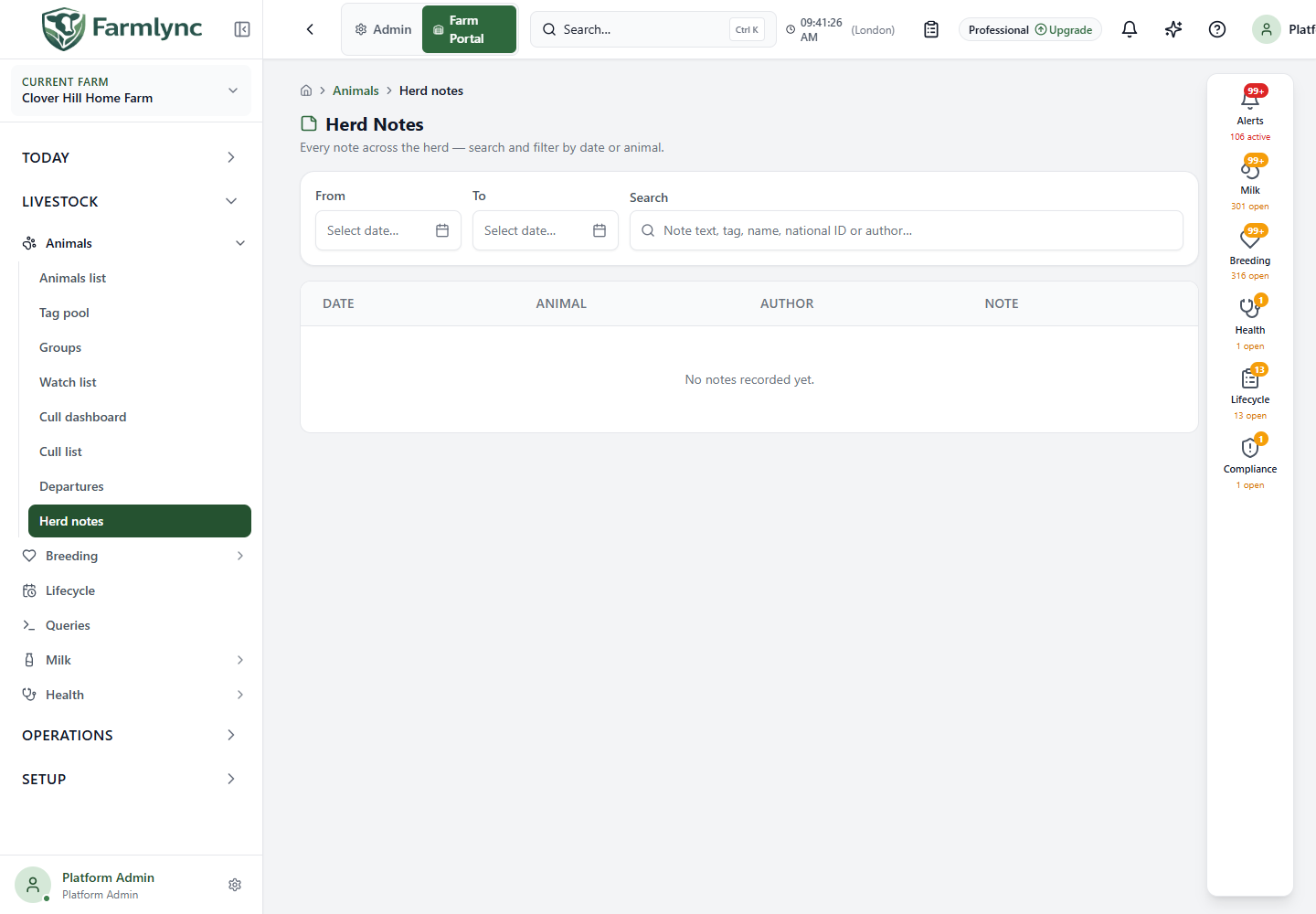
Open Livestock → Animals → Herd notes. The report is read-only: you add, edit or delete a note from the animal’s own Notes tab.
Find a note
Section titled “Find a note”The report is ordered by note date, newest first. Notes with the same date are ordered by when they were created, newest first.
| Control | What it does |
|---|---|
| From | Includes notes dated on or after this date. Leave blank when no lower date limit is needed. |
| To | Includes notes dated on or before this date. Leave blank when no upper date limit is needed. |
| Search | Matches note text, animal tag number, animal name, national ID or author name. Matching is not case-sensitive. Results update 300 milliseconds after you stop typing. |
| Clear | Removes both dates and the search text. It appears only while a filter is active. |
Changing any filter returns the report to page one. You may use either date by itself for an open-ended range.
Read the results
Section titled “Read the results”| Column | Meaning |
|---|---|
| Date | The date assigned to the note. It is not automatically the date of a related clinical or operational event. |
| Animal | The animal’s tag, name and government identifier, according to the farm’s identification settings. Select it to open the animal record. |
| Author | The recorded author. A dash means that no display name is available. |
| Note | The complete note text, including its line breaks. |
The server returns 20 notes per page. Use the table paging controls to move between pages. The columns are deliberately not sortable because sorting only the current page would give a misleading farm-wide order.
On a small screen, the same results appear as stacked cards. Each card shows the animal, date, note and author, and the animal identity remains a link to the animal record.
Add a note
Section titled “Add a note”- Select the animal in this report, or open it from Livestock → Animals → Animals list.
- Open the animal’s Notes tab.
- In Add a note, choose the note date.
- Enter the note text.
- Select Add note.
| Field | Required | Valid value and effect |
|---|---|---|
| Date | Yes in the screen | Defaults to today’s date in the selected farm’s timezone. The saved value is a calendar date in yyyy-MM-dd form. |
| Note text | Yes | Non-blank text, up to 2,000 characters. Leading and trailing spaces are removed when saved. |
The date may be earlier than, the same as, or later than today. Farmlync does not infer a treatment or event date from it, so choose the date the observation actually concerns and check future dates carefully.
After a successful save, Farmlync shows Note added, clears the text, resets the date to the farm’s current date and refreshes both the animal notes and this farm-wide report.
Edit a note
Section titled “Edit a note”- Open the animal’s Notes tab.
- Select the pencil beside the note.
- Change the Date, the text, or both.
- Select Save. Select Cancel to discard the unsaved changes.
The same 2,000-character limit applies. Farmlync uses the note’s current version when saving, so an outdated edit is rejected instead of silently overwriting a more recent change. If that occurs, reload the notes, review the latest value and apply the change again.
The displayed author is the name captured when the note was created. Editing the note does not replace that original author, and a later account-name change does not rewrite older notes.
Delete a note
Section titled “Delete a note”- Open the animal’s Notes tab.
- Select the bin beside the note.
- Confirm Delete note.
Deletion is permanent from the user’s point of view and removes the note from this report after the data refreshes. Check that you selected the correct note before confirming.
Access and support sessions
Section titled “Access and support sessions”- Farm users who have View animal profiles can read the report and the animal’s note history. In the current release, the same permission also authorizes creating, editing and deleting notes.
- Editing is collaborative rather than author-only: an authorized farm user can edit or delete a note created by another farm user. The note’s current row version still protects against silently overwriting a newer concurrent change.
- In a read-only support session, add, edit and delete controls are hidden.
- A support session with the approved Create animal note action may add a note.
- A support session with the approved Update animal note action may edit a note.
- Support sessions do not expose deletion; an ordinary authorized farm user must perform it.
The available buttons are the reliable guide to what the current user or support session may do.
Loading, empty and error states
Section titled “Loading, empty and error states”- Loading notes… appears while an animal’s note history is opening.
- Show older notes loads the next 20 notes on an animal record and states how many remain.
- No notes yet for this animal means that animal has no saved notes.
- No notes recorded yet means the farm-wide report has no notes before filtering.
- No notes match these filters means the farm has notes, but none match the current search or date range.
- If the animal history fails, use its Retry action. If the farm-wide report fails, it shows Couldn’t load the notes report; refresh the page after checking the connection.
Use structured records for operational facts
Section titled “Use structured records for operational facts”A herd note supplies narrative context. It does not create a treatment, heat, service, pregnancy diagnosis, vaccination, milk record, movement, withdrawal or work item.
Use the relevant recording form when the information must drive alerts, work, medicine controls, safety holds, statutory records or reports. A note can complement that record, but should not replace it.