

Farm dashboard
What this page helps you do
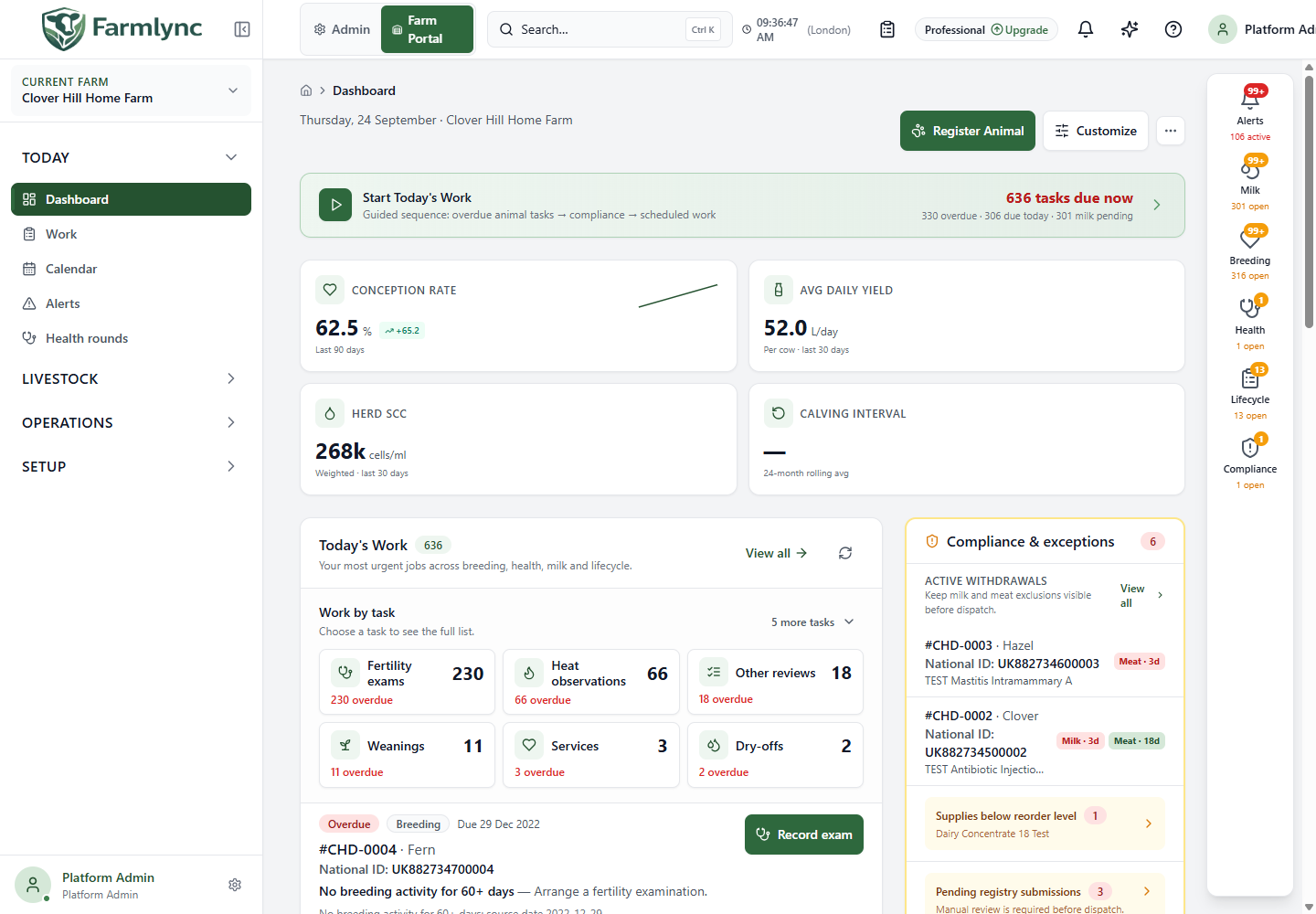
Section titled “What this page helps you do”The dashboard brings today’s work, herd measures and exceptions into one starting view. Use it to decide what needs attention first, then open the source record before acting on a summary.
Open Today → Dashboard after choosing the organisation and farm. The dashboard is a starting point, not a recording ledger: most cards open the page where you can inspect and act on the underlying records. It changes with farm type, your permission, subscription features and the date in the farm’s timezone. A count marked unavailable is not zero; use a card’s Retry control if its data failed to load.
Header and first actions
Section titled “Header and first actions”| Control | What it does |
|---|---|
| Current Farm | Shows which farm the dashboard is summarising. Change farms here before recording anything. |
| Register Animal | Opens the registration form for this farm. Shown only when your role can manage animals. See all registration fields. |
| Customize | Opens a panel to show/hide and reorder dashboard cards. Some operationally critical cards are always shown. Reordering stays within each region: priority, context or routine/performance. Save stores the layout to your account; Cancel abandons this draft; Reset to default restores the standard layout. |
| More actions (⋯) | Provides recording shortcuts such as Heat, AI, Milk, Treatment and Vaccination when applicable. Each opens its own form; choosing the shortcut does not save a record. |
| Start Today’s Work | Opens Execution mode for a guided list of overdue animal tasks, compliance and scheduled work. Its overdue/due/milk counts summarise open work; they are not animals automatically processed. |
On a phone, More insights reveals secondary herd metrics, weather and module links. The main work preview is kept near the top. The desktop layout shows headline indicators first and a separate Routine, progress & financial context disclosure lower down.
Headline indicators
Section titled “Headline indicators”The cards show Conception rate (last 90 days), Average daily yield per cow (last 30 days), Herd SCC weighted over the last 30 days and Calving interval over a rolling 24 months. Dairy-specific cards are hidden on beef-only farms. Small trends and dates provide context; these are summaries, not individual animal records. A dash can mean insufficient data or an unavailable result. Open the corresponding breeding, milk or report area before interpreting an unusual figure.
Today’s Work and exceptions
Section titled “Today’s Work and exceptions”| Section | How to use it |
|---|---|
| Today’s Work | Shows urgent task types and a short list of animals. Select a task type or View all/Open all jobs to reach the full Work board. A row action such as Record exam opens the relevant form for that animal. Finish the form to record the work; simply opening it does not complete the task. |
| Compliance & exceptions | Surfaces withdrawal holds, low supplies and pending registry submissions where applicable. Open View all or the specific row for the underlying health, stock or registry details. Check milk and meat holds before dispatch. A clear-looking dashboard is not a substitute for the full withdrawal record. |
| Next actions | Upcoming calendar items with a link to the Calendar. Dates use the farm’s local calendar. |
| Oldest overdue lifecycle events | A short preview of missed lifecycle work. View all leads to the complete list; other overdue tasks remain on the Work board. |
The right-side alerts/milk/breeding/health/lifecycle/compliance counts are navigation shortcuts to those areas. They are not a second list of newly created records. Repeated badges can appear along the rail as you scroll a long desktop page.
Routine, progress and farm pulse
Section titled “Routine, progress and farm pulse”Open Routine, progress & financial context to see the daily snapshot, economics and health spend. The Milk recording progress row compares recorded cows with active lactations for the current session and links to Milk. Vaccination, treatment and overdue rows link to Work or Execution mode; use the full list to see which animal needs attention. The economics panel changes between Today, This Month and All and shows money recorded by the corresponding farm workflows. Health spend displays a 12-month trend and opens its report for source detail. These are summaries of records entered elsewhere, not extra billing actions.
Weather uses the farm’s saved location; Add location leads to farm settings if coordinates are missing. Farm pulse links its Animals, Active, Watch list and Do not breed counts to filtered animal views. The coloured herd-composition bar groups active animals by lifecycle stage; a segment opens the corresponding animal filter. The lower Milk today, Breeding due now, Active withdrawals and Lifecycle events cells open their respective pages. Always inspect the target page for the animal and date behind a summary number.
If a number looks wrong
Section titled “If a number looks wrong”- Check the Current Farm, farm-local date and any visible loading/error state.
- Open the linked page and inspect its filters, statuses and actual records.
- Use the card’s Retry if it reports a loading failure; do not read a dash as zero.
- For a record that needs correction, use the owning page’s correction action instead of adding a second record from a dashboard shortcut.
Related: Work board, Alerts, Animal selection and Recording forms.