

Animals list
What this page helps you do
Section titled “What this page helps you do”The Animals list is the searchable register for the selected farm. Use its filters and saved views to find the right animals, then open a record before changing it.
Open Livestock → Animals → Animals list. This is the farm’s searchable register; the number of rows shown on one page is not the total herd count. Actions that change records appear only when your current farm role permits them.
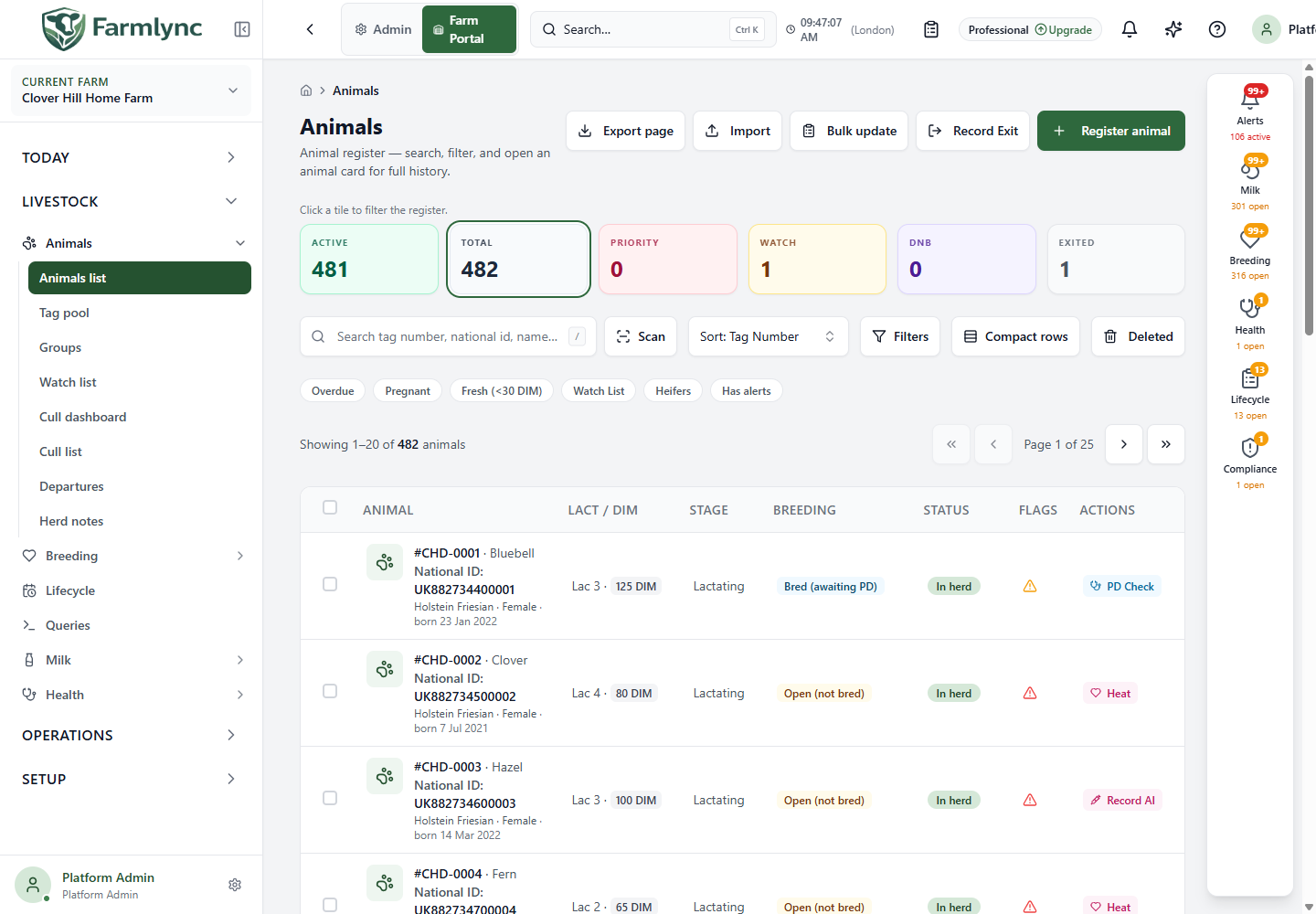
Find the right animals
Section titled “Find the right animals”| Control | What it does |
|---|---|
| Active, Total, Priority, Watch, DNB, Exited tiles | Apply a quick register filter. Priority means animals flagged for attention; Watch means current watch-list animals; DNB means do not breed. Exited combines sold, culled and deceased animals. Total clears status and flag filters. |
| Search | Find an animal by its tag, name or searchable government identifier where configured. Press / on desktop to focus the search. The Scan button opens ear-tag scanning. |
| Sort | Choose priority, tag or name. This changes row order, not membership or animal records. |
| Filters | Open the staged filter panel. Choose Sex, Status, Breeding / Production stage or pregnancy state, Pen, Group, Breed, Lactation #, DIM min/max and Year born from/to. Pen, group and breed choices come from farm data. Use Apply filters to run the combination; Reset to applied discards unsaved changes. Clear all filters removes search, sort, tile and panel choices. |
| Advanced filter (FQL) | If your role permits Herd Queries, enter a supported FQL predicate and apply it. The advanced predicate and structured filters are alternative modes; applying one clears the other. Open in Queries converts expressible current filters into a Herd Query, and warns if a filter cannot be represented. |
| Filter chips | Tap a suggested chip, such as an alert-related filter, to change the register query. The active-filter banner shows an applied FQL predicate. |
| Saved filters | Save filter records an explicitly filtered view. Give it a name and optionally Use by default. Select a saved chip to reapply it, use the pencil to rename, change default or replace its criteria with current filters, and the bin icon to delete that saved view. Deleting a saved filter does not delete animals. |
| Compact rows | Switch between compact and comfortable desktop row height. |
| Deleted / Active list | Owners and Managers can view soft-deleted animals and Restore a row. Restore returns the animal and its current lifecycle stage, but is not a full history recovery. This is distinct from an animal’s recorded exit; read Delete and restore before using it. |
| Page controls | Move between pages and inspect the total matching count. A page checkbox selects only the animals visible on that page, not every animal matching the filter. |
The filter panel stages its dropdown and number changes locally. Selecting a value does not query the server until you choose Apply filters. Reset to applied returns the panel to the filter already shown in the URL and register. Search, sort, summary tiles, quick chips, Deleted and saved-filter chips are immediate choices and refresh the register directly. Existing rows remain visible with a loading overlay while a new page or filter is fetched; wait for that refresh before acting on a row.
Quick-filter chips
Section titled “Quick-filter chips”Quick chips replace the active status, flag, reproduction, alert and priority-sort combination before applying their own definition.
| Chip | Effective current filter |
|---|---|
| Overdue | Shows animals whose pregnancy status is Open, ordered by Farmlync’s priority sort. The current chip does not itself prove every row is overdue; use the DIM, worklist and animal record to confirm the due action. |
| Pregnant | Shows animals with pregnancy status Confirmed. |
| Fresh (<30 DIM) | Dairy/Mixed farms only. The current chip shows animals in the Lactating lifecycle stage and orders them by priority; it does not currently enforce DIM below 30. Check the displayed DIM or add DIM max = 29 in Filters when the age-in-lactation boundary matters. |
| Watch List | Shows animals with the current Watch List flag. |
| Heifers | Dairy/Mixed farms only. Shows animals in the Heifer lifecycle stage. |
| Has alerts | Shows animals returned by the current active-alert lookup. Select the alert icon in a row to inspect that animal’s alert drawer. |
Selecting an active quick chip again clears its quick-filter combination. It does not clear unrelated search or extended panel fields; use Clear all filters when you need a genuinely unfiltered register.
Read each row or card
Section titled “Read each row or card”The desktop table and mobile cards represent the same animal page. On mobile, pen, groups, lifecycle and dairy details move into the card body instead of table columns.
| Column or marker | Meaning |
|---|---|
| Animal | Management tag, optional name, photo, breed, sex and birth date. A connected government registry can add its configured national-ID label. Where that ID is mandatory, Farmlync presents it as a primary identity line. |
| Lact / DIM | Dairy/Mixed farms only. Lactation number and days in milk. Up to 30 DIM is labelled Fresh; later colour bands help scanning but do not themselves create work or change stage. |
| Stage | Current lifecycle stage, such as Calf, Heifer, Lactating or Dry. This is distinct from the herd Status column. |
| Breeding | Do not breed takes precedence; otherwise the current pregnancy state, or a dash when none is available. |
| Status | Active or a terminal Sold, Deceased or Culled state. Deceased/Culled rows are visually muted. |
| Flags | Priority/favorite, watch-list and active-alert indicators when present. Select the alert indicator for the animal alert drawer. The marker details are explained in Animal detail and identity. |
| Actions | One context-sensitive shortcut selected from the rules below. It is not a complete list of everything allowed for the animal. |
Select the identity area of a row/card to open the quick-view drawer. Choose Open full animal page there for the complete record, profile and identity actions. The register remembers its route filters and scroll position when you return.
The single visible row action is chosen in this order:
- terminal or Do-not-breed animals show View;
- late-pregnancy animals show Calving, which opens the record rather than creating a calving event;
- an eligible Open female over 120 DIM shows urgent Record AI;
- an eligible Open female from 40 through 80 DIM shows Heat;
- another eligible Open female shows Record AI;
- an eligible Bred animal shows PD Check;
- an eligible Lactating animal shows Milk; otherwise the action is View.
Farmlync checks a current action-capability snapshot before showing a recording shortcut. Opening a shortcut still does not guarantee the save: its form repeats permission, animal-state, date, duplicate and concurrency checks. Read the linked recording-form guides before saving. If the list says No animals match your filters, clear the filters before assuming the herd is empty.
Register, import and export
Section titled “Register, import and export”The top toolbar offers Register, Import, Bulk update, Record Exit and Export page where permitted. Register animal explains the individual form. The CSV import and bulk update guide covers the separate new-animal and existing-animal procedures, mapping, validation and outcomes. Record Exit can begin without a preselected animal; choose the animals and exit details in its form. Departures explains later review.
Export page downloads only the rows on the current page. Its columns are Tag Number, National ID, Name, Breed, Sex, farm-local Birth Date, Status, Lifecycle Stage, Pregnancy Status, Lactation # and Days in Milk. For a complete filtered compliance export, use Reports → Animal Register. An export does not change the register.
Select several animals
Section titled “Select several animals”Tick individual rows, or use the table-header checkbox to select the visible page. On the last page this means the rows actually visible, even though the checkbox tooltip uses the standard 20-row page size. Selection can then be extended by visiting more pages; changing filters does not silently discard already selected animals. The sticky toolbar states the number selected across the register and offers Assign Pen, Add to group, Transfer to farm, Record Exit, Review selection, Batch PD and Batch Treatment. Clear selection discards the selection without changing records.
Use Review selection before a consequential batch action. Animal selection explains the selection tray; Internal farm transfer, Group membership, Batch pregnancy diagnosis and Treatment recording explain the corresponding workflows. Assigning a pen changes housing; adding to a group changes group membership; neither is a government movement or a clinical record.
Each batch form resolves fresh snapshots for the selected IDs and can refuse ineligible, missing, moved or changed animals even if they were selectable in the register. Review the form’s ready/blocked state and result summary; do not treat the selected count as the number that will succeed.