

Import and bulk update animals
What this page helps you do
Section titled “What this page helps you do”Animal CSV tools help add many animals or update existing farm records from a prepared file. Use the preview and row results to catch mapping mistakes before treating an upload as a completed herd change.
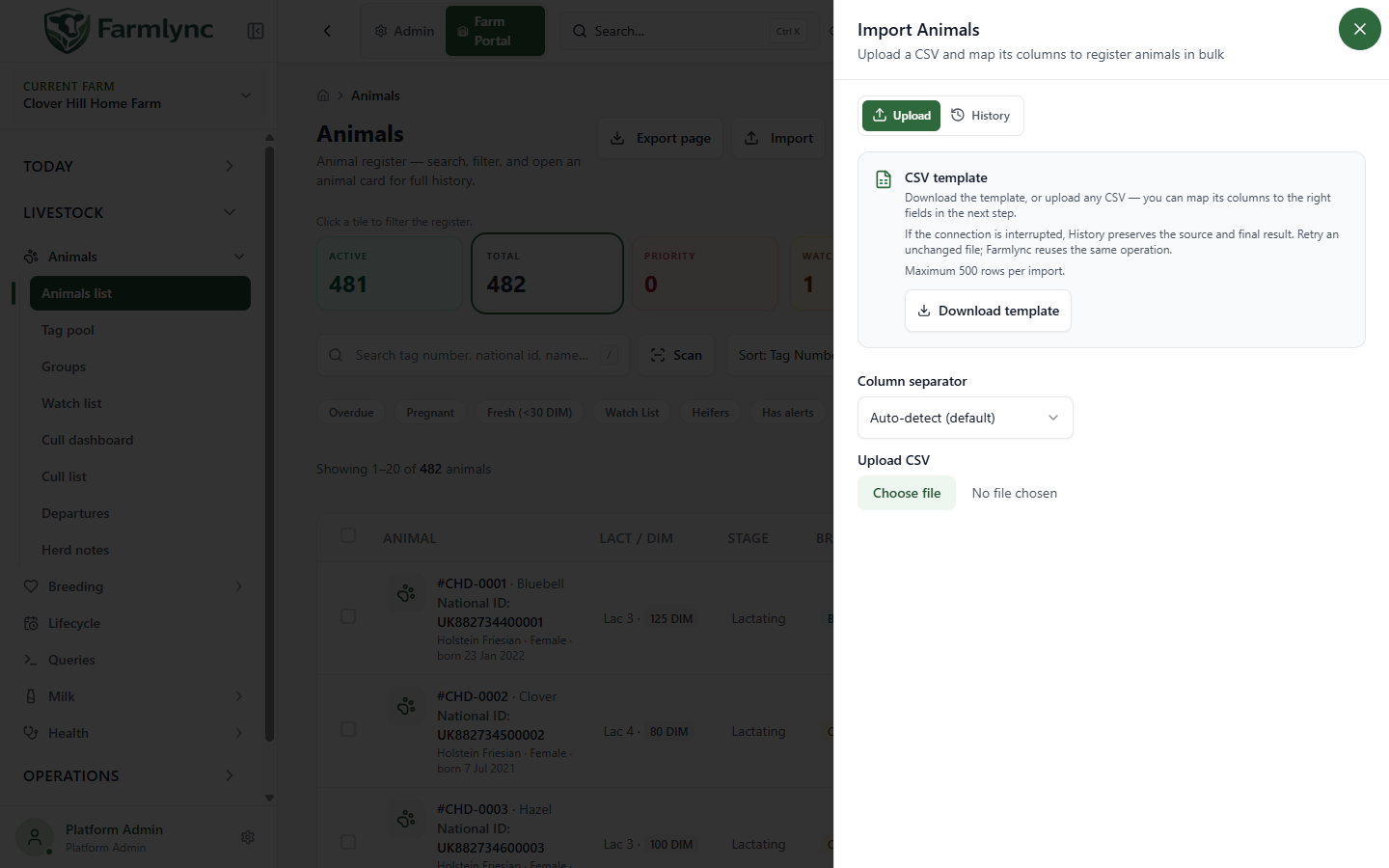
Open Livestock → Animals → Animals list and use Import or Bulk update in the toolbar. Both are CSV tools for an authorised farm manager, but they do different jobs. Import Animals registers animals that are not yet on this farm. Bulk update animals finds existing animals by tag and changes mapped values. Search first: do not import the same physical animal again to fix an existing record. For a move from another Farmlync farm, use Internal farm transfer.
Prepare and map a CSV
Section titled “Prepare and map a CSV”- Confirm the selected farm. Download the CSV template from the opened slide-over, or use your existing CSV. The displayed template and allowed-value hints come from the current import schema.
- Choose Column separator: Auto-detect, Comma, Semicolon, Tab or Pipe. Use Upload CSV to pick a
.csvfile with one header row and at least one data row. Animal registration allows up to 500 data rows per import. - Farmlync matches familiar header names automatically. When necessary, open Review column mapping and choose the source column for each target field. An asterisk means the target field needs a mapped column; a mapped column still needs a valid value in every applicable row. Leave an unrelated CSV column unmapped.
- Examine Preview (the first five rows). It highlights invalid values and shows a count of all row issues. Download validation errors exports the affected source rows for correction. The Import button remains unavailable while required mappings or locally detected row errors remain.
- Choose Import N rows only after confirming the farm, mapping and preview. A preview is not final acceptance: the server also checks existing records, farm policies, historical-state evidence and capacity.
Start over resets the current file and mapping. Keep the original CSV until the result is known. If a result reports rejected rows, choose Download errors, correct those rows and check the register before submitting them again.
Import Animals: columns and valid values
Section titled “Import Animals: columns and valid values”The registration schema marks Tag number, Breed, Sex, Birth date, Entry type and Entry date as required. National ID also becomes required when this farm’s identification policy requires it. Dates are entered as yyyy-MM-dd and interpreted in the farm’s timezone. Use the values offered in the mapping form for any enum field; the lists can depend on the farm’s herd type and registry.
| Column | What it records |
|---|---|
| Tag number | This farm’s unique management tag. Duplicate tags within the CSV or existing farm are rejected. |
| Name, Breed | Optional name; required breed available in the breed catalogue. |
| Sex | Female or Male; Steer is also allowed for Beef/Mixed farms. A Born-on-farm newborn cannot enter as Steer. |
| Birth date, Entry type, Entry date | Actual dates and origin. Entry type uses Born, Purchased, TransferredIn, Gifted or Leased. Dates cannot be in the future; entry cannot precede birth. |
| Pen, Dam tag, Sire name, Sire breed | Optional housing and parentage. Pen must exist on this farm. A logical animal group is not set by the single Pen column. |
| RFID / EID, National ID | Optional electronic and official identifiers unless the official ID is required by farm policy. Duplicate identifiers are rejected; registry format checks can also apply. |
| Colour, Horn status, Birth weight (kg), Purchase price, Notes | Optional descriptive and starting-value columns. Horn status uses the values shown by the form. |
| Current lifecycle stage, Current stage effective date | Optional existing-herd state. Allowed stage values are filtered by herd type; terminal Sold/Culled/Deceased stages are not import choices. An explicit non-Lactating stage requires its effective date. |
| Current lactation number, Current lactation start date | For Lactating/Dry animals, a positive lactation number is required. A Lactating animal also requires the lactation start date; its stage effective date, if supplied, must agree. |
| Current pregnancy status, Pregnancy check date, Pregnancy check method, Expected calving date | Existing reproductive evidence for a non-calf female. Import status may be Open, Confirmed or Late. Confirmed/Late require check date, check method and expected calving date. Bred needs an actual service fact and cannot be imported here; Do-not-breed is a separate management hold. Check method is one of the options shown, including Rectal, Ultrasound, Blood Test and Milk Progesterone. |
| Current breeding cycle, Current breeding cycle start date | Optional positive cycle number for a non-calf female; the number and its start date must be provided together. |
Historical fields must form a coherent history, not just a desired label. Supplying lifecycle, lactation, pregnancy or cycle history requires Current lifecycle stage. The server also checks dates against birth and the current farm-local day, parentage, breed, available capacity and existing identities. For a single animal with complex current state, Register an animal shows those choices step by step.
Read the registration result and History
Section titled “Read the registration result and History”The result shows Total, Success and Failed, followed by row-specific reasons. Registration can accept valid rows while rejecting invalid ones; a rejected row has not been registered. Check the resulting animals in the list, then correct only the rejected rows.
The History tab lists import attempts, ten per page. Open an attempt to see its file, start/completion times, status, imported/rejected totals and row reasons. Download corrections includes the rejected source values. If the upload response is interrupted, History may show Processing or Outcome unknown while it checks. Do not assume failure and submit a changed copy immediately. Retry the unchanged file when instructed; Farmlync reuses the operation key so a completed upload is not duplicated. If history cannot load, use its Retry control before drawing a conclusion.
Bulk update existing animals
Section titled “Bulk update existing animals”Open Bulk update from the Animals list. Map a Tag number column for every row; this is how Farmlync finds each existing animal on the selected farm. The schema offers optional Name, National ID, RFID / EID, Registration #, Colour, Markings, Horn status, Purchase price and Notes. Map only columns you intend to change. Blank cells leave the current value unchanged; they do not clear a value. Negative purchase prices are rejected. The server validates tag matches, official IDs, duplicates and horn status.
A bulk update accepts at most 1,000 rows. Keep exactly one row for each tag number. The current server does not reject repeated tag rows within one file and applies them in file order, which can make a later row replace values supplied by an earlier row.
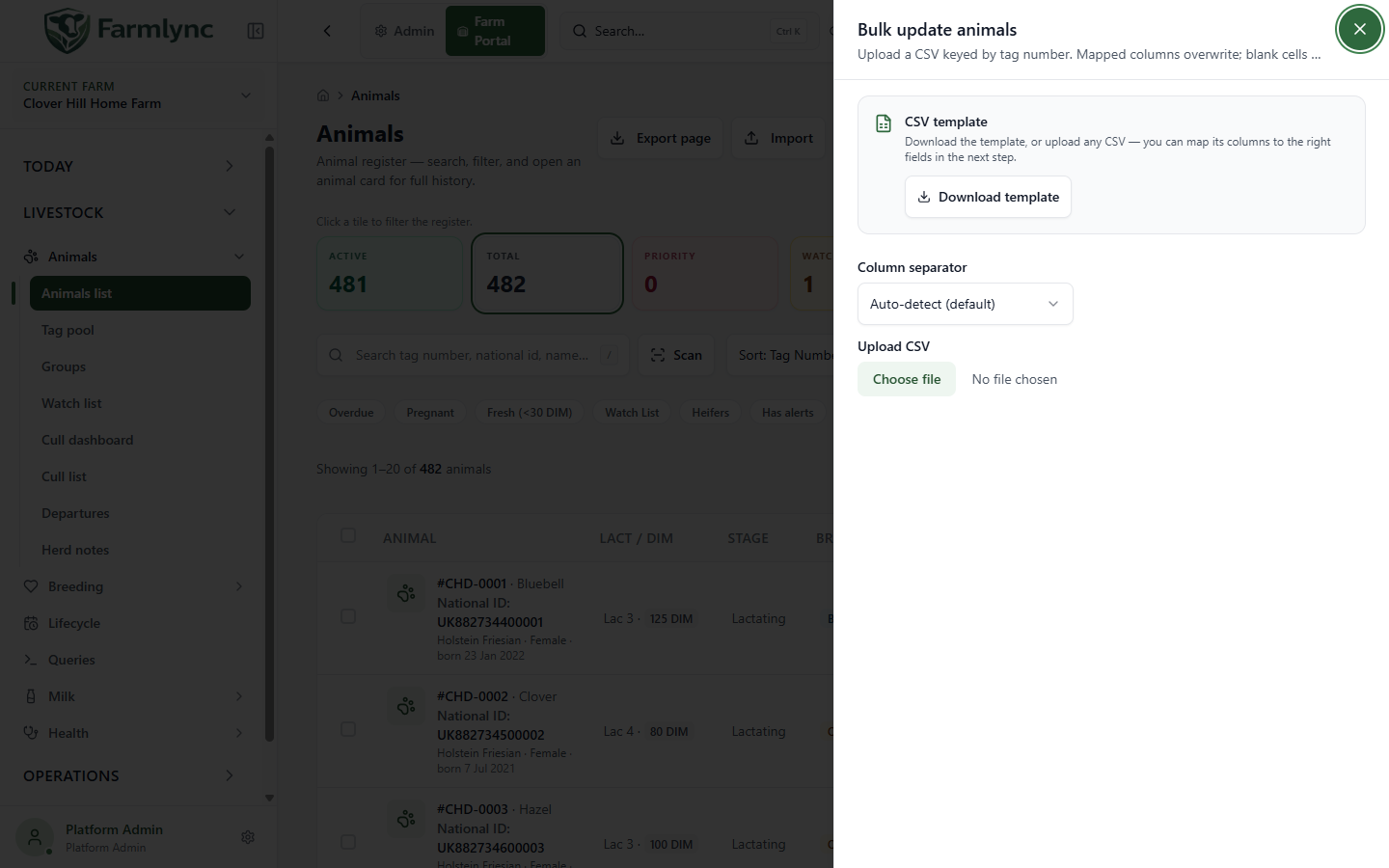
Review the preview and choose Import N rows. Bulk update is all-or-nothing: if any row is invalid, the result shows errors and zero animals are updated. Fix the CSV and retry the batch; do not assume other rows changed. When successful, verify a sample of animals in the list and their detail pages.
Although the bulk schema accepts identifier columns, it has no way to say whether a new value represents a physical retag or a typing correction. For an official or physical identity change that needs the correct history and registry intent, use the animal’s Identity actions instead. Bulk update does not register new animals, change their lifecycle history, set groups or replace a farm transfer.
Permissions and operational safety
Section titled “Permissions and operational safety”Both tools require Manage animals, normally held by an Owner or Manager. A read-only farm user cannot start either operation. Imports consume the organisation’s animal allowance for every accepted animal; server-side capacity checks still apply after the browser preview.
Treat CSV files as controlled operational records. Keep the submitted source and downloaded error file until the result has been reconciled against the Animals list. Do not use spreadsheet display formatting that removes leading zeroes from official identifiers, EIDs or management tags.