

Alerts — read, acknowledge, snooze and resolve
What this page helps you do
Section titled “What this page helps you do”The Alerts page gathers conditions that need review, such as health, stock or compliance exceptions. Use it to inspect the underlying evidence and record whether an issue is acknowledged, deferred or resolved.
Open Today → Alerts. Alerts call attention to recorded conditions and due work. They do not replace the records behind them: acknowledging a vaccination reminder does not record a dose, and resolving a milk-withdrawal alert does not clear a withdrawal hold.
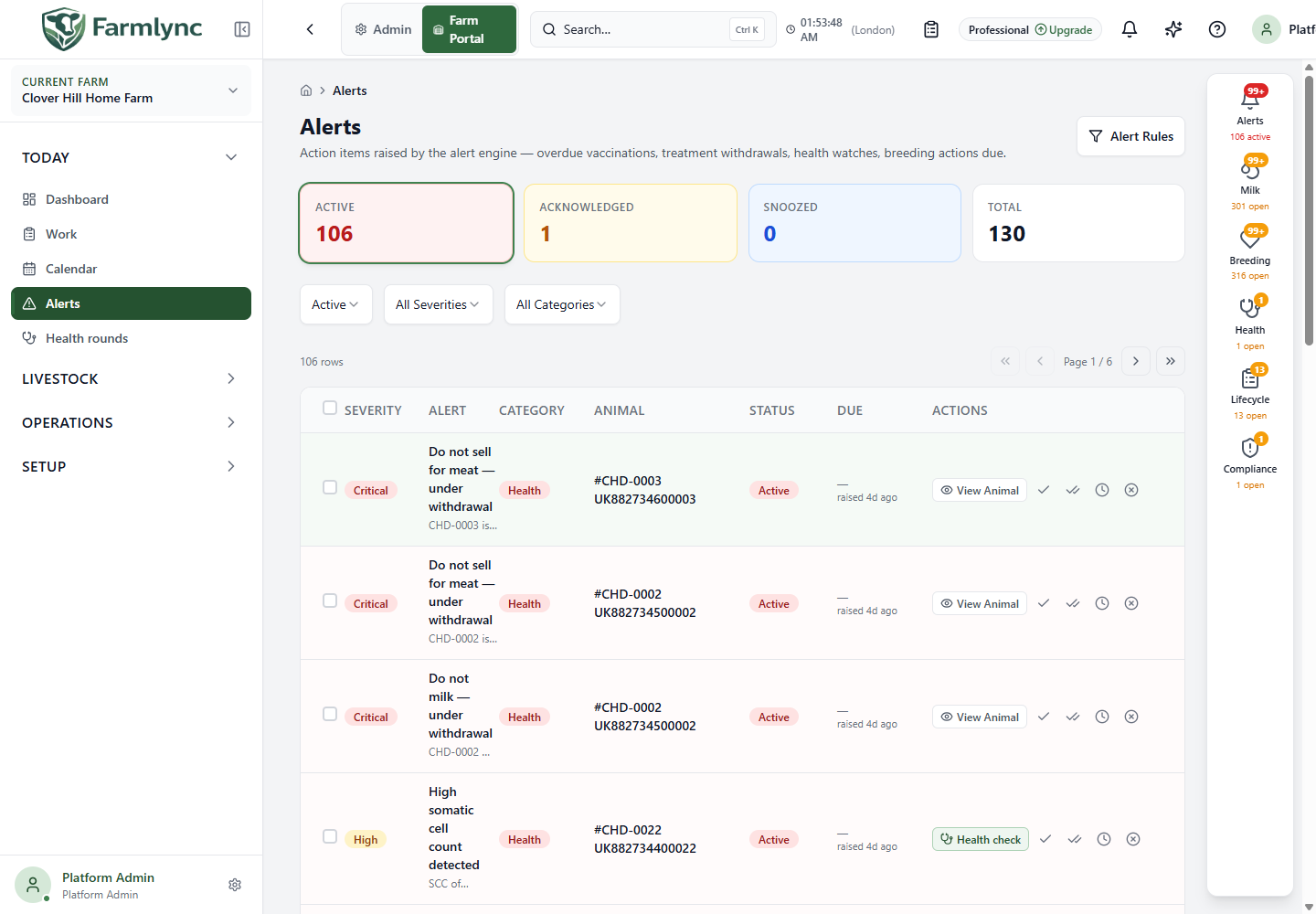
Choose an alert view
Section titled “Choose an alert view”The page opens on Active alerts. Closed history is deliberately kept out of the first view.
| Tile or filter | What it shows |
|---|---|
| Active tile | Outstanding active alerts, including those already acknowledged. |
| Acknowledged tile | Active alerts that someone has acknowledged. Acknowledgement is a separate marker, not proof of completion. |
| Snoozed tile | Alerts postponed until a future time. |
| Total tile | Alerts across statuses. It is a farm summary, not the number on the current filtered page. |
| Status | Restrict by the statuses offered by Farmlync, or choose All Statuses. Changing it also removes the Acknowledged-only filter. |
| Severity | Critical, High, Medium, Low or Info, or all severities. |
| Category | Health, Production, Reproduction, Lifecycle or Management, or all categories. |
| Clear filters | Returns to the default Active view; it does not switch to all history. |
On smaller screens, expand Filters to see the dropdowns. Filter and page changes reset the selected alert checkboxes. Pages contain up to 20 alerts.
Read the table
Section titled “Read the table”| Column | How to use it |
|---|---|
| Checkbox | Select alerts for bulk acknowledgement. The heading checkbox selects the alerts on the current page, not every farm alert. |
| Severity | Priority of the alert. Read the message as well as the colour. |
| Alert | Title and message describing the condition. Use the detail/view control to read the full alert. |
| Category | Broad subject area; it need not use exactly the same grouping labels as the Work board. |
| Animal | Identifies the affected animal and links to its record where available. Some alerts are farm-level. |
| Status | Whether the alert is active, postponed or closed. A seen/acknowledged marker does not make the animal’s task complete. |
| Due | Timing associated with the alert, when provided. It is distinct from the time the alert was created. |
| Actions | Recording action where available, plus acknowledgement and lifecycle controls appropriate to its state. Hover over icon buttons to read their names. |
On a phone, the same information appears in cards. An empty filtered list means no alerts match those filters; it does not prove every farm job is complete.
Open Alert Details
Section titled “Open Alert Details”The detail slide-over contains the severity, status, category, title and full message. It also shows:
- Alert Type: the particular rule or event behind the message.
- Animal: the related animal, or Farm-level when not tied to one animal.
- Created: when this alert was created.
- Escalation: its escalation level and time, when applicable.
- Acknowledged, Resolved, Snoozed Until or Dismissed: available lifecycle timestamps.
- Resolution Notes: notes saved when resolving the alert, if present.
- Auto-Resolvable: whether this alert supports automatic resolution.
- Open delivery: for a warning tied to a milk collection delivery.
A prominent recording button may open the action that addresses the condition. For example, a pregnancy-check reminder can open its recording workflow. Complete that form using actual observations; simply opening it has no effect.
Choose the right action
Section titled “Choose the right action”| Action | Use it when | What it does not do |
|---|---|---|
| Acknowledge | You have seen the alert and are dealing with it. | It does not resolve the condition or remove the real job from Work. |
| Snooze | You want the reminder out of the active view temporarily. | It does not change a treatment’s follow-up date, a vaccine due date or withdrawal end time. |
| Resolve | You have addressed the issue and want to close the alert with an optional explanation. | It does not create the underlying treatment, vaccination, calving or milk record. |
| Dismiss | You have reviewed this occurrence and do not want it in active views. | It does not disable the rule or permanently suppress every future occurrence for that animal. |
| Recording action | You need to record what actually happened. | It is not interchangeable with acknowledging or resolving a reminder. |
Your current farm permissions determine which operations you can complete. Rule management is intended for Owners/Managers; resolving and dismissing also supports Vets. Platform administration and approved support access follow their own authority checks. A visible control is not a substitute for permission to perform the underlying operation.
Acknowledge several alerts
Section titled “Acknowledge several alerts”Tick the relevant alerts and choose Acknowledge …. Review the selected count first. This bulk action records that the alerts have been seen; do not use it to represent that all their farm work is done.
Snooze one alert or a group
Section titled “Snooze one alert or a group”The Snooze dialog offers 1 hour, 4 hours, 8 hours, 24 hours, 3 days and 7 days. Selecting a preset submits the snooze immediately.
For another time, enter Custom date and time in the farm’s timezone and choose Set. It must be in the future. In a grouped snooze, the dialog tells you how many alerts will be affected. Check the resulting message: it can report partial success instead of every alert being snoozed.
Expired snoozes are checked by a background process, so reappearance need not happen at the exact second of the selected time. If the underlying condition has cleared, the alert need not return as active.
Resolve with a useful note
Section titled “Resolve with a useful note”Choose Resolve, optionally enter Resolution Notes, then choose Resolve in the dialog. Cancel leaves the alert unchanged. Where your browser supports it, the microphone can dictate the note; review the transcription before saving.
A useful note says what was checked and what was done, for example: “Reviewed the recorded follow-up with the vet; outcome entered on the treatment.” Avoid writing that medicine or milk is safe merely because you closed an alert.
Dismiss deliberately
Section titled “Dismiss deliberately”The list’s Dismiss action asks for confirmation. Dismissal suppresses this occurrence; a genuinely cleared and later recurring condition can produce another occurrence. It is not the same as turning off an alert rule.
Batch follow-ups
Section titled “Batch follow-ups”Related treatment follow-ups, overdue vaccinations and withdrawal-ending alerts can appear in a Batch follow-ups group when they came from the same batch. Expand the group to see its animals. The count and actions apply to the group members shown on this page, which may be only part of a larger original batch.
Snooze postpones those group alerts. A recording batch action appears only when the underlying jobs are compatible. A visual group by itself does not prove that all animals can receive the same treatment or vaccine.
Alert History
Section titled “Alert History”Open History from Alerts. It lists resolved and dismissed alerts with Type, Title, Category, Severity, Status, Created and Resolved information. A dismissed row need not have a Resolved timestamp. Use the page controls to browse older entries, 20 at a time.
History is an alert record, not a replacement for the animal’s clinical history or medicine records. For the actual event, follow the animal or source feature.
Troubleshooting
Section titled “Troubleshooting”- I acknowledged it, but it is still Active: expected; acknowledgement means seen.
- It came back after I closed it: inspect the underlying record and current condition. A later recurrence can create a fresh alert.
- My dose is saved but the reminder remains: check the animal, vaccine and date; refresh after background evaluation. Do not record a duplicate dose just to clear a reminder.
- No notification arrived: alert generation and notification delivery are separate. Check the Alerts page, then your notification preferences.
- My withdrawal alert disappeared: use the withdrawal record and actual release time to decide milk/meat eligibility, not the presence or absence of a notification.