

Breeding program, services and imports
These three pages answer different questions:
- Breeding program — which females are included in reproductive management?
- Services — what inseminations, natural matings or embryo transfers have already been recorded?
- Breeding imports — how do you bring a set of past or recent breeding events into Farmlync from a CSV file?
Changing the programme roster does not record a service. Importing a file can create real breeding, lifecycle and milk records, so review it with the same care as the individual recording forms.
Breeding program
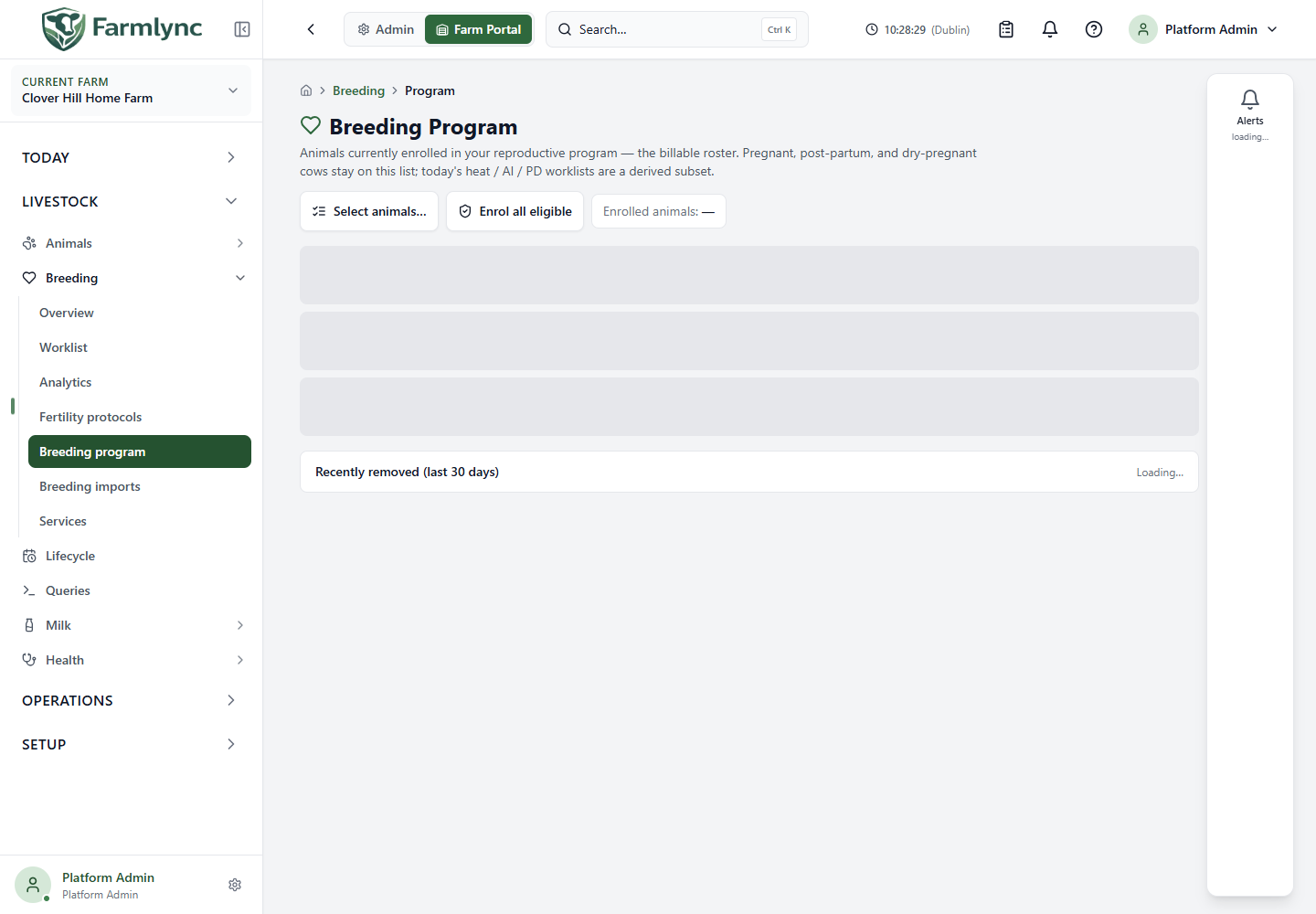
Section titled “Breeding program”Open Livestock → Breeding → Breeding program. This is the reproductive-management roster, not today’s task list and not a list of pregnant animals. Pregnant, post-partum and dry-pregnant females can remain enrolled. The worklist derives the smaller group needing attention today from this roster and its breeding evidence.
How animals enter the programme
Section titled “How animals enter the programme”Farmlync automatically enrols an active female registered at a stage other than Calf. A female calf is not enrolled at registration; the lifecycle transition from Calf to Heifer enrols her automatically when she is active, not marked Do not breed, and not already enrolled. Males are never eligible.
Owners and Managers can also enrol an active female manually. The server accepts an animal only when she is:
- on the selected farm;
- female;
- active;
- not marked Do not breed; and
- not already enrolled.
Age, weight, lifecycle stage, voluntary waiting period and a breeding hold do not prevent programme membership. They affect readiness and work scheduling after enrolment.
Roster and status chips
Section titled “Roster and status chips”The page shows 20 enrolled animals at a time, ordered by tag. Enrolled animals is the full roster count. Each row links to the animal and shows identity, lifecycle stage, days in milk where available, and one summary chip:
| Chip | Meaning on this page |
|---|---|
| On hold | A breeding-hold reason is saved on the animal. Check the animal detail before planning service. |
| Pregnant | Pregnancy state is Confirmed or Late. |
| Bred | Pregnancy state is Bred. |
| Dry | No higher-priority status applies and the lifecycle stage is Dry. |
| Heifer | No higher-priority status applies and the lifecycle stage is Heifer. |
| VWP | Days in milk is below the organisation’s voluntary waiting-period setting. |
| Open | None of the preceding conditions applies. It does not by itself prove that the animal is ready to serve. |
The chip is a scanning aid. Use the worklist or animal detail for the complete readiness decision, including heifer age/weight, individual VWP overrides and active-hold dates.
Select particular animals
Section titled “Select particular animals”Choose Select animals… to open the eligible-animal picker.
- Search matches tag, name or National ID after a short typing delay.
- Results are ordered by tag and show 50 animals per page.
- Ticking animals is retained while you move between pages.
- Select this page selects the visible page only. It does not select every result on every page.
- Enrol selected (n) submits the selected IDs. The result reports animals enrolled and any skipped because their state changed or they were no longer eligible.
Enrol every eligible female
Section titled “Enrol every eligible female”Choose Enrol all eligible for a catch-up or migration. After confirmation, Farmlync finds every active female on this farm who is not DNB and not already enrolled. The eligible records are updated in one database transaction. Existing members are not duplicated.
This action can affect a large herd. Use Select animals… when you intend to add only a known cohort.
Release a hold
Section titled “Release a hold”Release hold clears the animal’s saved breeding hold. The command is restricted to Owners, Managers and Vets. Releasing a hold does not prove that the animal is ready for service; other readiness rules still apply. Review the reason, end date and animal evidence before releasing a clinical hold.
The current roster action does not ask for a release note even though the API can store one. Add the explanatory evidence elsewhere until that control is corrected.
Remove and re-enrol
Section titled “Remove and re-enrol”Remove is restricted to Owners and Managers and asks for confirmation. It marks the programme membership as removed and clears an active breeding hold. Heat, service, PD, calving and dry-off recording remain unavailable for that animal until she is re-enrolled; health and treatment recording remain available.
Open Recently removed (last 30 days) to see up to 50 removal entries, newest first. Each entry shows the animal, removal reason and date. Re-enrol uses the normal eligibility rules. Before using it, confirm that the animal is active, female, no longer DNB and not already enrolled.
Services
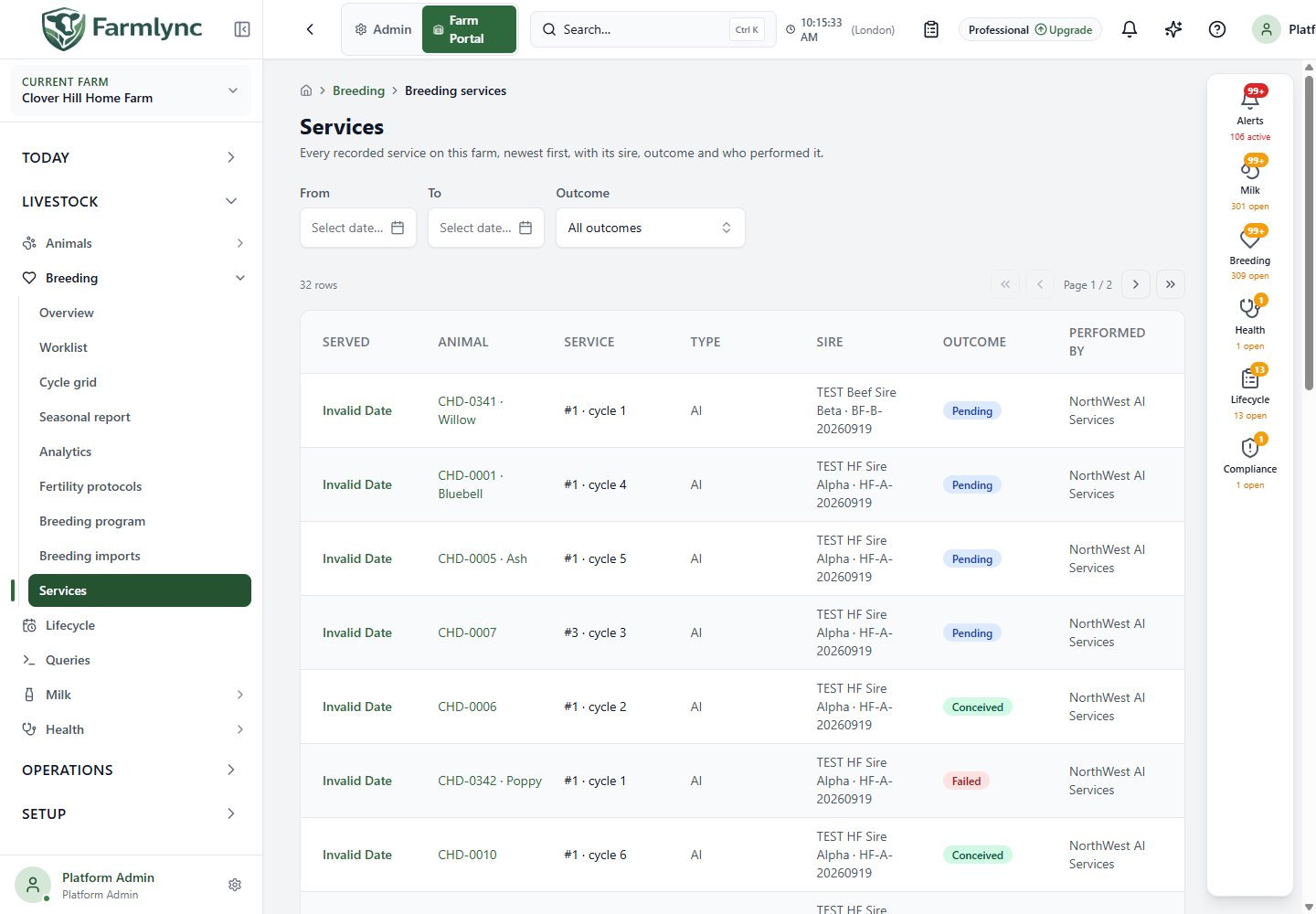
Section titled “Services”Open Livestock → Breeding → Services to audit saved service records across the farm. This page is read-only at list level: new services are recorded from the breeding worklist, animal actions or service form.
Filters and list fields
Section titled “Filters and list fields”The page shows 25 records at a time, newest first. Filters are held in the page URL, so browser Back and a copied link preserve them.
| Control or column | How to use it |
|---|---|
| From / To | Limit the service date range. Clear either value to remove that boundary. |
| Outcome | Select All outcomes or one configured outcome: Pending, Conceived, Failed, Early Loss or Unknown. |
| Served | Service date; select it to open the full service. |
| Animal | Tag and name, linked to the animal detail. |
| Service | Service sequence number and breeding-cycle number where available. |
| Type | The saved service type, such as AI or Natural. |
| Sire | Sire name and straw-batch text when present. |
| Outcome | Current service outcome. |
| Performed by | Saved performer name or identifier. |
If the page says no services match, clear or widen the filters before concluding that the farm has no records.
Service detail
Section titled “Service detail”Open a service to see:
- animal identity and service number;
- service date, type, outcome and the projected expected-calving date;
- straw batch, semen type and any readiness-override reason;
- notes and recorded date;
- linked sire record/name/breed; and
- pregnancy checks linked to this service, including method, result, days post-service, foetus count and expected-calving date.
The service’s Expected Calving value is a projection from the service date and the currently resolved gestation setting. It is not a positive pregnancy diagnosis. Use the linked PD evidence and the animal’s effective expected-calving date for confirmed planning.
Owners, Managers and Vets can:
- Update Outcome — change the service outcome. Conceived sets the animal’s pregnancy state to Confirmed; Pending sets it to Bred; Failed or Early Loss sets it to Open. Unknown leaves the current animal state unchanged.
- Record PD Check / Add Check — open the pregnancy-diagnosis form already linked to this service.
- Delete — soft-delete the service after confirmation. A service with linked pregnancy checks cannot be deleted until those checks are removed. If the service consumed a linked semen straw, deletion returns one unit to that straw’s stock ledger and recomputes the animal’s surviving breeding state.
These actions use the saved row version. If another user changes the record first, refresh and review the current evidence instead of overwriting it.
Breeding imports
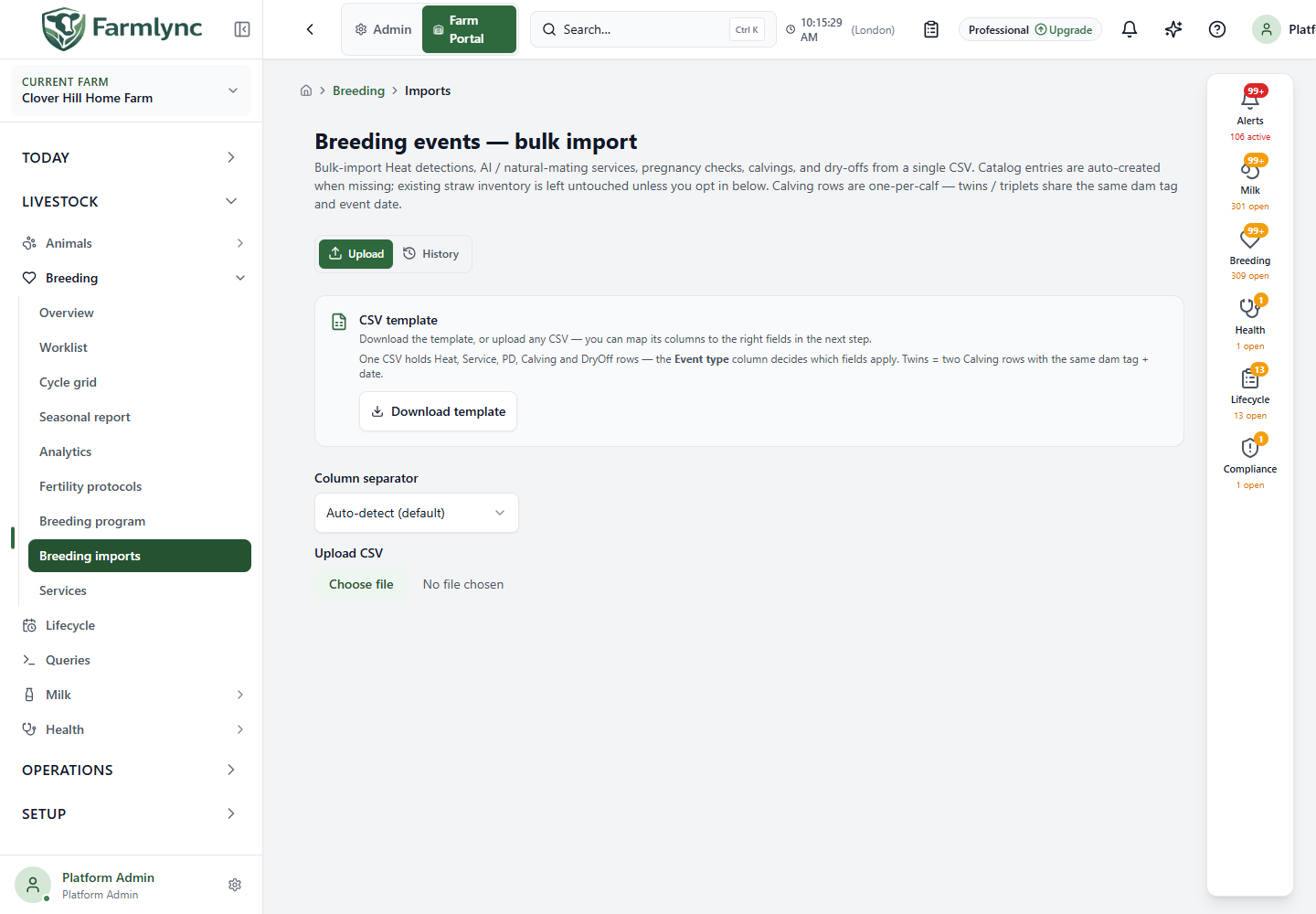
Section titled “Breeding imports”Open Livestock → Breeding → Breeding imports. Owners, Managers and Vets can use one CSV for Heat, Service, PD, Calving, and—on dairy farms—DryOff events. The current server limit is 5,000 rows per file. Split larger files into deliberate, non-overlapping batches.
Choose the operating mode
Section titled “Choose the operating mode”| Mode | Intended use | Forward-looking effects | Straw decrement default |
|---|---|---|---|
| Historical — backfill old data | Paper records or a previous system | Heat/PD alerts and scheduled work remain quiet. Calvings still register calves and update lifecycle and lactation state; dry-offs still perform their normal operational changes. | Off |
| Periodic — recent activity | A regular recent-data upload used instead of individual forms | Uses live batch behavior for alerts, notifications and scheduled work. | On |
The Decrement straw inventory for each matched service checkbox can override either default. It applies only when the imported service matches an existing straw record on this farm.
Review and submit
Section titled “Review and submit”The import screen obtains its columns, labels, controlled values and required-field rules from the server. Map the CSV, inspect the preview and correct invalid rows before selecting Import. Rows are processed in event-date order, with Heat before Service before PD on the same date, so Farmlync can link related records in the same file.
Twins or triplets are represented by multiple Calving rows with the same dam tag and date. Farmlync groups those rows into one calving event with multiple calves.
One accepted file may contain both imported and skipped rows. The result shows:
- total, imported and skipped counts;
- imported/skipped totals per event type;
- downloadable error rows;
- downloadable warnings; and
- straw-batch text that did not match current farm inventory.
An unmatched straw batch does not stop the service from being recorded; the text remains on the service, but no inventory item is linked or decremented. Creating a straw with the same batch number later does not currently back-link that saved service automatically.
Farmlync keeps the same idempotency key after an ambiguous network failure. Retry the unchanged attempt rather than editing the payload immediately. After a completed response, deliberately importing the file again is a new attempt and can create duplicate business events unless the row-level rules reject them.
History
Section titled “History”Choose History to review 20 import sessions per page. The list shows start time, file, mode, imported/skipped/warning counts and status. Open a session to see its file, mode, status and totals and to download saved errors or warnings. Use this evidence before repairing and re-uploading only the failed rows.
Use the Breeding imports field guide for every CSV column, accepted value and event-specific rule.