

Fertility protocols — templates and animal programmes
What this page helps you do
Section titled “What this page helps you do”Fertility protocols organise timed breeding work into repeatable steps. Use them to apply an approved plan to eligible animals and record what actually happened at each step.
Open Breeding → Fertility protocols. A template is a reusable sequence of actions measured from day 0. Applying it creates a separate programme for each selected animal, with its own due dates and progress.
Use the schedule agreed for your farm. Farmlync does not determine a suitable medicine, dose or veterinary treatment from a template’s name.
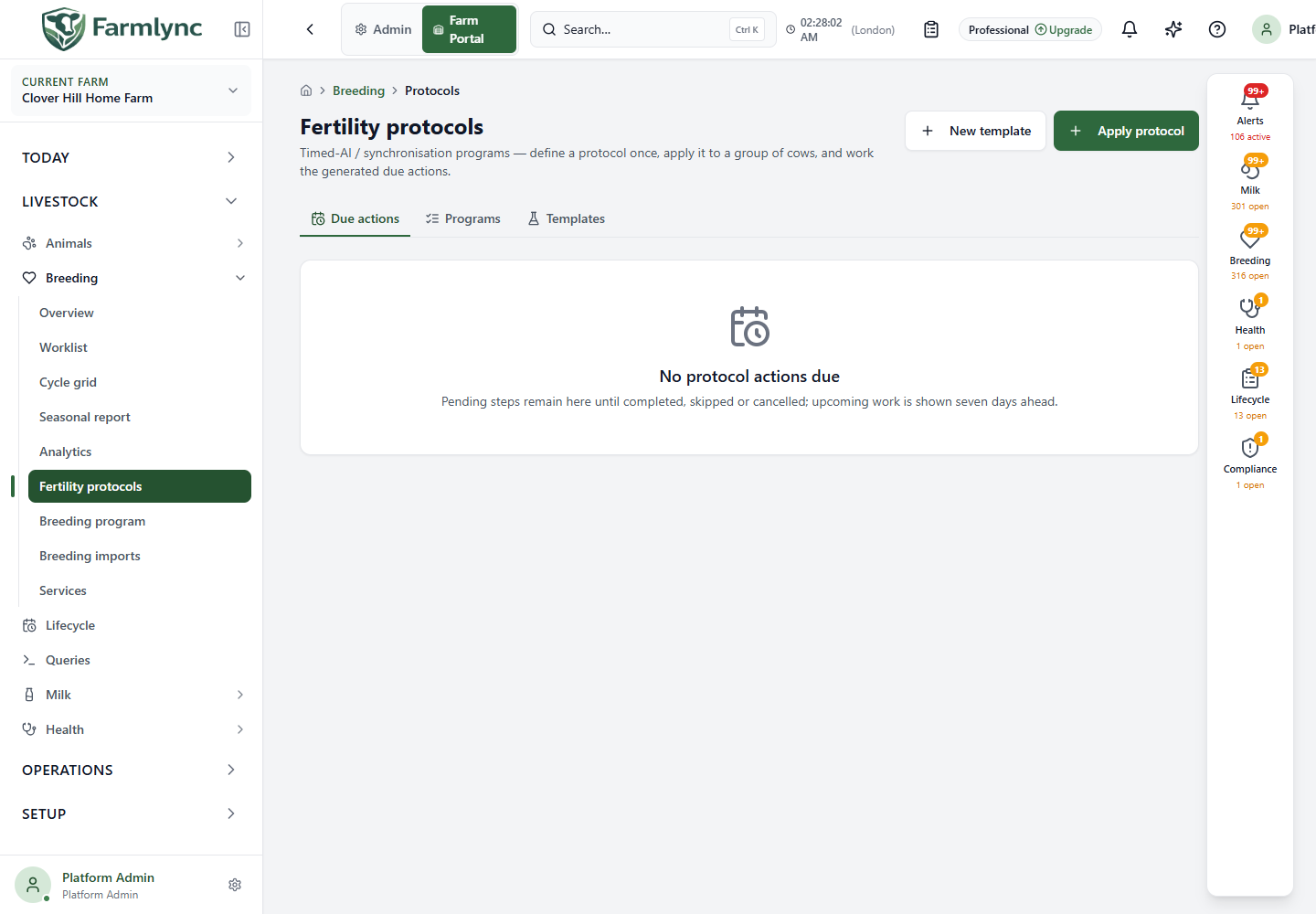
Choose the correct tab
Section titled “Choose the correct tab”| Tab or button | Purpose |
|---|---|
| Due actions | Pending steps in programmes that are still in progress. Includes unresolved overdue steps and steps due within the next seven days. |
| Programs | Review animal programmes, their start dates, steps and status. Starts with In progress selected. |
| Templates | Manage the reusable schedules, including inactive templates. |
| New template | Create a schedule. You must have permission to record breeding events. |
| Apply protocol | Choose an active template, a start date and the animals that should follow it. |
Opening a tab does not apply a protocol or complete work. Users without the required permission can review permitted information but cannot use the recording controls.
Viewing uses your current farm access. Creating or editing templates, applying a protocol, completing or skipping a step, cancelling a programme and deleting a template all require Record breeding events permission. Support sessions remain read-only unless the approved support mode allows the action.
Create or edit a template
Section titled “Create or edit a template”- Select New template, or use Edit beside an existing template.
- Enter a distinctive name and, optionally, a description explaining when the farm uses this schedule.
- Add the steps in your agreed schedule. Enter each day as an offset from the start date.
- Review the actions and product text, then select Save template.
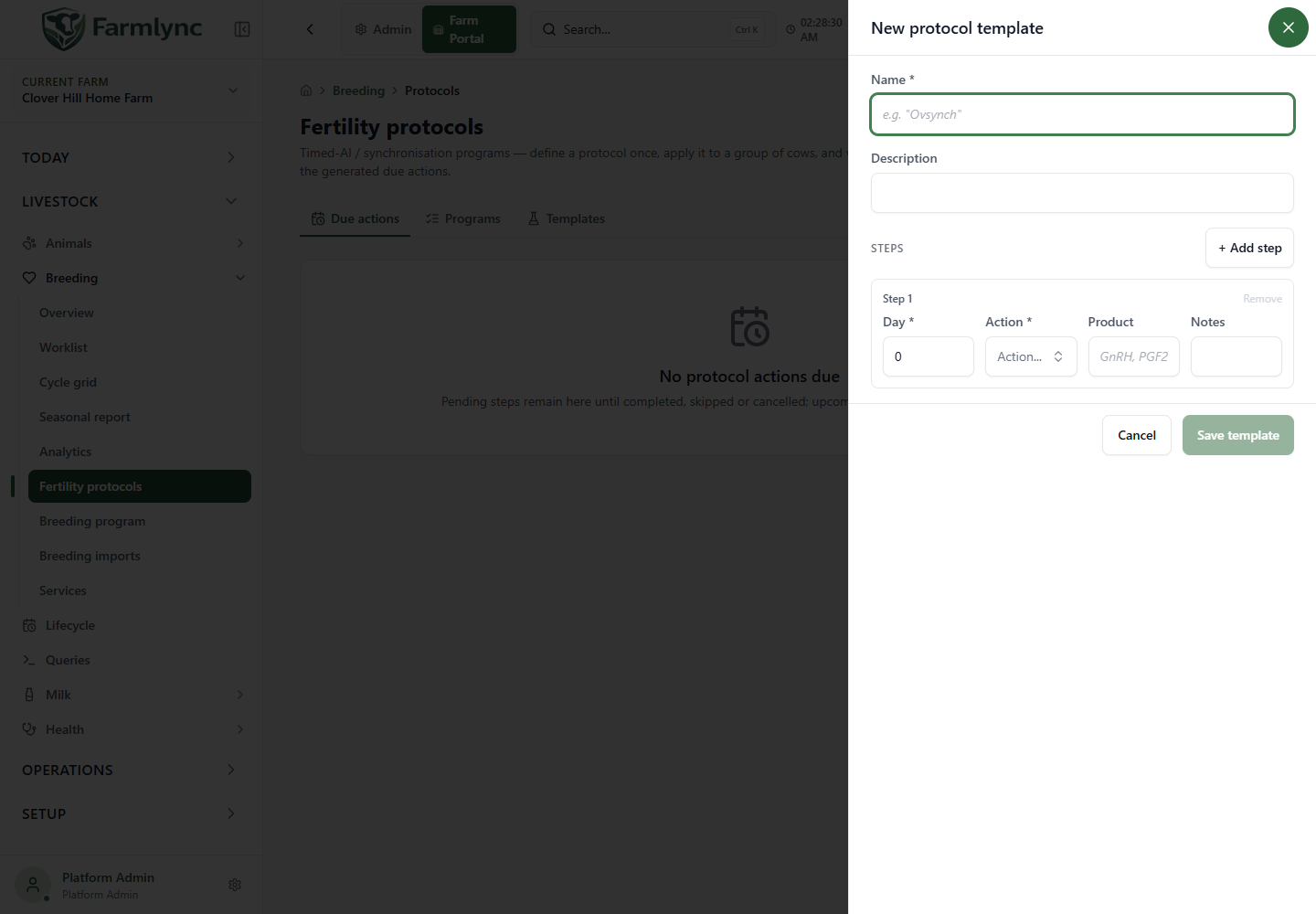
| Field or control | Values and meaning |
|---|---|
| Name * | Required; up to 200 characters. The farm cannot have another template with the same name. |
| Description | Optional; up to 1,000 characters. Describe the purpose or instructions for the schedule. |
| Active | Available when editing. An inactive template cannot be selected for a new application. Existing animal programmes continue independently. New templates are active. |
| + Add step | Add another scheduled action. A template needs at least one step and supports up to 30. |
| Day * | Whole number from 0 to 365. Day 0 is the chosen start date; day 7 is seven days after it. This is not an animal’s age or days in milk. |
| Action * | Choose from the application’s action catalogue: Injection, Device insert, Device remove, Inseminate, Heat watch or Pregnancy check. |
| Product | Optional text, up to 200 characters. This field identifies a planned product; it does not select an inventory batch or deduct stock. |
| Notes | Optional step instructions. Keep them within 500 characters, the server’s accepted limit. |
| Remove | Remove that step before saving. The last remaining step cannot be removed. |
| Cancel | Close without saving the current form. |
Steps are stored in day order. You can have more than one action on a day. When editing, check every remaining step before saving.
What happens to programmes already applied?
Section titled “What happens to programmes already applied?”Each animal programme retains a copy of the template name and steps as they were when applied. Editing a template does not silently rewrite those programmes. The Templates tab shows the number of steps and the number of programmes in progress so you can assess the consequences of a change.
Deleting a template requires confirmation. Already-applied programme snapshots remain available; deleting the reusable template does not undo completed work.
Apply a protocol to animals
Section titled “Apply a protocol to animals”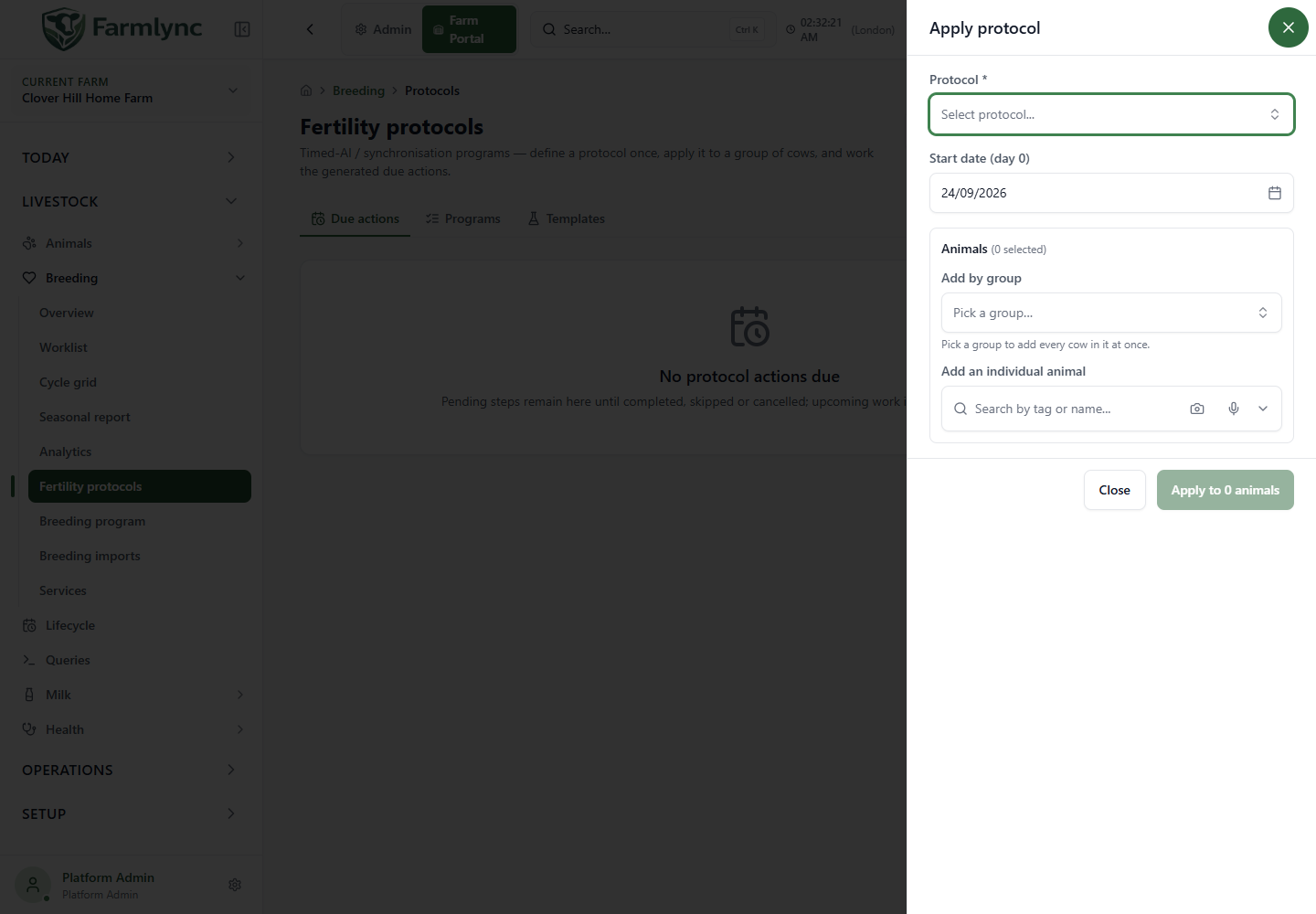
| Control | How to use it |
|---|---|
| Protocol * | Select an active template. Review its displayed steps before continuing. |
| Start date (day 0) | Defaults to today in the farm’s timezone. Choose the day the programme actually starts. Each step’s due date is calculated from this date plus its day offset. |
| Add by group | Add the animals from a farm group. This is a shortcut for selection, not a guarantee that every animal will qualify. |
| Add an individual animal | Search by the identifiers offered by the animal picker. Add more than one animal if the programme starts on the same day for them. |
| Selected animal chips | Review the list and remove any animal that should not receive the programme. |
| Apply to … animals | Submit the selected template, date and animals. A request supports up to 500 animals. |
| Close | Leave without applying the current selection. |
Farmlync checks each selected animal. It must be an active female on this farm, enrolled in the breeding programme, not marked Do Not Breed and not in the Calf stage. An animal with a qualifying conceived service since its last calving, or another fertility programme already in progress, is skipped. An animal that is no longer available on the farm is also skipped.
Before submitting a group, also remove every animal that is on a breeding hold. The individual breeding search normally hides held animals, but group selection can add them and the current application check does not reject a hold. A successful application therefore does not override or clear the hold and is not evidence that the planned intervention is allowed.
The application does not impose the normal voluntary waiting period as a blanket restriction here: a planned preparation schedule may begin before the normal service date. Eligibility to apply a checklist is not confirmation that an intervention is appropriate.
After submission, read the applied and skipped results. A batch may succeed for some animals and skip others with individual explanations. If all were applied the form closes; when animals were skipped, use the displayed result to decide the next step rather than applying the whole list again blindly.
Scheduling example
Section titled “Scheduling example”For a template containing a day-0 action, a day-7 action and a day-10 check, a start date of 1 October produces due dates of 1, 8 and 11 October. This is an illustration of the date calculation, not a recommended clinical protocol.
Work through Due actions
Section titled “Work through Due actions”Each card identifies the animal, programme, action, planned product where supplied, day offset and due date. Overdue means the due date is before today in the farm’s timezone. Old pending work remains visible until it is dealt with; it does not disappear because it is more than a week late.
- Select the animal identity to open its record.
- Select Done only after performing the step. This page records completion at the current time; it does not first ask for a historical completion date or note. If the work happened earlier, preserve the real evidence in the appropriate breeding or treatment record rather than using the checklist time as the clinical event time.
- Select Skip when the step should not be performed. The current page does not ask for or save a reason from this screen, so follow the farm’s separate note process when the reason matters.
Done updates the programme checklist. It does not create a medicine administration, stock deduction, withdrawal period, breeding service or pregnancy result. Use the appropriate treatment, service or pregnancy-check form to record those facts as well.
There is a useful link in the opposite direction: recording a breeding service or pregnancy check can automatically complete the closest matching pending Inseminate or Pregnancy check step when the recorded event is within two days of its due time. Check the programme afterwards instead of assuming an event outside that window has completed the step.
Review or stop an animal programme
Section titled “Review or stop an animal programme”In Programs, use the status selector to show In progress, Completed or Cancelled; clear the selection to see all statuses. Results are paged, with 20 programmes per page and Previous/Next controls when needed.
Expand or inspect a programme’s steps to see the day, action, product, due date and current step status. Pending steps offer the same Done and Skip actions. Completed and skipped steps are no longer due work.
A programme becomes Completed when every step is either completed or skipped. Therefore, Completed means nothing is pending; it does not mean every intervention was performed or that the animal became pregnant.
To stop the remaining schedule, use the programme’s cancel control and confirm. Its status becomes Cancelled and its remaining steps leave the due worklist. The current confirmation does not collect a cancellation reason, so programmes cancelled here normally show no reason. Cancellation does not erase treatments or breeding events already recorded elsewhere.
If something does not look right
Section titled “If something does not look right”| Situation | What to check |
|---|---|
| No template in Apply protocol | Check that the template is saved and active on the selected farm. |
| Animal skipped | Read its reason. Check farm, sex, lifecycle stage, breeding enrolment, Do Not Breed, pregnancy and existing in-progress programmes. |
| Today’s step missing | Check the programme start date, day offset and status. Completed, skipped or cancelled work is not pending. |
| Template edit did not change an animal’s dates | Applied programmes keep their original snapshot. Review the animal programme separately. |
| Programme completed but no service or treatment visible | Checklist completion does not create those records. Record the actual event in its own form. |
| Save rejected | Check required fields, duplicate name, day limits, step count and note length. A displayed control does not override the server’s permission and validation checks. |
For the broader reproductive workflow, continue with Breeding and reproduction and the Cycle Grid.