

Feed plans
What this page helps you do
Section titled “What this page helps you do”Operations → Feed → Plans assigns a saved ration to a physical pen for a date range. It is the intended schedule used for planning and variance comparison. A plan does not create a feeding event or consume inventory. Changing pen membership changes which animals the pen covers, so check the current roster as well as the plan.
Find and understand a plan
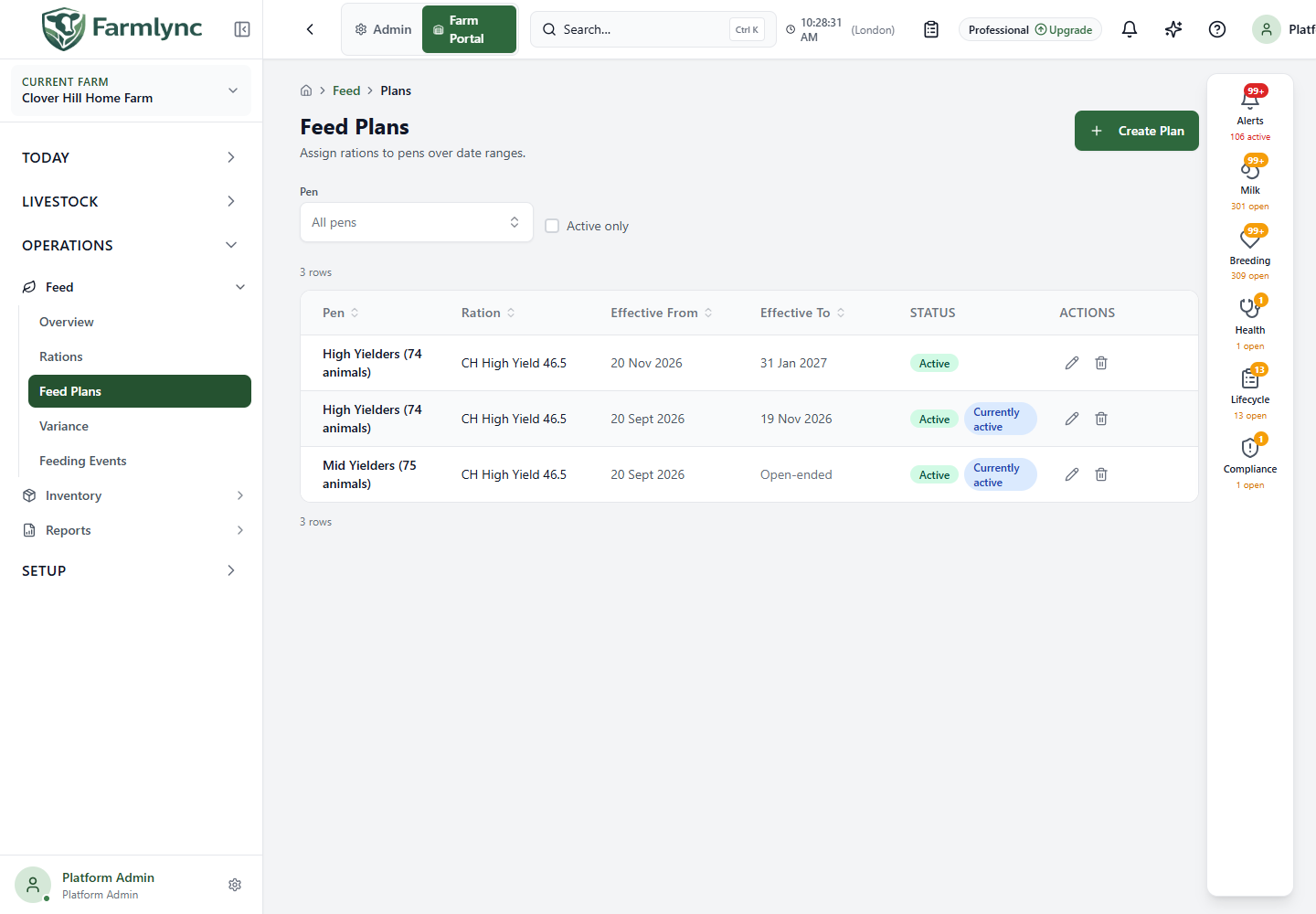
Section titled “Find and understand a plan”Use the Pen filter to show one physical pen, and Active only to hide inactive plans. The list has 20 rows per page and shows Pen with current animal count, Ration, Effective From, Effective To (or Open-ended), Status and actions. Active is the plan’s saved status. Currently active appears only when the plan is active and today’s farm-local date lies within its effective range; a future active plan will not carry that second badge. If the list fails to load, use Retry.
Create a plan
Section titled “Create a plan”Choose Create Plan. The form asks for:
| Control | What to enter or check |
|---|---|
| Pen | Required physical pen. The picker shows its current animal count. If missing, use Create new pen, complete that form, then return to the plan. |
| Ration | Required active ration. Use Rations first if the intended recipe is absent. |
| Ration summary | Read the ingredient Fresh kg, DM %, DM kg and cost, scaled to the pen’s current headcount. If headcount is unavailable or zero, the preview shows the per-animal recipe (currently labelled per cow/day). Missing DM or price is marked; an incomplete price is not a full cost estimate. |
| Effective From | Required farm-local start date; defaults to today. |
| Effective To | Optional farm-local end date. Leave blank for an open-ended plan; it cannot precede the start date. |
| Feeds per day | Whole number 1–12, default 1. It sets the suggested portion when recording a feeding; for example, two feeds suggests 50% of the daily ration each time. |
| Notes | Optional instructions, up to 1,000 characters. |
Choose Create and wait for the saved confirmation. An error saying an overlapping plan exists means the pen already has a conflicting schedule; review its dates rather than creating a duplicate. If pens or rations fail to load, use Retry; the form blocks an unsafe save. Check the resulting pen, ration, dates and status in the list.
Edit, review history or delete
Section titled “Edit, review history or delete”Use the row’s Edit plan action. The Pen is fixed. Change the active Ration, effective dates, feeds per day or notes, then choose Update. To reassign a different pen, delete the old plan and create a new one after checking its history and effect on the schedule. The editor’s Change history lists some superseded ration/date versions when present; notes-only and frequency-only changes are not added to that history. A version conflict offers Reload latest plan; review that version before re-entering your change. An overlap error requires checking the other plans for the same pen.
Editing a plan or editing the ingredients of a ration can change plan-derived historical figures. Recorded feeding events remain unchanged, but not every historical plan calculation has an immutable recipe snapshot. Export or otherwise retain required evidence before making a retrospective correction, and review Feed Variance afterwards.
Delete plan asks for confirmation and cannot be undone from the page. A concurrent change can prevent deletion; reload before retrying. Neither edit nor delete rewrites feeding events already recorded. Use Feeding events to record actual delivery, then compare it with the plan in Feed variance.