

Start Work — run a stable daily round
What this page helps you do
Section titled “What this page helps you do”Start Work turns selected jobs into a stable working round. Use it when moving through animals or tasks in sequence, recording completed work and deferring exceptions without rebuilding the list after each action.
Open Today → Work → Start Work, or the dashboard’s Start Today’s Work. A work session freezes the current overdue and due-today jobs into a stable list. New jobs that arise afterwards do not change that session’s target. Upcoming work remains available on the ordinary Work page.
Before you start
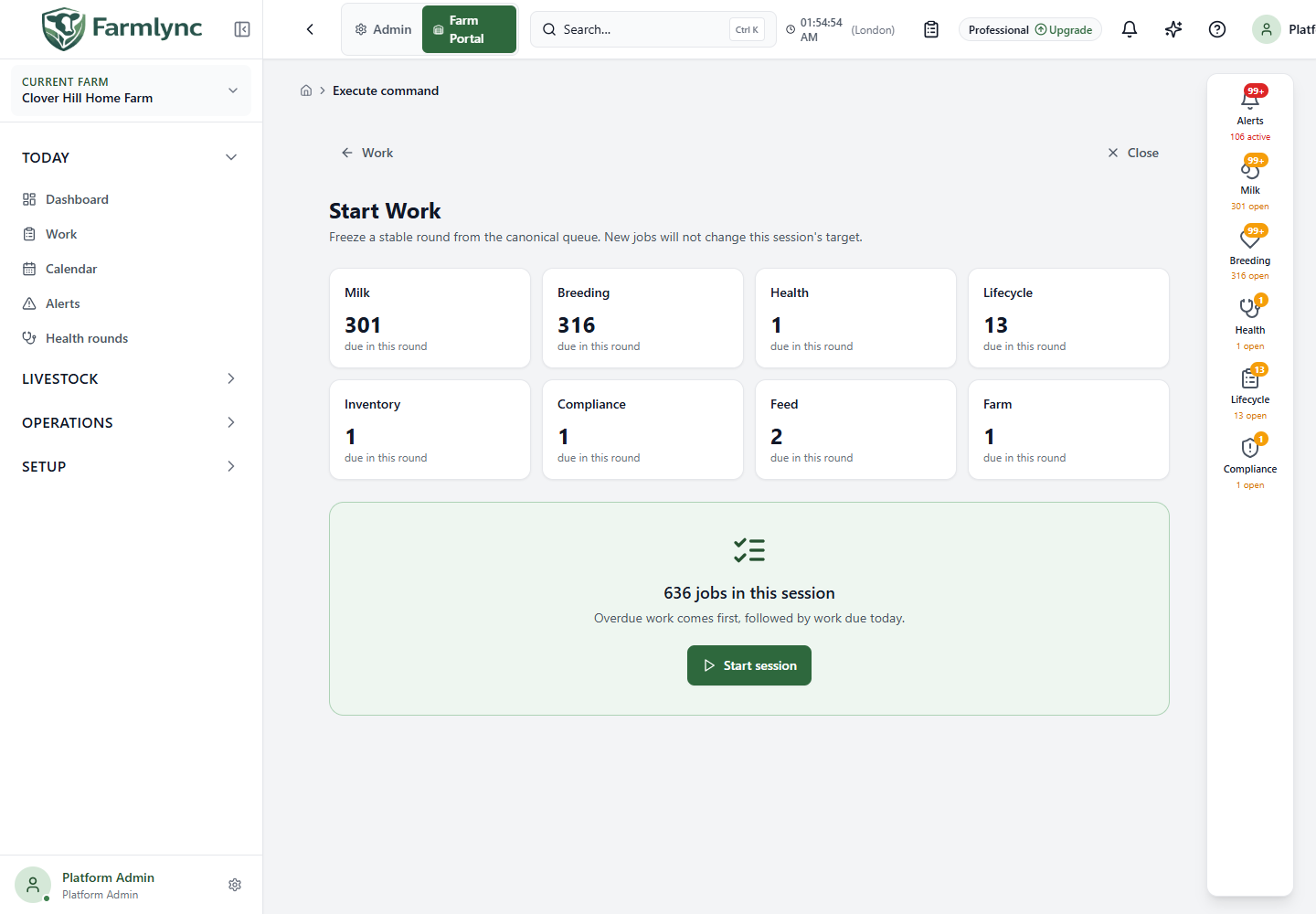
Section titled “Before you start”The area cards show how many jobs are due in the proposed round. The total below them is the number of jobs, not a count of unique animals. If One or more work sources are partial appears, the round may be incomplete.
Choose Start session to freeze the round. Work or Close returns to the ordinary list without starting it. A session with no due jobs goes straight to its summary.
Work through the session
Section titled “Work through the session”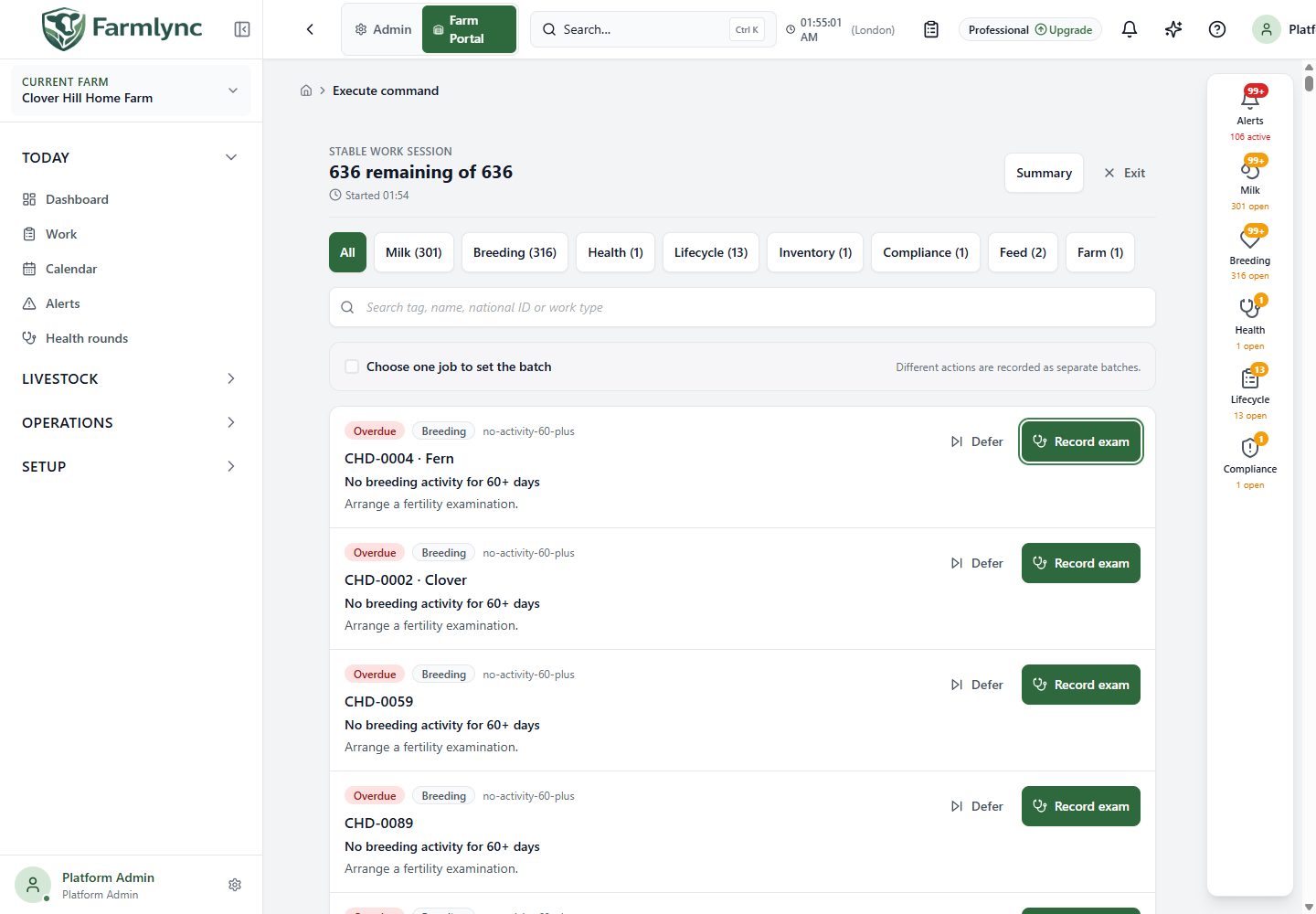
| Control or figure | Explanation |
|---|---|
| … remaining of … | Remaining excludes both recorded and deferred jobs. The starting total stays fixed. |
| Started | When this browser session began. |
| Area buttons | Limit the visible jobs to an area. Their counts are remaining jobs in that area. Changing area clears batch selection. A round launched for one particular area stays within that area. |
| Search session | Search tag, name, national ID or work type. / focuses this field. The search narrows the visible list, not the frozen starting total. |
| Animal link | Open the animal record. The work session can be restored when you return in the same browser. |
| Recording button | Open the actual farm form for that job. The job becomes recorded only after the operation succeeds. |
| Source/review link | Open the source screen when the job needs review rather than an inline recording form. Opening a link alone is not proof that work was completed. |
| Defer | Skip this job for this round. It does not change the original due date, complete an event or snooze an alert. |
| Summary / Finish session | End the working view and review the session totals. Remaining work is not automatically completed. |
| Exit | Opens a confirmation before discarding this local session. Farm records already saved remain saved. |
Selecting a batch
Section titled “Selecting a batch”Tick one job to establish the batch type. Select all … compatible visible jobs selects matching jobs in the current area/search view, up to the action’s maximum. If the visible jobs have different actions, the control first asks you to choose one job. Different actions or task variants must be recorded separately.
The selected-job bar offers Clear and Run batch. Review the count and animals before opening the batch form. A partial success records only the successful animals; unsuccessful ones are not marked completed by the session.
Searching hides nonmatching rows but is not the same as clearing the existing selection. Use Clear when you want to start a new selection.
Read the summary
Section titled “Read the summary”| Summary tile | Meaning |
|---|---|
| Recorded | The corresponding recording action was accepted. Some alert-backed effects can still be confirming in the background. |
| Deferred | You skipped these jobs in this round. They still need review or completion in farm records. |
| Unresolved | Starting jobs you neither recorded nor deferred. |
Still outstanding previews up to ten unresolved jobs; it is not necessarily the complete outstanding list. Choose Refresh and start another to fetch current work and build a new round. Choose Return to Work to clear the local round and return to the main Work page.
Leaving and returning
Section titled “Leaving and returning”Farmlync saves the round for the current browser tab. Reopening the same farm and session scope in that tab can restore it automatically. This is a convenience for that tab, not a shared team task assignment or a guarantee that another tab or device will have the same session.
If the page warns that it could not save or restore the session, the current round can still be used while the page stays open, but do not rely on it surviving a reload. Saved treatments, milk records and other farm events are separate from the browser’s session list.
To exit deliberately, select Exit → Exit session. The confirmation explicitly says that recorded farm facts are not affected. Discarding a session is not a way to undo a treatment, milk record or breeding event.
Example: interrupted farm round
Section titled “Example: interrupted farm round”You start with 40 jobs, save 12 and defer 3. The header shows 25 remaining. If you finish now, the summary is 12 recorded, 3 deferred and 25 unresolved. A fresh round is calculated from current farm records; it can include the deferred jobs again because Defer did not change their source.