

Inventory overview
What this page helps you do
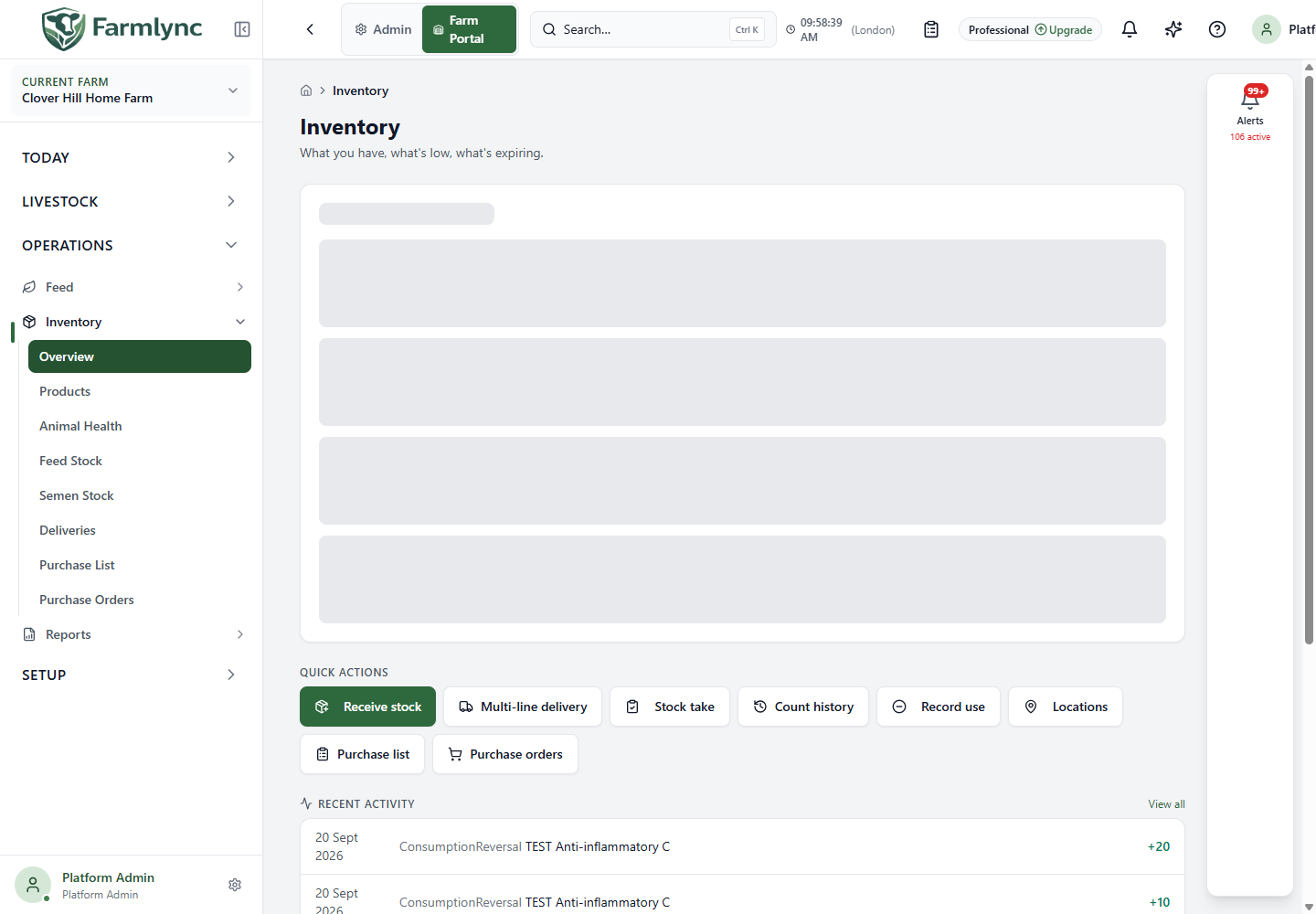
Section titled “What this page helps you do”Operations → Inventory → Overview is the inventory action hub. It brings urgent stock work, common recording actions and the latest movements into one page. Use it to decide what needs attention, then open the underlying product, batch, count or purchase record. The overview is not a physical stock count and does not replace batch-level evidence.
Needs attention
Section titled “Needs attention”Needs attention uses the same Inventory work source as the farm dashboard and looks ahead 30 days. It can include low, expired, quarantined and unreconciled stock work. The summary previews up to six task groups; open the relevant work rather than assuming the preview is the full queue. Resolve the underlying stock condition, then confirm that the work item clears. A warning can reflect recorded data that needs correction as well as a physical shortage.
Quick actions
Section titled “Quick actions”Receiving, stock use, stock takes, deliveries and location maintenance require the farm’s Manage inventory permission, normally held by an Owner or Manager. Purchase and count-history pages can still be opened by a user who has inventory viewing permission, although their change controls apply their own permission checks. The service checks permission again when an action is submitted.
| Action | What it does |
|---|---|
| Receive stock | Opens a single-product receipt. Saving creates incoming stock and its batch evidence. |
| Multi-line delivery | Opens the full-page receipt for at least two products on one supplier docket. See Deliveries. |
| Stock take | Starts or resumes a frozen physical-count session. See Stock takes. |
| Count history | Opens completed and in-progress count sessions. The history detail is read-only; resume counting from Stock take. |
| Record use | Deducts physical stock use that was not already captured by treatment, vaccination or feeding. |
| Locations | Opens the controlled stock-location list. It appears when you may manage inventory. |
| Purchase list | Opens working replenishment proposals. See Purchase list. |
| Purchase orders | Opens placed orders and their remaining quantities. See Purchase orders. |
Receive one product
Section titled “Receive one product”Choose Receive stock. Select a category and required Product. If it is missing, Not in your products? Search the platform library opens the library-first add flow without discarding the receipt. A row shortcut elsewhere can preselect and lock the product.
| Control | What to enter |
|---|---|
| Filter by category | All, Health, Feed or Supplies, subject to the organisation’s enabled features. This filters the product picker; it does not change a product’s saved category. |
| Product | An active, inventory-tracked farm product. Search by its saved name or code. |
| Batch Number / Lot Number | The supplier’s identifiers, each up to 100 characters. At least one is required when Farmlync marks a clinical product as traceable. |
| Supplier (from register) | An optional saved tenant party with the Supplier role. Selecting it fills the supplier name. |
| Supplier Name | Optional free text up to 200 characters for an ad-hoc supplier. A selected saved supplier remains authoritative. |
| Supplier Reference | Optional invoice, docket or purchase-order reference up to 200 characters. |
| Received Date | Required farm-local calendar date, initially the farm’s current date. Use yyyy-mm-dd through the date control. |
| Expiry Date | The labelled calendar date. It is required for products whose clinical receipt policy requires it. |
| Storage location | Required in this form. Farmlync initially prefers the product’s saved location and otherwise the farm default. Only an active same-farm location can be saved. |
| Receipt notes | Optional delivery-condition, label or docket notes up to 1,000 characters. |
Farmlync currently accepts a future received date and does not compare expiry with received date. Treat Received Date as the date stock physically arrived and check that Expiry Date is sensible before saving; the documented controls do not correct an impossible chronology for you.
For quantity, choose how the delivery is written:
- Total quantity is one positive amount in the product’s base unit.
- Packs requires a positive number of packs, positive quantity per pack and a purchase-unit label such as bottle, bag or drum. Farmlync displays the calculated base-unit quantity; check it against the docket.
For cost, select Total line cost or cost Per [base unit] and enter a non-negative amount when known. Farmlync derives the other amount from the quantity: invoice totals are stored to two decimal places and per-base-unit cost to six. Keep the entry within an ordinary invoice range; the current form does not show the database’s maximum numeric range before submission.
Receipt evidence accepts one PDF, JPEG/JPG, PNG, WebP, HEIC or HEIF file up to 10 MB for the docket, invoice or product label. Farmlync inspects the uploaded file rather than trusting only its file name or declared type.
Choose Receive Stock to save and close, or Save & receive another when entering a separate next receipt. The second action is unavailable when receiving directly against a purchase-order line. If the stock saves but evidence upload is uncertain, the form can offer Retry evidence upload; retry rather than creating another receipt. Verify the product’s balance and batch after saving.
Record physical use
Section titled “Record physical use”Choose Record use only for stock use that a treatment, vaccination or feeding record did not already capture. Select the category and required tracked Product. Stock Batch is optional: leaving it as Auto (FEFO) lets Farmlync consume available batches with the earliest expiry first; selecting a batch confines the deduction to it.
Enter a positive Quantity no greater than the confirmed availability. The panel shows the available and after-use balances and, for automatic FEFO, how many batches it expects to use. It blocks saving while availability is loading, unavailable or insufficient.
Choose a required Reason from the current Farmlync list: spillage, damage, sample testing, routine non-animal use, unrecorded clinical use or other. Notes are optional up to 500 characters in the portal, but required when Reason is Other. Choose Record Consumption, wait for confirmation, then check Recent activity or the movement history. Do not duplicate a stock deduction already created by a clinical or feeding workflow.
Maintain stock locations
Section titled “Maintain stock locations”Choose Locations. Add a required location name of up to 120 characters; names are unique within the farm without regard to case, and the farm’s first location automatically becomes its default. Each row shows its operationally available batch count. The adjacent units on hand value is a raw sum across all products in that location; do not use it as a physical total when products have different units such as litres, bags and doses. Open product or batch views for unit-specific balances.
Rename changes future selection labels while existing receipt and stock-take snapshots retain their original wording. Make default changes the preferred location. A non-default location can be Deactivated or Reactivated; the default location cannot be deactivated from this panel. The current action does not block a location that still contains active batches, so review and move or resolve its stock before deactivation.
Read recent activity
Section titled “Read recent activity”Recent activity shows the latest eight stock movements. Each row shows farm-local date, transaction type, product and signed quantity. + means stock came in and − means stock went out; use the type and underlying evidence to understand why. View all opens Stock movements. If the panel reports that movements are unavailable, use Try again; an empty state is shown only when the request succeeds with no recent movements.
Continue to Products to find or manage catalogue definitions. Use Stock Batches and Stock movements for batch-level availability and the full ledger once those records exist.