

Finding and selecting animals
What this page helps you do
Section titled “What this page helps you do”Animal selection controls identify the exact animals an action will affect. Use them to avoid typing a tag into the wrong record or applying a batch operation to an unintended group.
Farmlync has two different animal controls. An animal search box chooses one animal for a form. Animal selection in the farm header builds a list for work involving several animals. Selecting an animal does not record a treatment, movement or other farm event.
Choose one animal in a form
Section titled “Choose one animal in a form”- Open the animal search box and type a tag, name or identifier.
- Wait for the matching list, then check the animal’s tag and name.
- Select the row. Its identity replaces the empty search box.
- To change it, use the clear control and search again.
The suggestions depend on the job. A milk form can restrict its list to animals eligible for milking; a breeding or calving form can use its own eligibility list. An animal missing from one form is not necessarily missing from the farm. Check its status, sex and lifecycle information on its animal record.
The general search returns a limited set of suggestions. Narrow your search when the animal you need is not in that set. The keyboard arrow keys move through suggestions; Enter chooses the highlighted match and Escape closes the list.
Where available, the camera, microphone or NFC controls provide another way to enter an identifier. Availability depends on the browser and device. A scan or spoken identifier with exactly one match can select it automatically: check the selected animal before continuing. A withdrawal warning on a milk form is a reason to check the animal’s milk restrictions, not permission to put that milk into the tank.
Open the multiple-animal selection window
Section titled “Open the multiple-animal selection window”Use the animal-selection control in the farm header. Its count shows how many animals are already selected.
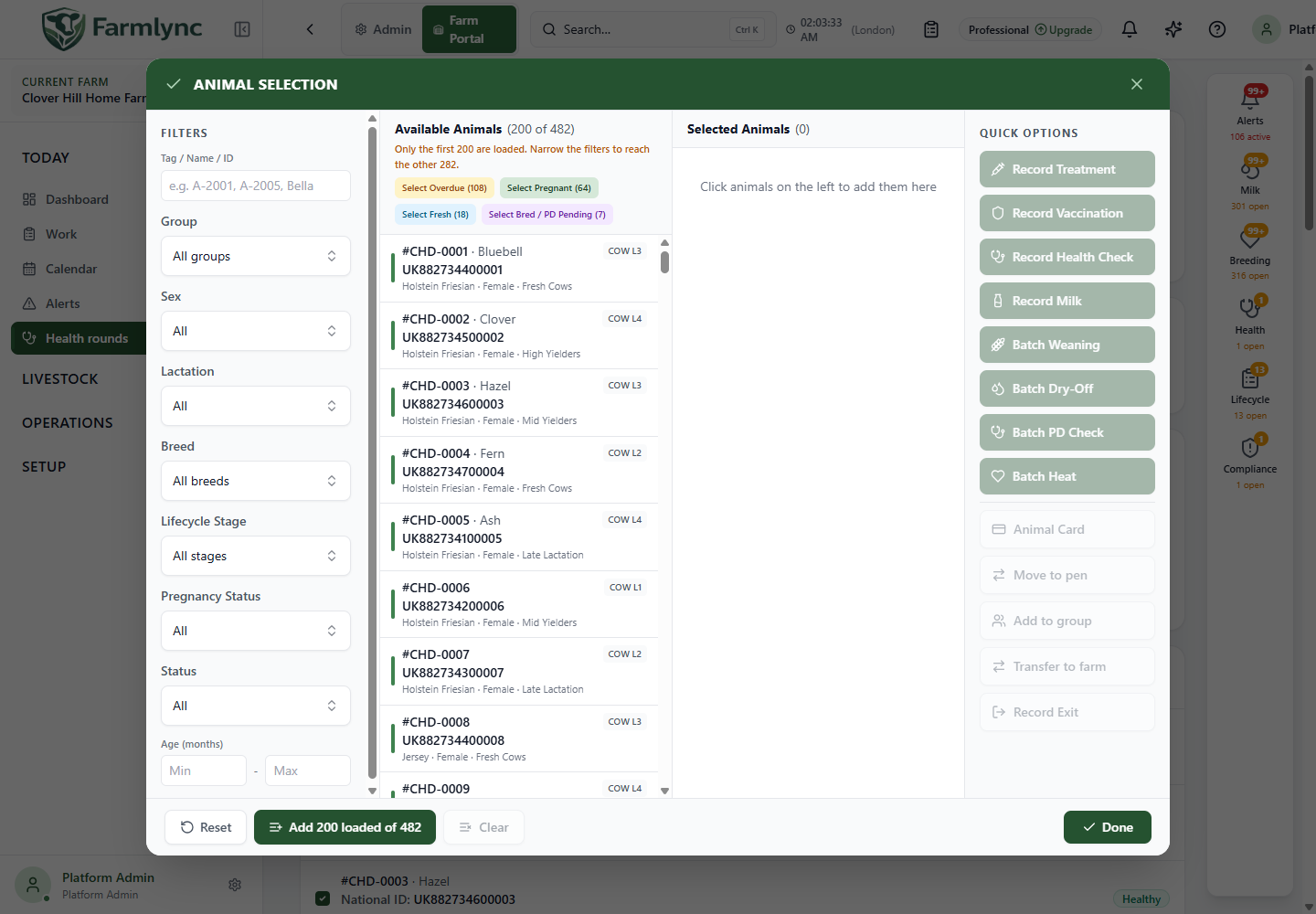
On a wide screen the window has four parts: Filters, Available, Selected and Quick options. On a small screen, use the corresponding tabs. Done closes the window and keeps the selection; it does not carry out a farm action.
Filter controls
Section titled “Filter controls”| Control | What to enter or select | What it changes |
|---|---|---|
| Tag / Name / ID | An animal identifier or name; the control also accepts comma-separated search values | Narrows the available list. Check the returned identities rather than assuming every typed value matched. |
| Group | A saved animal group | Restricts the search to that group. The group choices come from the farm. |
| Sex | A value offered in the list | Restricts animals by recorded sex. |
| Lactation | Maiden/0 or the offered lactation numbers up to 10 | Filters the animals loaded into this window by lactation number. |
| Breed | A breed offered by the catalog | Restricts animals by recorded breed. |
| Lifecycle stage | A stage offered by the list | Restricts animals by their current lifecycle stage. |
| Pregnancy status | A status offered by the list | Restricts animals by their recorded pregnancy status. |
| Status | A status offered by the list | Changes which animal-status records are included. |
| Minimum / maximum age | Non-negative numbers of months | Filters the loaded list by age in months. Use these as a selection aid and check the animal’s birth date where precise age matters. |
| Reset filters | No value required | Restores the filters. It does not empty the Selected list. |
The available list loads at most 200 animals at a time. Lactation and age filtering operate on that loaded list. For a large herd, first narrow the server search with a tag, group, sex, breed, lifecycle, pregnancy or status filter. A filtered list is not proof that no other matching animal exists beyond the loaded set.
Add, remove and check animals
Section titled “Add, remove and check animals”- Click an available animal to add it to Selected.
- Click a selected animal to remove it.
- Use the available-list select control to add its eligible displayed animals. It does not fetch and select the whole herd.
- Use Clear all to empty the selection.
- Changing a filter leaves previously selected animals in the Selected list. Review both panels before starting an action.
The selection supports up to 500 distinct animals, but an individual action can have a smaller limit or exclude animals that are not eligible. Selections remain while navigating or reloading the same browser tab. Switching to another farm clears the previous farm’s selection. Start each new job by checking the selected count and identities; an earlier selection can still be present.
Quick selection shortcuts
Section titled “Quick selection shortcuts”These shortcuts add matches from the animals currently loaded. They are not whole-farm reports.
| Shortcut | Animals it selects |
|---|---|
| Select Overdue | Animals recorded as Open and more than 60 days in milk. Here “overdue” refers to this breeding-oriented selection; it does not mean every animal with any overdue task. |
| Select Pregnant | Animals with Confirmed or Late pregnancy status. |
| Select Fresh | Animals with a recorded days-in-milk value of 30 or fewer. |
| Select Bred / PD Pending | Animals with Bred pregnancy status. |
Start work from the selection
Section titled “Start work from the selection”Quick options include treatment, vaccination, health check, milk recording, weaning, dry-off, pregnancy diagnosis, heat, pen movement, group membership, farm transfer and animal exit. Animal card requires exactly one selected animal. The choices available to you also depend on permissions and action eligibility.
- Build and review the Selected list.
- Choose the required quick option.
- Read the affected-animal count and confirmation. A disabled option or explanation means the current selection cannot run that action as offered.
- Confirm to open the relevant form.
- Complete that form’s required fields and review the final animals before saving.
The selection confirmation opens the action; it is not the final save. For example, selecting 12 animals and choosing Record Vaccination does not create 12 vaccination records until the vaccination form is completed and submitted.
If Farmlync reports that selected animals are no longer available, refresh and review the remaining selection. Do not substitute a different animal merely to make the batch proceed.
Example: prepare a group vaccination
Section titled “Example: prepare a group vaccination”Choose the intended group, check the animals in Available, and add the required animals. Review Selected for animals left from an earlier job. Choose Record Vaccination, then check the vaccine, date, dose and performer in the vaccination form. Review the result after saving, including any animals that were not recorded successfully.