

Work — find, filter and complete jobs
What this page helps you do
Section titled “What this page helps you do”The Work board is the farm’s queue of due and overdue jobs. Filter it to the work you can perform, then open or complete the relevant task so nothing is lost in a dashboard count.
Open Farm Portal → Today → Work. Check Current farm before recording anything. This page brings together jobs from several parts of Farmlync: an animal may need a pregnancy check, a treatment follow-up or milk recording; other jobs concern feed, stock or compliance.
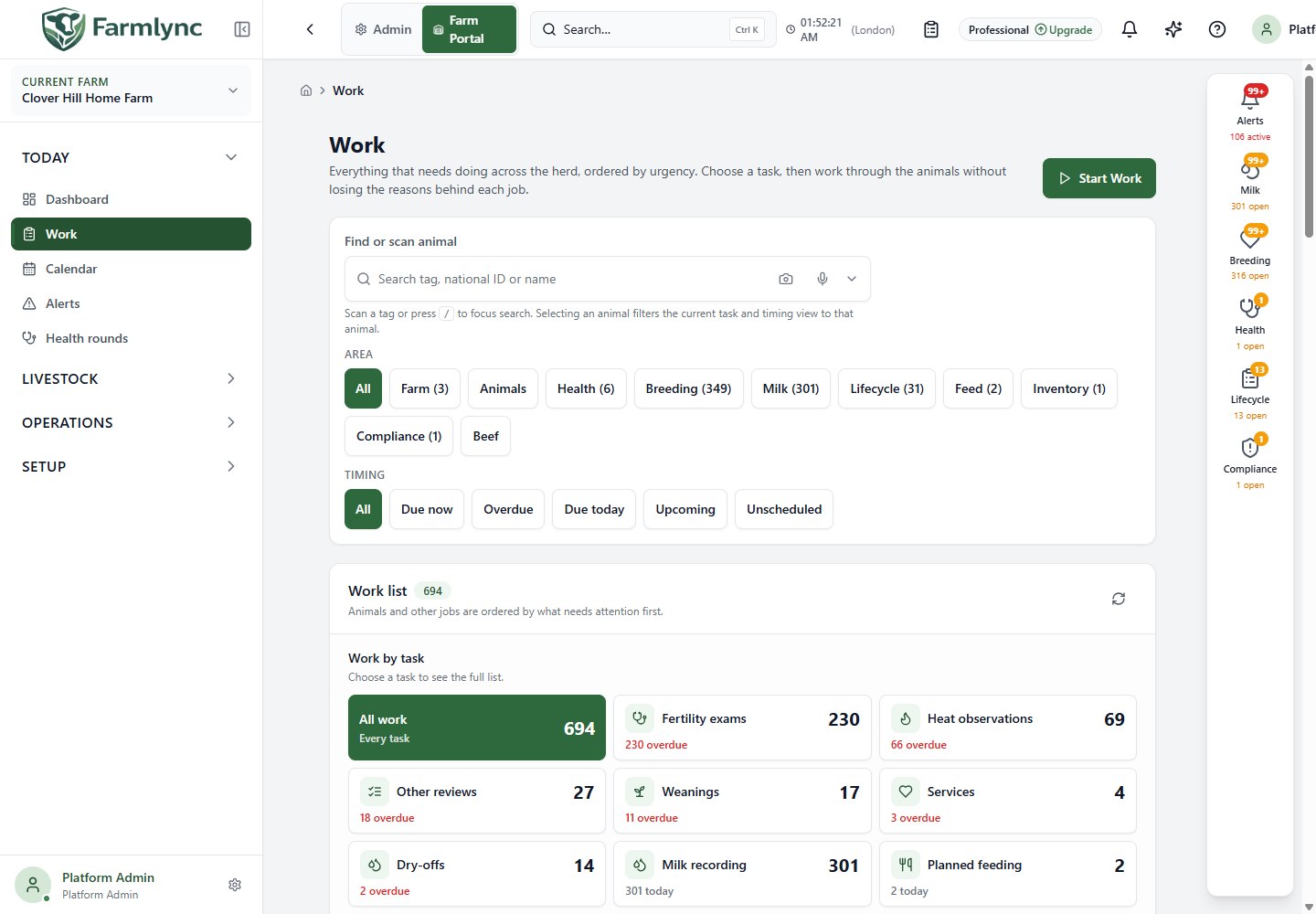
Clover Hill Home Farm example. Counts change as the farm’s records and dates change; these are not targets for your farm.
Choose which work to see
Section titled “Choose which work to see”| Control | What to do | What changes |
|---|---|---|
| Find or scan animal | Search by tag, national ID or name, then select the correct animal. The / shortcut focuses this search. |
Restricts the current area, task and timing view to that animal. Choosing an animal does not clear the other filters. |
| Area | Select Farm, Animals, Health, Breeding, Milk, Lifecycle, Feed, Inventory, Compliance or Beef; choose All to remove the area restriction. | The list and task choices change. Moving to another area clears the previous task selection so, for example, Dry-offs does not remain selected under Health. |
| Area count | Read the number beside an area. | Shows work in that area, rather than just rows visible on the current page. A page filled with breeding work does not mean there is no milk work. |
| Timing → All | Show work without a timing restriction. | Includes upcoming and unscheduled work as well as work due now. |
| Due now | Use this for today’s priorities. | Includes overdue jobs and jobs due today. |
| Overdue | Review missed due dates. | Restricts the list to overdue work. |
| Due today | Concentrate on today’s due dates. | Excludes older and future jobs. |
| Upcoming | Plan ahead. | Shows future-dated work and leaves the Due now restriction. |
| Unscheduled | Review work that has no scheduled due date. | Shows work without a date; it is not a list of completed jobs. |
| Include upcoming | Appears when you arrived in the Due now view. | Removes the Due now restriction. |
| Specific task → Clear | Appears when a link has opened a particular work type. | Removes that specific work-type filter. |
| Refresh work | Select the circular-arrow button in the Work list header. | Requests the latest work for this view. It does not create or complete records. |
Changing an Area or Timing filter updates the list in place. Pagination moves through the list in pages of 25. A filter change returns to the first page.
Use the Work by task cards
Section titled “Use the Work by task cards”Each card represents a kind of task, such as Fertility exams, Heat observations, Services, Milk recording, Weanings or Dry-offs. The large number is the number of jobs in that task group. The smaller line explains the urgency: for example, 12 overdue · 4 today.
Select a card to see its jobs. All work removes the task selection. Where a dashboard preview offers more tasks, expand it to see the remaining task cards; Show less collapses them again.
Task counts are counts of jobs, not necessarily distinct animals. The same animal can legitimately need more than one kind of work. Conversely, several reasons for the same action can be grouped into one job.
Read a job row before acting
Section titled “Read a job row before acting”| Row item | Meaning and use |
|---|---|
| Urgency badge | Overdue, Due today, Upcoming or Unscheduled. |
| Area badge | The part of farm work to which the job belongs. |
| Due date | The job’s due date, when available. Farm dates are used, even if you are viewing the farm from another country. |
| Animal identity | Tag/name and, where configured, national ID. Select it to open the animal overview without losing the work list. |
| Title and instruction | What needs doing and why it is on this list. Read both before selecting a form. |
| Supporting reason | The source condition behind the job. Expand more reasons when several observations or schedules support the same action. |
| Action button | Opens the appropriate recording form, such as Record milk or Record exam. Some jobs instead link to their source page. |
| Disabled action | The action is unavailable for the current user or current record state. Its explanatory hint may identify why. Selecting a job does not grant permission to perform it. |
Opening a form does not complete the job. Enter the actual event details, review validation messages and save. Successful recording refreshes the affected work. A reminder can take a short time to disappear where its source is updated in the background.
Record a compatible batch
Section titled “Record a compatible batch”Use a batch when the same supported operation applies to several animals. You must still enter the required information in the batch form.
- Choose an Area and task to make the list manageable.
- Tick one eligible row. That first selection establishes the batch type.
- Tick further compatible rows. Incompatible actions or vaccine variants cannot join this batch.
- Use Select all … compatible on this page to select the eligible rows on the displayed page. A partially filled checkbox means some of those rows are selected.
- If offered, use Select all … matching to include matching work beyond this page. Where the action has a size limit, the button instead says Select first … of ….
- Check the selected count, then choose Run batch.
- Complete the batch form. Check its success/failure results before moving on. In a partially successful batch, the uncompleted animals still need attention.
Clear removes the selection without changing farm records. Changing the work filters also clears the selection. Ordinary page navigation can retain selected rows, so check the count before running a batch.
For vaccination work, Vaccine / protocol appears when several groups are available. Choose the vaccine being administered before selecting a batch. Different vaccines are recorded separately.
Understand incomplete or empty results
Section titled “Understand incomplete or empty results”| Message | What it means | What to do |
|---|---|---|
| No matching work | Nothing matches the current filters. | Remove animal/task/timing filters before concluding that the whole farm has no work. |
Partial, or a count ending in + |
One or more sources are incomplete or unavailable. The number can understate the workload. | Read the named source warning and refresh. Do not treat the number as a complete farm total. |
| All matching jobs cannot be selected safely | A complete, current batch could not be established. | Refresh and retry, or work with the visible verified jobs. |
| Work changed while selecting the batch | Jobs changed between the count and the batch selection. | Refresh, review the new list and select again. |
| Batch limit message | The selected action accepts only the displayed maximum at once. | Complete that batch, then select the remainder. |
| Connection/permission error | The list could not be retrieved or the action is not permitted. | Use Retry for a transient failure; ask your farm administrator if access is missing. |
Worked example: morning milk recording
Section titled “Worked example: morning milk recording”Choose Milk → Due now → Milk recording. Check the session described on each row. Tick a compatible animal, select the remaining compatible rows, then Run batch. Enter the real yield for each animal; do not accept a previous yield simply because it is prefilled. Review the saved and failed rows. Return to Work and refresh if necessary.
For a stable round that does not acquire new jobs while you are working, use Start Work and execution mode.