

Record milk for one animal
What this page helps you do
Section titled “What this page helps you do”A milk entry records one measured animal milking. Use it to put the correct quantity, session and quality results on the animal’s history and check whether milk is saleable or withheld.
Open Milk → Record → Record Milk. You can also open a recording form from the animal or a milk job in Work. This guide covers the single-animal Record milk form; batch recording has different controls.
Before starting, check the selected farm, recording unit and milking session. Enter what was actually recorded at the milking. A previous value offered by the form is a suggestion, not a new measurement.
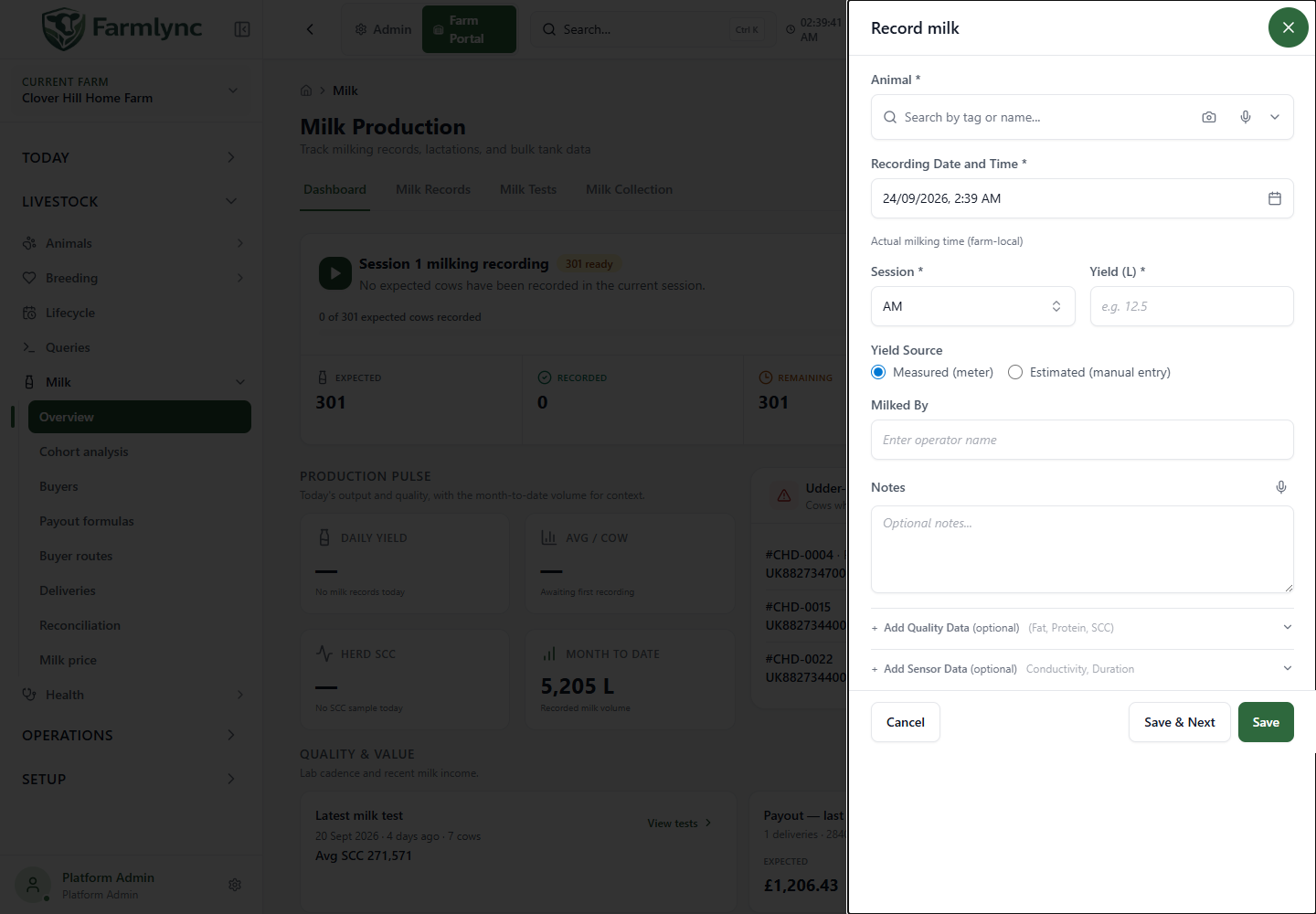
Main fields
Section titled “Main fields”| Field or control | How to complete it |
|---|---|
| Animal * | Search for the milking animal. If opened for a specific animal, the selection is fixed. Use the displayed identity to avoid recording against a similarly named cow. |
| Recording Date and Time * | Enter the actual milking date and time in the farm’s timezone. It starts with the current farm-local date and time. A future recording day is rejected. |
| Session * | Choose AM, PM, Night, Session 4 or Session 5, limited to the farm’s configured sessions per day. Check the suggested value before saving. |
| Yield (kg) / Yield (L) * | Enter the amount in the unit shown beside the field. The application converts to its stored weight using the configured milk density where required. Do not convert it yourself and then enter the converted value under the wrong label. |
| Yield Source | Measured (meter) is the default. Select Estimated (manual entry) when the amount is an estimate. Typing a genuine meter reading manually does not make it estimated. |
| Milked By | Optional operator name, initially taken from the signed-in user’s name where available. Up to 100 characters in this form. This does not change which signed-in account saves the record. |
| Notes | Optional context. Keep within 1,000 characters, the server limit. The microphone appends dictated text when the browser supports it; review the transcription. |
| Save | Save the record and close after success. |
| Save & Next | Save, keep the date/time/session/operator, then clear the animal and measurements for another entry. |
| Cancel / Close | Close without saving the milk form. Separately saved health actions are not undone. |
The session suggestion uses farm-local time: before noon it selects AM, before 18:00 it selects PM where available, and later it selects Night where available. Farms with fewer sessions get their highest available session instead. The form does not automatically switch to the next session because you have already recorded one.
Quantity limits
Section titled “Quantity limits”The single-entry form accepts a numeric yield from 0.1 to 99.9 in its displayed input. The server also requires the converted amount to be between 0.1 and 99.9 kg. Consequently, the highest accepted litre value can be lower than 99.9 L depending on the configured density. If the server reports the converted amount is outside its limit, check the quantity and unit; do not split one milking into duplicate records to bypass the check.
Previous records and automatic filling
Section titled “Previous records and automatic filling”After selecting an animal, Farmlync retrieves its latest records for the same session. The yield may fill from the latest one. The message Filled from last recording · tap to edit identifies this behaviour. Replace it with today’s measured amount where different.
The context badges show the last quantity and, where available, days in milk (DIM). The badge called 5-day avg is currently the average of up to five recent records for that session, not necessarily five consecutive calendar days. Missing recordings are not inserted as zeros.
The Recently milked this session strip, when present, lists up to ten animals recorded today in the selected session. Tapping one selects the animal. Despite the strip’s “re-record” wording, Save does not overwrite an existing active record for that animal/date/session. To correct a saved quantity, open the existing record’s edit action instead.
Optional quality and sensor measurements
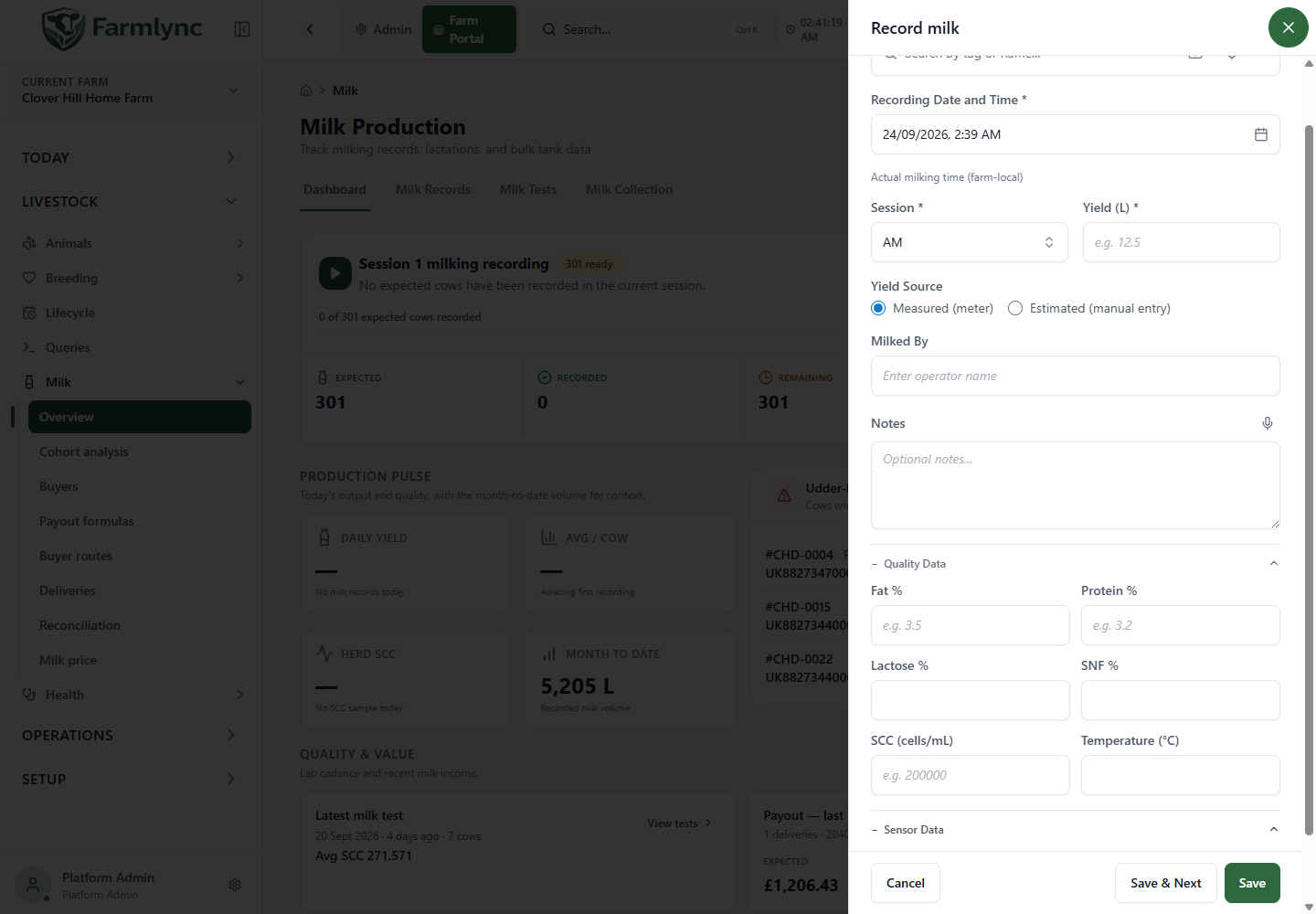
Section titled “Optional quality and sensor measurements”Open Add Quality Data or Add Sensor Data to reveal the fields. Leave an unmeasured value blank; zero is not a suitable substitute for an unknown result.
| Field | Accepted value |
|---|---|
| Fat % | 1.0–9.0 |
| Protein % | 1.0–6.0 |
| Lactose % | 2.0–6.0 |
| SNF % | 5.0–12.0. SNF means solids-not-fat. |
| SCC (cells/mL) | Positive whole number of cells per millilitre. Enter 200000 for 200,000 cells/mL, not 200. |
| Temperature (°C) | 0–50 in this form. |
| Conductivity (mS/cm) | 2.0–15.0 |
| Duration (seconds) | Whole number from 1 to 3,600. For five minutes, enter 300. |
Opening Quality Data can copy the last record’s quality measurements automatically. Prefill from last record repeats that action. Check every populated value and clear anything that was not measured or is not valid for the current record. Reopening the section can copy those old values again.
Collapsing a section only hides its controls; it does not remove entered values from the submission.
Understand the on-form warnings
Section titled “Understand the on-form warnings”These are comparisons to help you review an entry, not diagnoses:
| Message or cue | Calculation used by this form |
|---|---|
| Difference from last | Entered quantity minus the latest same-session quantity. Shown when the absolute difference is at least 0.1. |
| Difference from average | Entered quantity minus the average of the recent same-session records. Shown from an absolute difference of 0.5. |
| Moderate drop | At least 20% below that average, but not a 30% drop. |
| Severe drop | At least 30% below that average. May offer a health-check shortcut. |
| Unusually high | At least 50% above that average. Check the meter entry and animal identity. |
| High SCC | An entered SCC above 200,000 cells/mL. May offer Record Udder Health Check. |
The thresholds used for saved Alerts can differ from these local form hints. Saved yield-drop evaluation uses the preceding seven farm-local dates for the same session and the farm’s configured alert threshold. Do not expect an on-form warning and an alert count to match exactly.
Where offered, Record Health Check opens a separate form with the animal and reason filled in. After a check, Need treatment? Record now opens the separate treatment form. Review and save those forms only for work actually performed. Saving a health check or treatment does not save the unsaved milk entry, and cancelling the milk entry does not reverse a health record already saved.
Withdrawal screening and the save result
Section titled “Withdrawal screening and the save result”An animal under milk withdrawal still needs its production recorded. Farmlync checks the recorded milking against the withdrawal evidence and keeps affected production out of the saleable allocation.
After saving, read the notification:
- Recorded as saleable milk means the recording was allocated to saleable production by this screening step. It is not a buyer collection or laboratory approval.
- The full quantity is held from sale (drug withdrawal) means the milk was recorded but allocated as discarded for drug withdrawal. Follow the physical segregation/disposal process on the farm; a software record cannot divert the milk itself.
An actual time gives the screening a specific milking instant. Where an entry has no actual time, the application uses the relevant session or day window rather than assuming a precise safe instant. Batch recording uses this broader window because it does not collect a time for each cow.
Milk saving can update lactation totals, dashboard summaries, work and alerts. Tank collection, redirection and buyer delivery remain separate records with their own checks.
Check the saved entry
Section titled “Check the saved entry”- Open Milk Records on the Milk page.
- Filter to the recording date/session if necessary.
- Confirm the animal, quantity, source and any quality values.
- Check withheld/saleable information and the save notification.
- If the record is wrong, use its correction action. Do not create a second active record for the same animal/date/session.
A backdated entry is linked to the lactation covering that date when one exists, rather than automatically joining today’s active lactation. If there is no covering lactation, recording milk does not invent a calving or start a new lactation. Use the appropriate lifecycle or missing-lactation workflow to correct the underlying history.
Common errors
Section titled “Common errors”| Error or symptom | Next step |
|---|---|
| Record already exists | Review and edit the existing active entry. A previously voided entry can be replaced, but an active one cannot be duplicated. |
| Future recording date | Change to the actual completed milking date. |
| Animal unavailable or ineligible | Check the farm and selected animal. The server rejects non-female, inactive or Calf animals on this single-record path. |
| Invalid session | Check the farm’s sessions-per-day setting and choose an offered session. |
| Quantity outside range | Check the displayed unit, decimal point and converted-weight limit. |
| Unable to load farm configuration | Use Retry and wait for the configuration before saving. |
| Historical values are absent | Enter the real measurement. Lack of history is not a reason to invent a previous value. |
| Permission or concurrent safety error | Read the message, refresh the relevant records and retry only after confirming the current farm access and state. |