

Animal record, profile and identity
What this page helps you do
Section titled “What this page helps you do”An animal’s full record gathers its profile, identity history and operational tabs. Use it to confirm you have the right animal and make a traceable profile or identifier correction in the appropriate place.
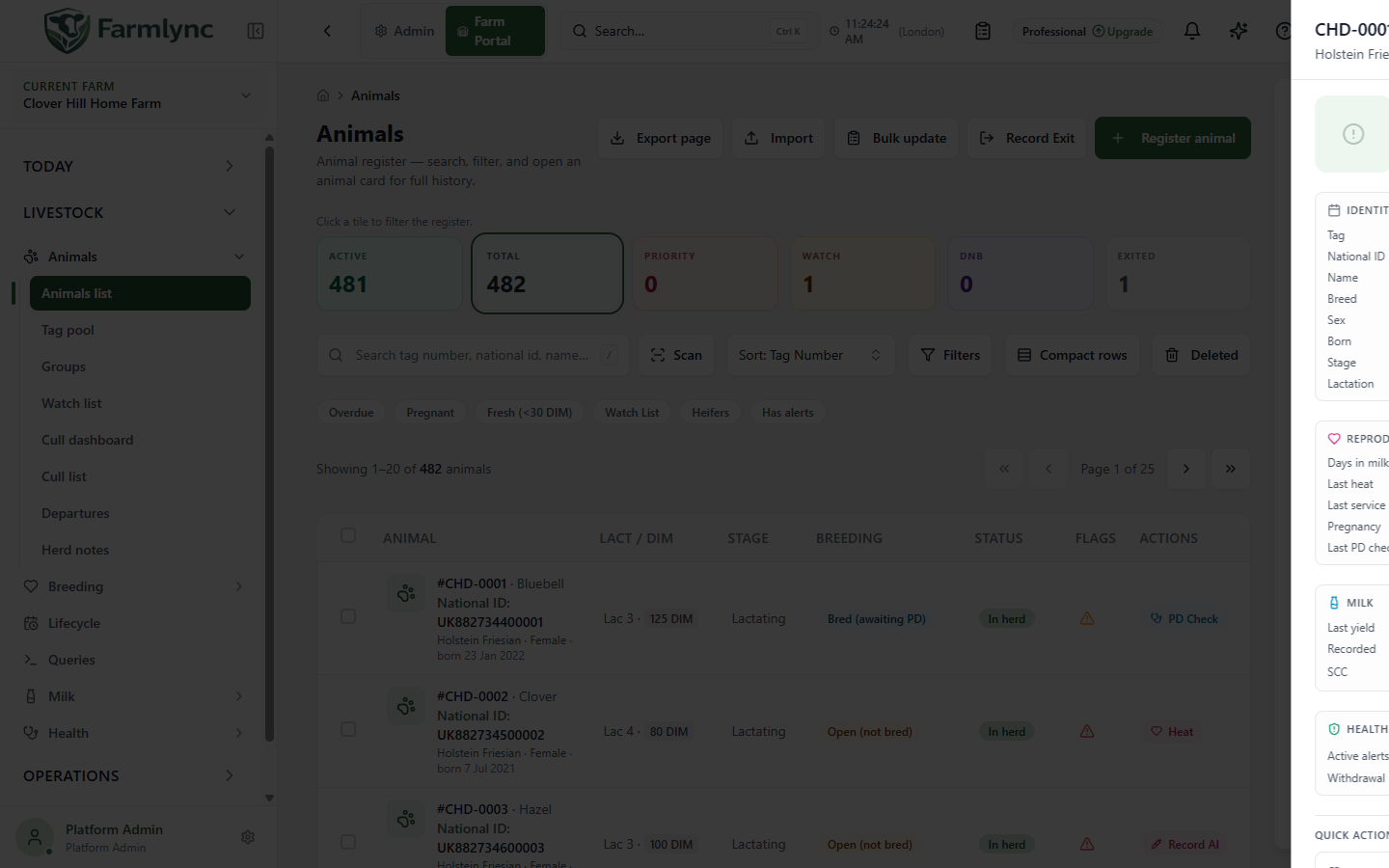
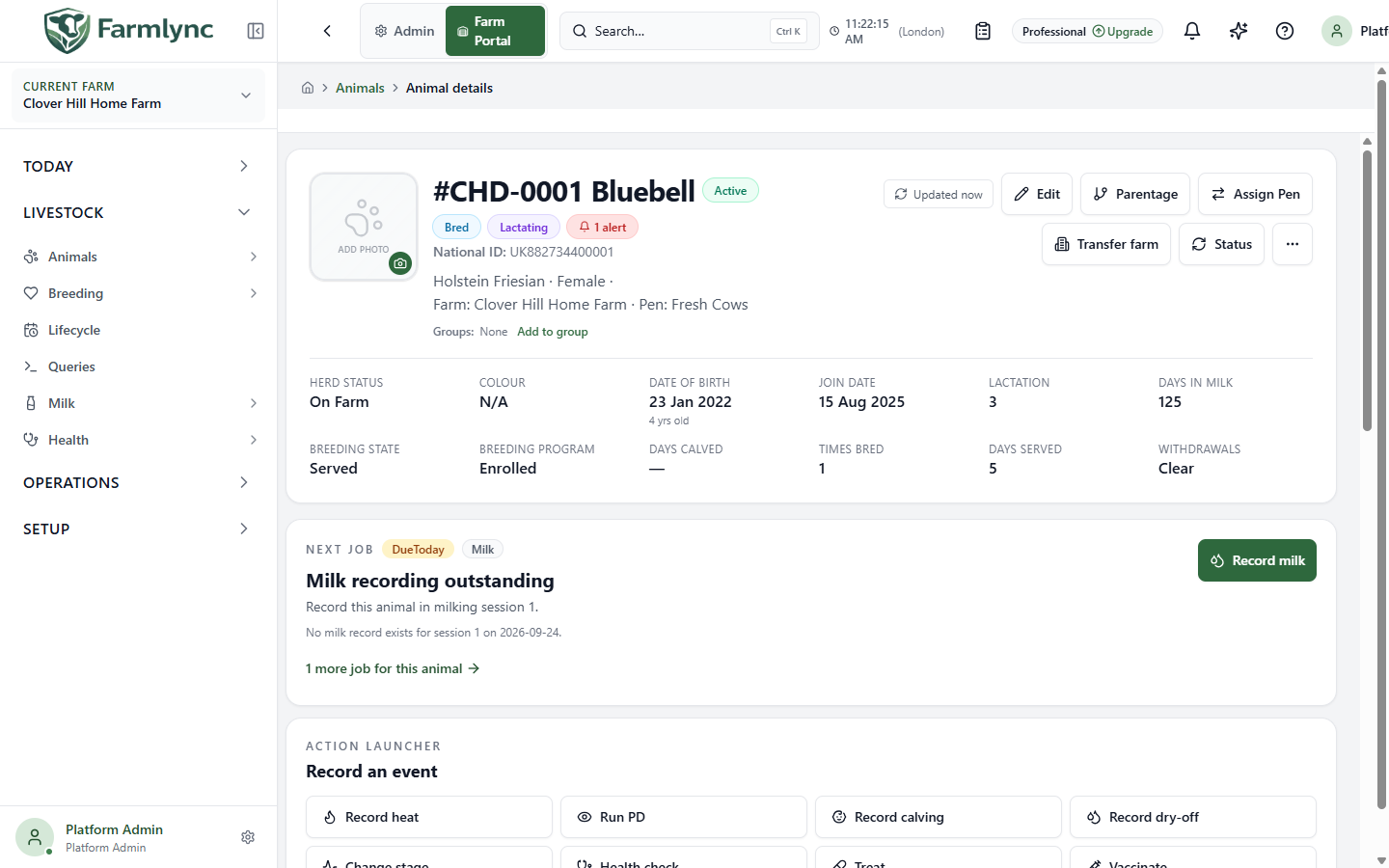
Open Livestock → Animals → Animals list, find the animal by tag, name or official identifier, then select its row. This first opens a quick-view drawer. Choose Open full animal page at the bottom of that drawer for the complete record and its tabs. Check the current farm and tag in the header before recording or editing anything. The header also shows breed, sex, farm, pen, group chips, applicable registry status and active-alert count. On a Mixed farm, an authorised manager can use the production-type chip to classify the animal as Dairy or Beef. A registry-status badge reports the integration’s state; changing a profile field does not mark a registry submission as accepted.
Use the Animals-list quick view
Section titled “Use the Animals-list quick view”Selecting a row in Animals list opens a read-oriented drawer without leaving the register. Use it to confirm the animal and its current operational state before opening a form. The drawer loads one compact overview and derives age, days in milk and current withdrawal against the selected farm’s local date.
| Section | What it shows |
|---|---|
| Identity | Photo when available; tag, applicable official ID, name, breed, sex, birth date and calculated age, current lifecycle stage and lactation number. |
| Reproduction | Calculated days in milk, last and expected calving, last heat, last service, pregnancy state and the most recent PD result/date. None recorded and Unknown mean that the overview has no corresponding evidence. |
| Milk | Latest yield, session and recording date plus latest SCC. SCC is green below 200,000 cells/ml, amber from 200,000 to below 400,000, and red from 400,000. It is the latest reading, not an average or diagnosis. |
| Health | Active-alert count, the current withdrawal-until date when active, and active-treatment count when greater than zero. Open the full page or owning Health/Alerts screen for the underlying records. |
For an active animal, Quick actions can offer:
- Record heat and Record service for a female in the Heifer, Lactating or Dry stage;
- Record treatment for an active animal; and
- Open full animal page for all tabs, corrections and history.
Each quick-action form is locked to the drawer’s animal. Follow the recording form guide for every field and save rule. The presence of a button describes the animal’s broad stage/sex eligibility; the form and API still enforce the signed-in user’s permission and the current business rules. Sold, Culled and Deceased animals do not receive these quick actions.
Open full animal page navigates in the current tab; use Ctrl/Cmd-click when you deliberately want another tab. If the drawer continues to show loading skeletons instead of the animal summary, close it and retry from the list. The current drawer has no explicit failed-request message or Retry control, so a request failure can look like indefinite loading.
Navigate and refresh the full record
Section titled “Navigate and refresh the full record”The full page preserves the route you used to reach the animal:
- Farm → Animals → #tag breadcrumbs return to the farm dashboard or Animals list.
- Back uses browser history when the page was opened without an originating animal cohort.
- N of M, Previous and Next appear when the page was opened from a stored list/selection cohort. They move through that exact cohort, not necessarily the whole herd or the current live filter result.
- the list icon returns to the originating list when that return link exists. Cohort navigation is suppressed in a read-only support view.
On desktop, use the tab row to switch sections; Left/Right arrow keys move between tabs when the tab strip has keyboard focus. On a small screen, use the Section dropdown. The selected section changes the content panel without changing the animal. The mobile bottom bar’s Timeline shortcut opens Lifecycle and Record Event opens the recording launcher; the latter is unavailable in read-only mode.
For an Owner or Manager, Updated now / _N_s ago is also a refresh button. Its text means when the page most recently received fresh query data—it is not the time the animal was last edited. Selecting it refreshes the core animal, insight and timeline/breeding views and spins while the main record is being fetched. On a touch layout, pulling down on the page also refreshes the core animal record. Background real-time/query updates can reset the displayed freshness age without a button click.
Refreshing does not save a draft, create an event or overwrite another user’s change. If a tab still shows an error after the header refresh, use that tab’s own Retry or reopen the section because some tabs own separate queries.
Read the record
Section titled “Read the record”The fact strip shows herd status, colour, birth and join dates, and relevant lactation, breeding, weight and withdrawal facts. Dashes mean that the particular fact is unavailable, not zero. The At a glance metrics and the cost/yield cards use recorded data; open the underlying history before acting on an unexpected figure. Pre-farm-entry history is collapsible and is particularly useful for imported or purchased animals; its controls are explained below.
| Section | What to check or do |
|---|---|
| Overview | Read the animal summary, alerts, flags and current work. Add or resolve a watch-list entry and review the do-not-breed decision where permitted. |
| Identity | View active tags/numbers and their historical replacements, corrections and retirements. This is the place to change an identifier. |
| Worklist | Review work, alerts and the animal’s activity timeline. |
| Lifecycle | Review stage and event history; use the linked lifecycle guide for calving, dry-off, weaning and other events. |
| Breeding | For female animals, review enrolment, heats, services and pregnancy history. Follow the breeding tasks to add a record. |
| Health | Review checks, treatments and vaccinations; follow the health tasks for entry and withdrawal handling. |
| Milk | For eligible female dairy animals, review production history and use the milk guide to record or correct milk work. A Mixed-farm animal marked Beef does not show this tab. |
| Weights & growth | Review weight history. Beef finishing and carcass controls appear only when applicable; the weight-history tab itself is available across herd types. |
| Offspring / Pedigree | Review linked calves and ancestry. Use Parentage to correct the registered dam or sire rather than typing over this history. |
| Notes | Read and manage the animal’s notes. These are separate from the general Notes field in Edit Animal. |
On a small screen, Section is a dropdown in place of the desktop tabs. The mobile bottom bar provides Timeline and Record Event shortcuts. Tabs and actions can be absent because of sex, farm type, role, plan or the animal’s state.
Use the Overview tab
Section titled “Use the Overview tab”Overview combines a concise reproduction view, stable profile facts, management markers and the next scheduled work. It is a starting point, not a substitute for the owning Breeding, Health, Milk, Lifecycle or Worklist history.
Reproductive timeline
Section titled “Reproductive timeline”For a female animal, the timeline follows the current reproductive cycle through Calved → Heat → Service → PD Check → Dry-Off → Next Calving. Green marks a recorded positive/completed milestone, red a negative result, amber a pending or projected milestone, and grey an absent value. The page uses the most recent applicable event after the current cycle’s calving boundary.
Some amber dates are calculations rather than recorded events:
- a missing PD check may be projected 30 days after the latest service;
- dry-off may be projected from expected calving minus the organisation’s configured dry-period days;
- next calving appears only after pregnancy is confirmed; and
- after an unsuccessful service/PD outcome, the timeline can show a projected next heat around the normal 21-day cycle.
Read the outcome beside the date. Projected is planning guidance; Not recorded means the animal’s state suggests the milestone but Farmlync has no owning event. Open Breeding or Lifecycle before treating either as evidence that work was completed.
Full records
Section titled “Full records”| Card | What it shows |
|---|---|
| Registration & IDs | The current official identifier plus other active RFID, registration, brand or identifier-ledger values. Use Identity for history and changes. |
| Farm entry | Entry date, type, source and purchase price. Correct opens the audited workflow described below; it does not change the date. |
| Appearance | Colour, markings, horn status and birth weight recorded on the profile. A dash means unavailable. |
| Parentage summary | Registered dam and sire, including the official identifier when it differs from the displayed tag. Use Parentage to correct these links. |
| Exit | Shown for an exited animal, with recorded date, reason and destination. Use the Departures workflow for the complete exit evidence. |
| Notes | The single general profile note. This is distinct from the dated collaborative log under the Notes tab. |
Fast markers and upcoming work
Section titled “Fast markers and upcoming work”Animal flags contains Favorite/Priority, Watch list and Do not breed. Each has a different purpose and is described in its dedicated section below. The switches are disabled for terminal animals; a sold, deceased or culled animal should not acquire new active-herd markers.
Upcoming → Next 60 days reads the same calendar feed used by the farm Calendar, scoped to this animal. It shows incomplete vaccination, expected-calving, dry-off and PD-check items in farm-local date order. It looks back 30 days so recent overdue items can appear and labels each row Due, Today, Tomorrow, in N days or _N_d overdue. Completed events belong in Worklist history and are excluded here. Farm-level veterinary visits have no animal ID and therefore do not appear in this card. Nothing scheduled means this bounded calendar query returned no incomplete item; it does not prove that every clinical, breeding or compliance requirement is complete.
Use the Worklist tab
Section titled “Use the Worklist tab”Worklist answers two different questions in one place: Pending shows what may need attention now, while Activity history combines recent work already recorded in the owning modules. Do not interpret a historical row as unfinished work or a pending insight as proof that an event occurred.
Pending
Section titled “Pending”Farmlync builds the list from three sources and sorts Critical before Warning, then Info:
| Source | Meaning and action |
|---|---|
| Active alerts | The canonical alert record, including its due/created date. Select the row to open Alert Details and its acknowledge, snooze, resolve, dismiss or owning-record action. |
| Insights | Advisory analytics such as repeat-breeder or long-days-open findings. The row is information rather than an alert action; investigate it in the relevant module. |
| Active withdrawals | A safety reminder assembled from active treatment withdrawals. It states days remaining, Ends today—verify before shipping, or Ended—verify before shipping. Use the current withdrawal/release evidence before moving milk or meat. |
Nothing pending appears only after the active-alert request succeeds and the combined alert, insight and withdrawal list is empty. A failed alert request shows an error with Retry and suppresses that reassuring empty state. The tab reads at most the first 50 active alerts for the animal; use the main Alerts page if a high-volume animal may have more.
Activity history
Section titled “Activity history”The history merges lifecycle, health, breeding and movement reads, sorts them newest first, and removes same-type/same-time duplicates in favour of the richer owning record. Movement rows show the structured From → To, reason and recorder. Use the filter chips All, Lifecycle, Breeding, Health and Movements; each chip’s count describes the records currently loaded into this combined view.
If one source fails, the warning names it and Retry failed history requests only the failed sources. Other loaded rows remain visible, but they are not a complete history until the warning clears. The Lifecycle and Health feeds each load their newest 50 rows; the combined list displays at most 100 rows. Use the per-module tabs for older or complete domain history. A category containing more than 100 loaded rows is also visually limited even though the current limit notice appears only under All.
Only a user-entered Manual note has pencil and bin actions here. System-generated lifecycle, health, breeding and movement facts are immutable in this feed and must be corrected in the workflow that owns them.
| Edit Manual Note control | Accepted input and effect |
|---|---|
| Observed On * | Required farm-local date. It can be future-dated by at most 30 days. |
| Summary * | Required text, up to 200 characters. |
| Description | Optional supporting text, up to 2,000 characters. |
| Save Correction | Saves the audited correction after checking the loaded row version. It does not alter an owning clinical or lifecycle record. |
The bin asks you to confirm Delete Event and offers Cancel or Delete. It collects no deletion reason and describes the action as unavailable to undo. Verify that the row is explicitly labelled Manual note; if Farmlync displays no bin, correct the source record in its module instead.
Correct the original farm-entry details
Section titled “Correct the original farm-entry details”On Overview, find Full records → Farm entry and choose Correct. Use this only when the entry type, source or purchase price was recorded incorrectly. It is an audited provenance correction, not a new arrival, farm transfer or change to the entry date.
The correction panel first repeats the animal and its currently recorded entry facts. Complete only the corrected values:
| Control | Accepted input and effect |
|---|---|
| Entry type * | Choose Born, Purchased, Transferred in, Gifted or Leased. The values come from Farmlync’s Entry Type catalogue. |
| Source | Shown for every type except Born. Optional free text up to 200 characters describing where the animal came from. Selecting Born clears this field because an animal born on this farm cannot have an external source. |
| Purchase price | Shown only for Purchased. Optional non-negative amount, up to 9,999,999,999.99 and no more than two decimal places. Choosing another entry type clears it. |
| Correction reason * | Required explanation, up to 500 characters. State what was wrong and how the corrected facts were confirmed. This is retained in the audit evidence. |
| Cancel | Closes the panel. If a field has changed, Farmlync asks before discarding the draft. |
| Save audited correction | Enabled only when an entry fact differs from the values loaded when the panel opened. Saves the corrected provenance after a version check. |
Saving changes the animal’s entry type/source/price and corrects the original FarmEntry movement in place when that movement exists, so the animal record, movement timeline and entry reports do not contradict one another. It does not create a second arrival. Very old records without a matching FarmEntry movement can still have the animal provenance corrected; the semantic audit entry preserves the before/after facts and reason.
Only an Owner or Manager with Manage Animals permission can perform the ordinary correction. An authorised support correction also has to stay within the farm that owns the original entry movement. If another user changes the animal while the panel is open, the stale save fails; reopen the record and verify the current provenance before trying again. Entry date is deliberately unavailable—use this action only for the facts the panel exposes.
Classify an animal on a Mixed farm
Section titled “Classify an animal on a Mixed farm”On a farm whose herd type is Mixed, the badge beside the animal’s status shows Dairy, Beef or Set production type. This per-animal classification helps Farmlync present the work area that fits the animal; it is not the animal’s breed, sex or lifecycle stage.
A user with Manage Animals permission can select the badge to open Change production type:
| Choice | Page effect |
|---|---|
| Dairy (lactation, milk, breeding for milk) | Shows the Milk tab and hides the Beef finishing/carcass tab. General weight history remains available. |
| Beef (weight tracking, finishing, carcass) | Shows the Beef tab and hides the Milk tab. |
| Unset (show both tab groups) | Keeps both tab groups visible while the farm has not classified the animal. New animals on a Mixed farm begin in this state. |
| Cancel | Closes without changing the classification. |
| Save | Saves the selected value after checking the animal version. It remains disabled until the choice differs from the value loaded when the panel opened. |
Changing production type controls which tabs are presented. It does not delete, convert or reclassify existing milk, lactation, breeding, weight, finishing or carcass records. If you correct a mistaken classification, reopen the newly visible tab and verify the underlying history. A concurrent animal update causes the stale save to fail so you can review the latest record first.
Dairy-only and Beef-only farms do not show this badge because their herd type supplies the classification. Changing the farm’s herd type is a separate farm-configuration decision.
Read the government registration badge
Section titled “Read the government registration badge”When the selected farm is connected to a livestock registry, the animal header shows a read-only registration badge. The badge reflects the latest registration state received by Farmlync; it is not an action button, and editing the animal profile does not change it.
| Badge | Meaning and next action |
|---|---|
| Not registered | The farm is enrolled, but no registration submission is recorded for this animal. Check whether the applicable birth/arrival workflow and required identity data are complete. |
| Registry pending | A registration submission is queued or awaiting the provider response. Do not submit a duplicate merely because it has not completed yet; inspect the outbound submission and Sync Log. |
| Registered | Farmlync has received confirmation that the animal registration was accepted. Use the provider record when formal external evidence is required. |
| Registry failed | The provider rejected or failed the registration. Open the Sync Log, read the provider response, correct the underlying information through the proper Farmlync workflow, then use the available retry/resubmission action. |
| No badge | The farm has no applicable registry integration, so registration status is Not applicable. |
Because registry work is delivered asynchronously, the header can briefly show the preceding state while a queued result is being processed. Use Government registrations and the registry-status workflow to inspect the submission, provider-specific action and reconciliation evidence. Do not interpret Registry pending as acceptance.
Review alerts for this animal
Section titled “Review alerts for this animal”When the header shows a red N alerts badge, select it to open the animal’s alert drawer. The number on the badge is the animal overview’s active-alert count. Use it as a needs-attention signal, then inspect the records rather than treating the number alone as the diagnosis or required action.
Each row in the drawer shows a severity dot, title, shortened message, status and farm-local creation date. Farmlync orders the returned rows by severity—Critical, High, Medium, Low and then Info—and newest first within the same severity. Select a row to open the complete alert, where you can read its category, type, animal, created time, escalation, acknowledgement and resolution evidence.
The detail drawer may offer the operational recording action associated with the alert. Completing that form can auto-resolve an auto-resolvable alert because the underlying farm event has been recorded. The alert lifecycle controls have different meanings:
- Acknowledge records that somebody has seen the alert; it remains active work.
- Snooze hides the alert until the selected time; it does not complete the underlying job.
- Resolve closes it with resolution evidence. Use this only when the condition is genuinely complete.
- Dismiss closes the notification without recording the underlying farm event.
Use Today → Alerts for the full inbox, filters, bulk actions and resolved/dismissed history. The animal drawer currently fetches only its first 20 matching rows and has no paging control. It also does not apply an Active status filter even though its heading reports the active count, so resolved or dismissed rows can appear and the visible row total may differ from the badge. The drawer can briefly show its empty message while the first request is loading and does not present a dedicated request-error state. If the badge and drawer appear inconsistent, use the main Alerts page and filter by the animal before making a decision.
An alert is separate from the animal’s Favorite/Priority flag, Watch list and dated notes. Those controls do not acknowledge or resolve alerts, and an alert lifecycle action does not create a treatment, breeding, milk or lifecycle event unless you complete the offered recording form.
Record movement history from before this farm
Section titled “Record movement history from before this farm”Expand Pre-farm-entry history to record the animal’s chain of custody before it arrived on the current farm. Use this for imported or purchased animals when a passport, transport document or traceability record describes an earlier movement that Farmlync could not have recorded itself.
This section is historical evidence only. Adding a row does not move the animal, change its current farm, create a departure, submit work to a government registry or notify another party. For a current movement between your own farms, use Transfer farm. For an animal leaving the business, use Record Exit.
The panel stays collapsed until you select Show. Farmlync then loads the newest 20 movements first. Each row shows the farm-local movement date, the route, and any haulier, document reference or note. Use Show older movements to load another 20 until the full history is visible.
Add an earlier movement
Section titled “Add an earlier movement”Choose Add external movement and complete the evidence you have:
| Control | Accepted input and effect |
|---|---|
| Movement date * | Required calendar date, interpreted in the farm’s timezone. Enter the date on the source record. The current form does not stop a future date, although this section is intended for movements before the animal joined this farm; recheck the year before saving. |
| Document ref | Optional passport, transport-document or other evidence reference, up to 100 characters. |
| From location | Free-text origin, up to 200 characters. From location or To location must contain a value. Use enough detail to identify the external holding or market. |
| To location | Free-text destination, up to 200 characters. It may be left blank only when From location is present. |
| Haulier (from register) | Optional saved party with the Haulier role. Selecting one links that party and copies its current name into the record. At save time the selected party must still exist and still be a haulier. |
| Haulier | Optional free-text transporter name, up to 200 characters. Use this when the haulier is not in the party register. If a saved haulier is selected, the saved party’s name is authoritative. |
| Notes (optional) | Supporting context, up to 500 characters. Keep the document reference in its own field so it remains easy to find. |
| Cancel | Closes the unsaved form. |
| Save | Adds the movement after checking the animal belongs to the selected farm and that you can manage animals. The button remains unavailable until the date and at least one route endpoint are entered. |
On success, External movement added appears and the refreshed history places the row according to its movement date. Recording history requires Manage Animals permission, normally held by a Farm Owner or Manager. A read-only user may be able to expand the history but cannot save or remove it.
Correct or remove a row
Section titled “Correct or remove a row”There is no Edit action for an external-movement row. If an entry is wrong, first compare it with the original evidence, use the bin button, and confirm Remove. The row then disappears from the ordinary history. Re-add a corrected row only when the source evidence supports it.
Removal also requires Manage Animals permission. It does not reverse an internal transfer, reopen a departure or cancel a remote registry submission, because those are separate workflows. The current confirmation does not ask for a reason and this page offers no Restore action, so take care to select the correct row.
Keep a dated animal note log
Section titled “Keep a dated animal note log”Open the Notes tab to keep a chronological operational log for the animal. This is useful for observations and handovers that do not belong in a structured health, breeding, lifecycle, milk or movement record. A note does not create a treatment, alert or scheduled task. Record the structured event in its proper form whenever it affects herd work, medicine, withdrawal, breeding or compliance.
These entries are separate from the single general Notes field in Edit Animal. The Notes tab keeps multiple dated entries and records the author’s name. It loads the newest note dates first, 20 at a time; choose Show older notes to continue through the history.
Add a note
Section titled “Add a note”| Control | Accepted input and effect |
|---|---|
| Date | The farm-local date the observation relates to. It defaults to today at the selected farm. This is an evidence date, not necessarily the time the note was typed. |
| Note text | Required free text, up to 2,000 characters. The form trims blank space and does not save an empty note. Be factual and identify any required follow-up through the appropriate work or clinical workflow. |
| Add note | Saves the dated entry and captures the signed-in user’s current display name as its author. The saved author does not change if the user’s name changes later. |
Animal notes are designed as a collaborative log. Any farm member who can view animal profiles can add, edit and delete them; a note is not private to its author. In a support session, Add a note appears only when that case grants the Create Animal Note operation.
Edit a note
Section titled “Edit a note”Choose the pencil beside a row. You can change both Date and the note text; Save commits the revision and Cancel keeps the current version. The original author remains shown because editing does not transfer authorship.
Farmlync checks the version that was loaded when editing began. If another user changed or deleted the note first, your stale change is rejected; read the refreshed row before applying a new correction. In a support session, editing requires the Update Animal Note operation.
Delete a note
Section titled “Delete a note”Choose the bin beside the row and confirm Delete note. The entry is removed from the ordinary Notes list. The dialog does not collect a deletion reason and the page has no Restore action, so verify the animal, date and text first. A normal farm member with animal-profile access can delete a note; deletion is unavailable from a read-only support session.
Edit the profile
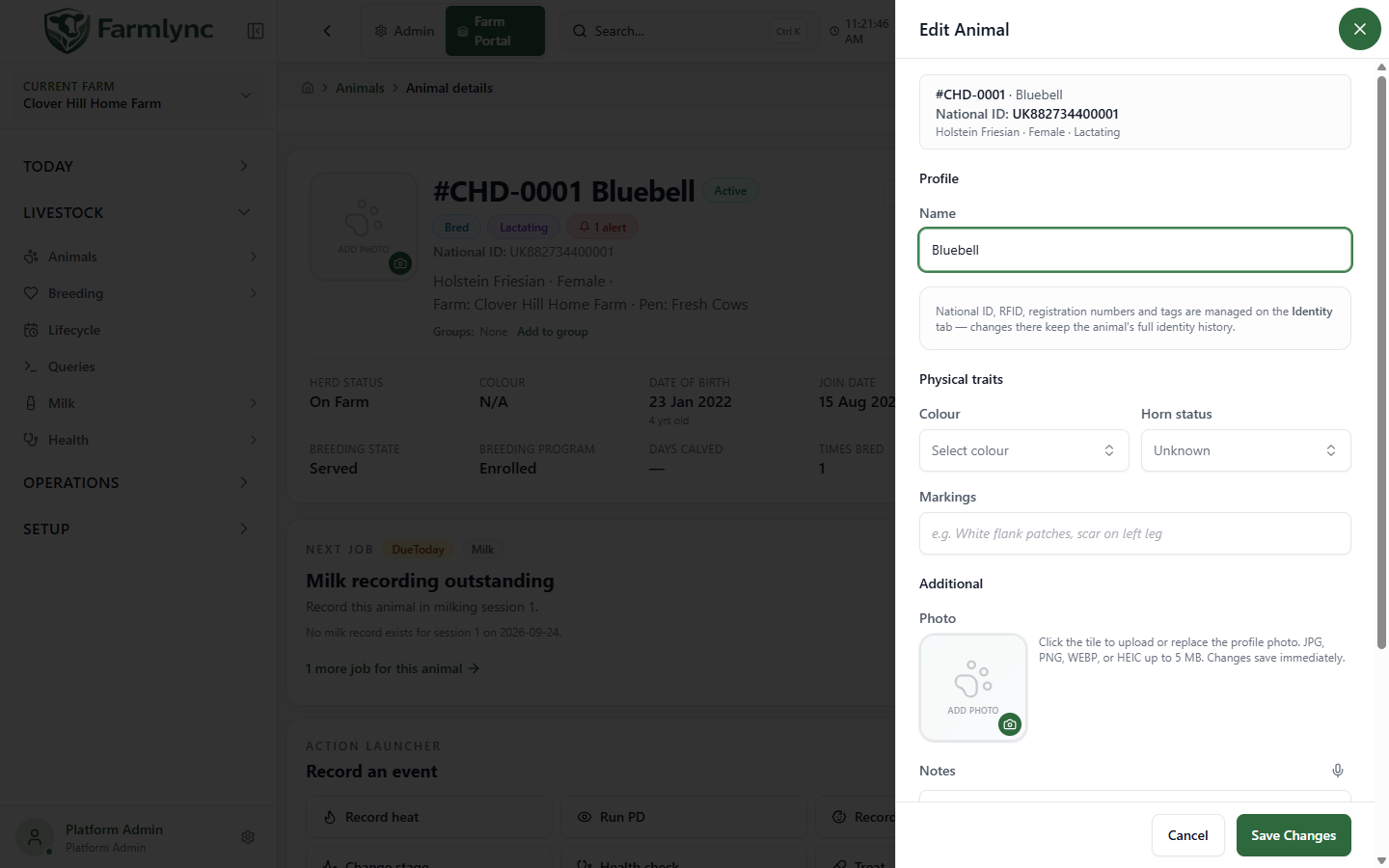
Section titled “Edit the profile”Choose Edit in the header. This form changes profile information and flags. Save Changes commits the form and shows Animal updated; Cancel leaves it unchanged. The form asks before discarding unsaved edits. If someone else changed the animal after the form opened, a version conflict requires you to review the fresh record and reapply your intended changes.
| Control | Accepted input and effect |
|---|---|
| Name | Optional display name, up to 100 characters. The tag remains the primary farm identifier. |
| Colour | Choose a colour appropriate to the animal’s breed, or clear it; stored text is limited to 50 characters. |
| Horn status | Select a listed status or clear to Unknown. The available choices come from Farmlync’s horn-status list. |
| Markings | Optional physical description, up to 200 characters. |
| Photo | With no photo, click the tile to choose a JPG, PNG, WEBP or HEIC file up to 5 MB. With a photo, click the tile to view it full-screen, use the camera badge to replace it or use the bin badge to remove it. Upload, replace and remove save immediately and separately from Save Changes; there is no second remove confirmation, and cancelling the profile form does not undo a photo action. Photo controls are unavailable in a read-only support session. |
| Notes | General profile note. The microphone control, when supported by the device/browser, appends dictated text; review the result before saving. |
| Priority animal (★) | Adds/removes the priority flag used by the herd list’s Priority filter. |
| Do not breed | Adds/removes the breeding restriction. When selected, choose a required Do-not-breed reason from the list and optionally enter Decision notes (up to 1,000 characters). This removes breeding-program eligibility and disables heat, service and PD recording. |
National ID, RFID, registration number and tags are deliberately absent from Edit Animal. Use Identity for those changes; the action must distinguish a physical replacement from a typing correction. The Add to Watch List control is also its own structured action, not a profile checkbox.
Make or reverse a Do not breed decision
Section titled “Make or reverse a Do not breed decision”The Do not breed switch in Overview → Animal flags is a standing management decision to exclude the animal from breeding. It is different from a temporary breeding hold, a watch-list concern and a cull decision. Use it only when the animal should remain outside breeding activity until a manager deliberately clears the decision.
The switch is available to a user with Manage Animals permission while the animal is active. Turning it on opens Do not breed — tag rather than saving immediately:
| Control | Accepted input and effect |
|---|---|
| Reason * | Required catalogue choice: Repeat breeder, Age, Health, Low production, Conformation / type, Temperament, Owner decision, Not kept for breeding or Other. Use the reason that reflects the actual management decision. |
| Notes | Optional supporting explanation, up to 1,000 characters. When Other is selected the label asks you to describe the reason, although the current form does not enforce a note; enter one so the decision remains understandable. |
| Cancel | Closes without changing the decision. |
| Mark do not breed | Saves the flag, reason and notes after an animal-version check. |
If the animal is enrolled in the Breeding Program, marking it Do not breed automatically removes it and records Do not breed as the programme-removal reason. It prevents the animal from being treated as eligible for breeding-program enrolment and applicable heat, service, pregnancy-diagnosis and fertility-protocol work. It also contributes to the animal’s cull-candidate score. It does not itself create a cull decision, treatment, exit or registry submission.
When the decision is active, its reason and notes appear below the switch. Choose Edit to change them; saving uses Update reason and retains the Do not breed state.
Turning the switch off clears the flag, reason and notes immediately through the same animal-version check. The current UI does not ask for a reversal reason or confirmation. Clearing the flag does not automatically re-enrol the animal in the Breeding Program or recreate breeding work. Review the animal’s current eligibility and use the Breeding Program workflow if it should return to the programme.
If another user updates the animal after you open the decision form, Farmlync rejects the stale save and refreshes the animal. Recheck the latest flags and programme state before trying again.
Mark a Favorite or Priority animal
Section titled “Mark a Favorite or Priority animal”Favorite in Overview → Animal flags and Priority animal (★) in Edit Animal control the same marker. Use it as a quick visual and filtering aid for an animal the team wants to find easily. It is not the structured Watch list, and it does not create a reason, due date, alert, task or notification.
A user with Manage Animals permission can turn Favorite on or off while the animal is active. The overview switch saves immediately and checks the animal version, while the Priority animal (★) checkbox inside Edit Animal is saved with the rest of that form. After a successful change:
- a star marks the animal in the Animals list;
- the Animals list Priority tile and Favorite filter use the flag;
FAVORITE = TRUEcan select the same animals in Herd Queries; and- the animal export reports the value in its IsFavorite column.
If a real concern needs ownership or follow-up, add a Watch list entry or record the appropriate health, breeding, lifecycle or milk work as well. Removing Favorite only removes this marker; it does not close any other work or alert.
Manage identifiers on Identity
Section titled “Manage identifiers on Identity”The Identity documents card lists active values, type, scheme/issuing authority, start date and a primary marker. Identity history expands replaced, corrected and retired values with their dates and reasons. Select the action that describes what actually happened:
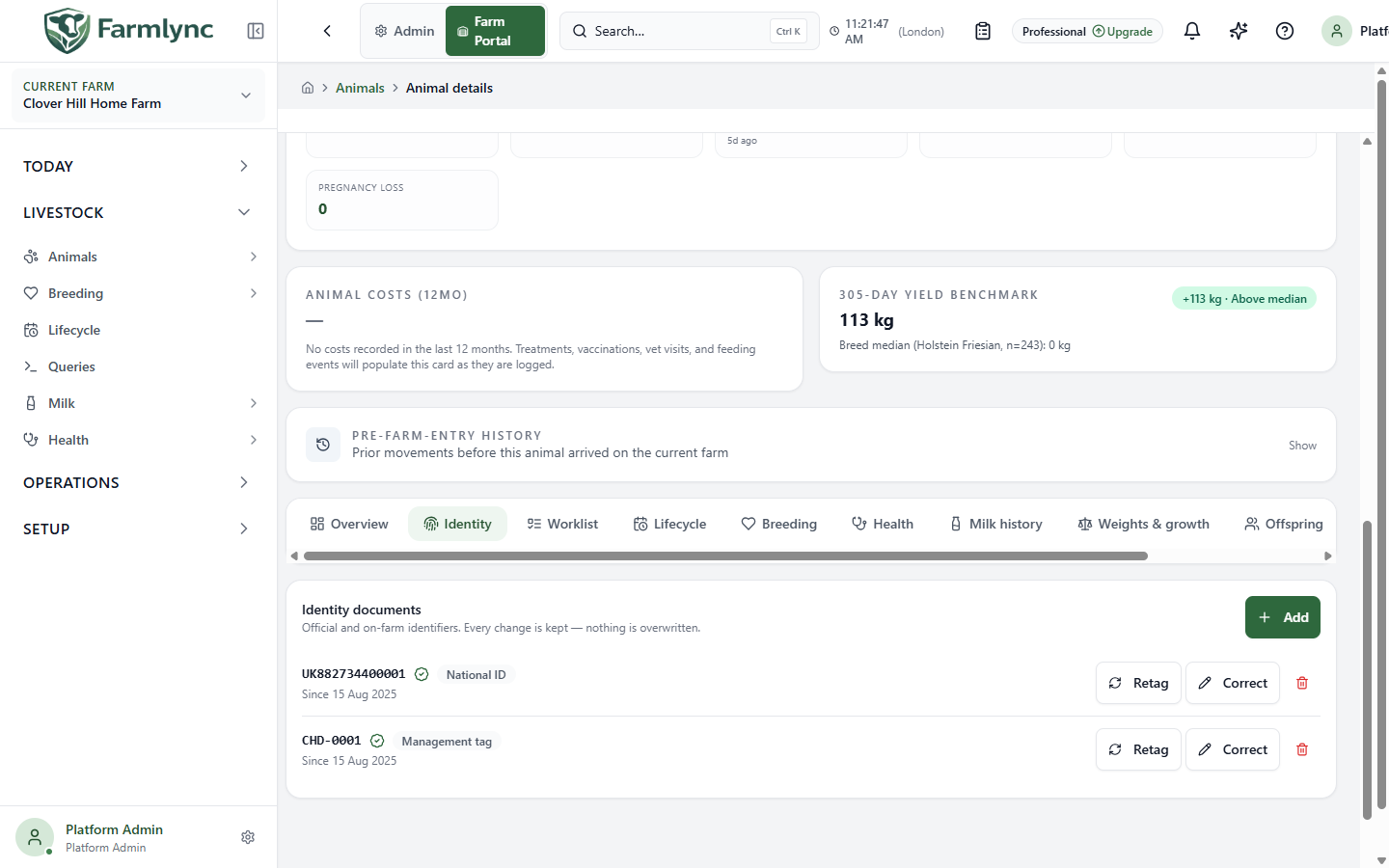
| Action | When to use it | Form controls |
|---|---|---|
| Add | An identifier exists but is not yet recorded. | Type from the list; optional Scheme when offered; required Value (up to 100 characters); Valid from (defaults to today in the farm); optional Issuing authority (up to 100 characters when no scheme is chosen); Primary of its type if this should be the displayed value. |
| Retag | The animal was physically given a replacement tag or identifier. | Check Replacing, enter New value (up to 100), Retag date (defaults to farm-local today) and a required Reason (up to 500). The old value remains in history; a registry replacement is reported where applicable. |
| Correct | The recorded value was a typo and the animal never physically carried it. | Check Recorded as, enter Corrected value (up to 100) and optional Reason (up to 500; required for a support correction). The correction is backdated; it is not a retag submission. |
| Retire | An identifier no longer applies and there is no replacement. | Check Retiring, set Valid until (defaults to farm-local today) and optional Reason (up to 500). The value remains in history. |
Identifier actions enforce current farm permissions and validate the value, scheme, dates, duplicates and the selected registry’s rules where relevant. Add and Correct may be available to a wider farm role than Retag and Retire. If a button is missing, ask a farm manager rather than editing a different field. A completed action refreshes the identifier list; check both active values and history. Do not use Correct to conceal a real physical retag.
Read Offspring and Pedigree
Section titled “Read Offspring and Pedigree”Offspring lists every non-deleted animal in the selected farm whose registered dam or sire is this animal. Rows are ordered by birth date newest first, then tag, and show identity, breed and current herd status. Select a row to open that offspring’s full animal page. No offspring linked means no current farm record points to this animal as a parent; it does not prove that the animal has never produced offspring outside Farmlync or another farm.
Pedigree shows a left-to-right family tree with the selected animal as Subject on the right, dam above sire, and unknown positions as dashed cards. Each known on-farm card shows tag, name/breed when available and the farm’s applicable official ID. Select an on-farm parent or subject card to open its animal page. An off-farm sire is marked Ext and is not clickable because it has no Farmlync animal ID.
The current genealogy response populates only the subject’s direct dam and sire. Although the visual tree can render more generations, grandparents and earlier ancestors are not currently mapped into this page. Treat blank ancestor positions beyond the direct parents as a display/data-depth limit, not proof of unknown ancestry. Use the source registry or pedigree evidence when deeper ancestry is required.
These tabs are read-only projections of registered parent links. They do not infer parentage from calving, service or offspring records. If a direct dam or sire is wrong, use the audited Parentage action below; do not try to alter the family tree by editing a display name.
Correct parentage
Section titled “Correct parentage”Use Parentage in the animal header to correct the parents attached to an existing animal. This changes the animal’s registered parent links and the family projections that use those links. It does not create or correct a heat, service, pregnancy, calving or government-registry record.
The action requires Manage animals permission. The panel first loads the animal’s current parentage and record version. Existing values are shown so you can change one parent without re-entering the other.
| Control | What to enter | Rules and effect |
|---|---|---|
| Dam | Search by the label shown for an on-farm female: tag, official ID when present, name and breed. Choose None only when the dam is genuinely unknown or must be removed. | The picker contains active, non-deleted females from the selected farm, excludes the subject animal and, when the subject’s birth date is known, lists only females at least 15 completed months older. On save, the server again requires the dam to be on this farm, female, not the subject, old enough on the birth date and free of a circular ancestry link. |
| Sire (on farm) | Select the sire’s Farmlync animal record when he is registered on this farm. Choose None / use external below if the sire has no record here. | The picker contains active, non-deleted males from this farm and excludes the subject. The server also requires an on-farm sire to have been at least 12 completed months old when the subject was born and rejects a circular ancestry link. The current picker does not apply that age filter, so an apparently selectable young male can still be rejected on save. |
| Sire name | Enter the external sire’s name when there is no on-farm sire record. Maximum 100 characters. | Leave Sire (on farm) empty. The form rejects an on-farm sire together with an external sire name. Use the recorded or registry name rather than a descriptive note. |
| Sire breed | Enter the external sire’s breed when known. Maximum 100 characters. | Treat this as supporting information for Sire name. Do not enter an external breed by itself or alongside an on-farm sire, even though the current form does not block both combinations. |
| Reason for correction | State the customer instruction or factual evidence for the change. Maximum 500 characters. | Shown and required when authorised Farmlync Support performs the correction. A normal farm-user correction does not show this field. The reason is retained in the audit evidence. |
Choose Cancel to close the panel without saving. Choose Save parentage once the displayed parents match the supporting evidence. Saving is blocked while the request is running. If another change updated the animal after this panel opened, the version check rejects the stale save; reopen the panel, review the latest values and apply the correction again.
A successful save records an AnimalParentageCorrected audit event with the previous and new dam/sire values, actor, source record version and support reason when applicable. Farmlync then refreshes the animal detail, parent pickers, Offspring lists and Pedigree projections. Verify the corrected direct parents in Pedigree and, when the animal is itself a parent, confirm that the affected parent’s Offspring list now includes or excludes it as expected.
Assign the animal to a physical pen
Section titled “Assign the animal to a physical pen”Choose Assign Pen to change where an active animal is physically housed within the selected farm. This action requires Manage animals permission. It does not change the farm, add a logical group membership, record feeding or represent a sale/departure.
| Control | What to enter or check |
|---|---|
| Destination pen * | Search and select a pen configured on the current farm. The picker loads up to 50 matching pens; type part of the name to search beyond the initial list. A missing, deleted or different-farm pen is refused. |
| Reason (optional) | Enter a short operational explanation, up to 200 characters, such as “Moved to fresh-cow pen”. The reason is stored with the movement. |
| Cancel | Close without changing the animal’s pen. |
| Assign | Save the destination and movement record. While saving, the panel cannot be closed or submitted again. |
Farmlync records the previous pen, destination pen, farm, reason and recording user in the animal’s movement history, then refreshes the animal and roster location. If the animal is already in the selected pen, the request succeeds as a no-op and does not add a duplicate movement. An animal in Sold, Culled or Deceased status cannot be assigned to a pen.
The current single-animal web panel records the move at save time and has no Moved on control. The API supports a farm-local movement date for an approved integration or correction path, but typing a date into Reason does not backdate the record. Verify the current pen and the Transfer entry in the animal timeline after saving. For moving several animals together, see Pens — Move animals to a pen.
Manage this animal’s group memberships
Section titled “Manage this animal’s group memberships”The group chips under the animal identity show its current logical cohorts. Groups help organise work, reports, feeding plans and breeding exposure; they are independent of the animal’s one physical pen. Choose Add to group when the animal has no memberships, or Manage when chips already exist. The action requires Manage animals permission.
| Control | What to enter or check |
|---|---|
| Memberships | Existing memberships appear as chips. Use Add a group… to search for and add a hand-picked group. Select the X on a hand-picked chip to remove it. The complete submitted set can contain at most 200 groups. |
| auto chip | Marks a dynamic group whose FQL rule owns membership. It cannot be added or removed here; edit the group rule and refresh that group instead. |
| In group since | Appears after adding at least one membership. Enter the farm-local date the animal actually joined the newly selected groups. It defaults to today, applies to every group added in this save and cannot be future-dated. If it is earlier than this animal’s farm-entry timestamp, Farmlync anchors the membership to the entry timestamp. |
| Cancel | Close without saving additions or removals. |
| Save Changes | Atomically add and remove the selected hand-picked memberships. The button remains disabled until the set changes. The success message reports separate added and removed counts, or No group changes when the server finds no difference. |
The picker omits groups already selected and dynamic groups. It loads up to 1,000 candidate groups and warns when that result is truncated. If the required group is not available, open Animal groups to check that it exists, is hand-picked and is on the current farm.
Removing a chip closes that active membership; it does not erase the animal’s earlier group interval or breeding-exposure evidence. The In group since date is especially important when a breeding male was running with the group because Farmlync can use that interval to attribute a natural service. A terminal Sold, Culled or Deceased animal may be removed from a stale group but cannot be added to a new one. After saving, check the chips on the animal and the group roster.
Record an event from this animal
Section titled “Record an event from this animal”The Record an event launcher is a shortcut to the same controlled forms used elsewhere in Farmlync. It is shown for a non-terminal animal when the page is writable. Farmlync loads a fresh server-side capability snapshot and displays only actions allowed by both your farm permission and the animal’s current state; an unavailable action is omitted rather than shown disabled.
| Launcher action | When Farmlync offers it | Full form guide |
|---|---|---|
| Record heat | Active female, enrolled in the Breeding Program, not marked Do not breed, with breeding-event permission. | Record heat |
| Record AI | Same base breeding conditions; the animal cannot be a calf and cannot already have an unresolved Bred, Confirmed-pregnant or Late-pregnant state. | Record service |
| Run PD | Active female enrolled in the Breeding Program, with breeding-event permission. The form performs the final linked-service and result validation. | Pregnancy diagnosis |
| Record calving | Active female enrolled in the Breeding Program, with lifecycle-management permission. | Record calving |
| Record loss | Active female enrolled in the Breeding Program whose current pregnancy state is Confirmed or Late. | Record pregnancy loss |
| Record dry-off | Active animal enrolled in the Breeding Program with a current active lactation. | Dry-off |
| Record weaning | Active animal currently in the Calf stage and at least 56 farm-local days old. | Weaning |
| Change stage | Active animal and lifecycle-management permission. Use this for a genuine standalone stage correction/transition; use Calving, Dry-off or Weaning when one of those events caused the change. | Change lifecycle stage |
| Health check | Active animal and health-check permission. | Health checks |
| Treat | Active animal and treatment-recording permission. | Record treatment |
| Vaccinate | Active animal and vaccination-recording permission. | Record vaccination |
| Record milk | Active female with a current active lactation and milk-recording permission. | Record milk |
| Record weight | Active animal and weight-recording permission. The form can also capture body condition when applicable. | Body condition and weight |
Buttons are blocked while the browser is offline. Opening a form does not create a record: complete its required fields, save once, read the success or error result, and verify the entry in the owning module and this animal’s history. Each write repeats its own authority, date, state, version and business-rule checks, so a form can still reject a save if the animal changed after the launcher loaded. Refresh the record before retrying; do not alter dates or facts merely to make an action pass.
Record a cull decision
Section titled “Record a cull decision”Choose More actions → Record cull decision to record a management verdict after reviewing this animal. This action requires Manage animals permission. It creates a decision record for planning and review; it does not change the animal’s Active status or record a physical departure.
| Control | What to enter or check |
|---|---|
| Decision * | Choose To cull when the intention is to remove the animal, Kept when the review concludes it should remain, or Deferred when another review or more evidence is needed. The values come from Farmlync’s current decision catalogue. |
| Reason | Optional factual reason, up to 500 characters, such as persistent SCC, production or welfare evidence. |
| Revisit / due-by (optional) | Calendar date for the next review or intended action. The current form validates the date shape but does not require it to be today or later, so check it carefully before saving. |
| Notes (optional) | Supporting context, up to 1,000 characters, such as veterinary advice, buyer interest or conditions attached to the decision. |
| Cancel | Close and clear the unsaved form. |
| Record decision | Save a new decision with its reviewer and recorded time. The previous decision history remains available. |
After saving, Farmlync refreshes the animal, Cull dashboard and Cull list and displays Cull decision recorded. A To cull decision is still only an intention. When the animal actually leaves, use Record Exit with the real date, reason and destination. Do not use Delete or a narrow status correction to replace that departure workflow. The complete candidate and decision-queue process is in Cull review and list.
Transfer the animal to another farm in the organisation
Section titled “Transfer the animal to another farm in the organisation”Choose Transfer farm when the active animal physically moves to another farm owned by the same Farmlync organisation. This is an internal relocation of the same animal record, not a sale or farm exit. You need Manage animals authority on both the current and destination farms.
| Control | What to enter or check |
|---|---|
| Destination farm * | Select a different farm in the current organisation. The source farm is excluded. A farm in another organisation is refused; use the sale/purchase workflow for a change of keeper. |
| Transfer date | Required farm-local date of the actual move. It defaults to today in the source farm’s timezone, and the web date picker prevents a future date. |
| Destination pen (optional) | Appears after selecting the destination. Search for a pen on that destination farm, or leave No pen and assign housing after the move. |
| Destination groups (optional) | Select one or more destination-farm group chips. Select a chip again to remove it. Use hand-picked groups; dynamic groups should obtain members from their saved rules. The form loads up to 1,000 groups and warns when the list is truncated. |
| Reason (optional) | Brief reason for the transfer. Keep it to 200 characters or fewer, matching the movement-history storage limit. |
| Cancel | Close without moving the animal. |
| Transfer 1 animal(s) | Submit the transfer. It remains disabled until a destination and transfer date are present. |
Before saving, check the animal’s active treatments, withdrawals, pregnancy and lactation because its current operational state continues with it. On save, Farmlync verifies that the animal is still Active at the source farm and has not changed since the page loaded. It also checks for destination pen/group existence and active farm-scoped identifier conflicts. Any failure rejects the whole single-animal transfer.
The transfer clears source-farm pen and group memberships, applies the selected destination pen/groups in the same transaction, moves any active lactation to the destination, and records an internal-farm movement. Closed lactations and historical breeding, health, milk and movement records retain their original farm attribution. Applicable government-registry integration work is recorded for later processing; a successful Farmlync transfer is not by itself proof that an external registry accepted it.
After the success message, switch to the destination farm and find the animal by its identity. Check its pen/groups and current operational holds, then check Departures at the source for the internal transfer. For batch limits, identifier conflicts and recovery guidance, read Transfer animals between your farms.
Record the animal leaving the organisation
Section titled “Record the animal leaving the organisation”Choose More actions → Record Exit when this active animal leaves the organisation’s herd—for example through sale, death, slaughter, loss, a gift, an external transfer or the end of a lease. Do not use it for a move between farms in the same Farmlync organisation; use Transfer farm above so the same active record continues at the destination farm.
Opening the panel starts a new edit session and fetches a current mutation snapshot. While Farmlync shows Verifying the current animal version…, Record exit remains unavailable. A missing, failed or no-longer-active snapshot blocks the save rather than applying an exit to stale data. Use Retry verification when the current record could not be loaded. After a save error, retry the unchanged request first if the connection may have failed after submission; Farmlync reuses its safe retry identity. Use Refresh verification when the animal itself changed and you need a new version.
The warning at the top is consequential: a successful exit removes the animal from active work. Check open treatment, withdrawal, milk, breeding and lifecycle information before continuing.
| Control | What to enter or check |
|---|---|
| Exit date * | The actual farm-local date the animal left. It starts at today. It cannot be before the animal’s entry date. The current form does not prevent a future date, so verify this value rather than using a planned departure date. |
| Exit reason * | Choose the factual reason. Changing it clears destination, party, haulier, CPH and price values entered for the previous reason so hidden evidence is not carried into the new reason. |
| Sold to | For Sold, choose Private buyer, Livestock market or Abattoir. The choice filters the saved-party register. |
| Sent to | For Culled, choose Abattoir or Knacker / disposal. |
| Saved destination | Optional registered buyer, market, abattoir, disposal collector or recipient. The selected party must be active in this organisation and carry the role required by the reason. |
| …or type a destination | Optional free-text fallback, up to 200 characters, when the destination is not saved in the party register. |
| Destination farm / Returned to (farm) | Free-text external farm for Transferred Out, or return farm for Lease Ended. An organisation-owned farm belongs in Transfer farm instead. |
| Haulier (from register) | Optional active party with the Haulier role. It appears for Sold, Slaughtered, Culled, Gifted, Transferred Out and Lease Ended. |
| Destination CPH | Optional destination holding/registry identifier for reasons that move the animal to another holding. It accepts up to 20 letters, digits, spaces, slashes and hyphens; a connected registry can impose a stricter national format. A registry movement cannot be queued without the evidence its provider requires. |
| Sale price per animal | Optional non-negative amount for Sold, Slaughtered or Culled. It is stored using the organisation’s currency. |
| Notes | Optional factual context, up to 500 characters. Use the microphone control when browser voice input is available. |
| Cancel | Close without recording an exit. An exit already submitted cannot be cancelled by closing the panel. |
| Record exit | Save after version, permission, animal-state, party and withdrawal checks. It remains unavailable until the current animal version is verified. |
The reason determines which controls appear and which terminal herd status is saved:
| Exit reason | Destination evidence shown | Saved status |
|---|---|---|
| Sold | Buyer, market or abattoir; optional typed fallback, CPH, haulier and price | Sold |
| Slaughtered | Abattoir; optional typed fallback, CPH, haulier and price | Culled |
| Culled | Abattoir or disposal collector; optional typed fallback, CPH, haulier and price | Culled |
| Deceased | Optional disposal collector or typed fallback | Deceased |
| Gifted | Optional recipient or typed fallback, CPH and haulier | Sold |
| Transferred Out | External destination farm, CPH and haulier | Sold |
| Lease Ended | Return farm, CPH and haulier | Sold |
| Lost | Notes only | Deceased |
For Sold, Slaughtered, Culled and Gifted, Farmlync checks meat withdrawal at the selected exit instant and refuses the exit while a meat hold is active. Wait until the hold ends or record the factually correct non-food-chain reason; never change a reason to bypass the safety rule. Milk withdrawal alone does not block this command.
When the save succeeds, Farmlync records the external movement and departure evidence, changes the animal to its terminal status, clears the current pen and active groups, removes it from the Breeding Program when applicable, closes ordinary active alerts and pending work, ends its current lifecycle and milk participation, and releases its animal-capacity allocation. Connected government-registry work is queued only when the farm, animal and destination have the required provider identifiers. A Farmlync success is not proof that the registry accepted the submission; check the registry work queue separately.
The animal remains available as historical evidence. Confirm its date, reason and destination under Departures. That guide also explains batch exits and the audited Reverse exit correction workflow.
Reverse an exit recorded by mistake
Section titled “Reverse an exit recorded by mistake”Choose More actions → Reverse exit only when the recorded departure did not really happen—for example, the sale fell through or the wrong animal was selected. The action is available for a terminal Sold, Deceased or Culled animal when you have Manage animals permission. It applies to females and males alike.
This is not the workflow for an animal that genuinely left and later returned. That case needs a new arrival/movement record so the time away and the two real movements remain visible.
| Control | What to enter or check |
|---|---|
| Animal and recorded exit | Read the animal label and the terminal status in the confirmation message. Close the dialog if either is not the record you intended to correct. |
| Why is this exit being reversed? * | Enter a clear factual explanation, such as Sale fell through or Wrong animal selected. The browser trims the value and keeps Reverse exit disabled while it is blank. This explanation becomes the surviving audit evidence after the exit fields are cleared. |
| Cancel | Close without changing the animal. |
| Reverse exit | Submit the correction using the row version captured when the confirmation opened. It is disabled while the request is running. |
Farmlync refuses the reversal when the animal has changed since the dialog opened, is already Active, exceeds the organisation’s current animal allowance, or has an active carcass record. A carcass is post-mortem evidence and cannot belong to a reactivated animal; correct and void an erroneous carcass first, then reopen the latest animal record before retrying.
A successful reversal:
- returns the animal to Active and clears its exit date, reason, destination, destination/haulier party links, sale price and notes;
- removes the local Farm Exit movement created by the mistaken departure while retaining a semantic audit entry with the prior status/reason and your explanation;
- removes the terminal lifecycle stage, reopens the stage closed by the exit and removes the Exit timeline event;
- reopens only a current lactation that this exit ended; a lactation already ended for another reason remains closed;
- re-enrols an otherwise eligible female in the Breeding Program only when the exit itself removed her; and
- clears the old exit alert and schedules current alert conditions for reevaluation rather than reopening stale alert rows.
The previous pen and group memberships are deliberately not restored. After success, assign the animal to its real current pen and groups and recheck its current work, alert and milk-safety state. If a government-registry departure was already queued, submitted or accepted, this local reversal does not cancel the remote movement. Reconcile it through the registry workflow before treating the records as aligned.
Wait for Exit reversed — animal returned to the herd, then verify the active animal record and the Departures list. The complete correction sequence is also in Farm exits and reversal.
Other header actions
Section titled “Other header actions”Status appears for an active animal when you can manage animals. The More actions menu also contains Audit log and Delete as applicable. Delete is a separate removal action and should not be used to represent a sale, death or cull.
Inspect the animal audit timeline
Section titled “Inspect the animal audit timeline”Choose More actions → Audit log to inspect recorded changes associated with this animal. Unlike a narrow audit of the Animal profile row, this drawer requests audit entries whose subject is the animal. It can therefore include related pregnancy checks, treatments, milk records, lifecycle events and other semantic actions, provided their audit entry identifies this animal.
The drawer loads the newest 100 matching entries for the selected organisation. It has no date, action or entity filters and no next-page control. If an animal has more than 100 entries, or you need to investigate a particular period or action, use Admin → Audit Logs and apply its filters.
Each collapsed row shows the action badge, a readable subject, the recorded actor’s name/email or System, and the time in the farm’s display timezone. Expand a row to inspect:
- Field / Was / Now for an update;
- Field / Value for a creation or semantic action;
- Field / Was for a deletion;
- the recorded IP address when one is available.
Routine bookkeeping fields are hidden. Where Farmlync can resolve a reference, it shows the readable label; an unresolved identifier is shortened to ref · plus its first eight characters, with the full value available as hover text. A blank diff does not prove that nothing happened—the action may be a semantic audit entry whose evidence is carried in its action and details rather than an EF property comparison.
Audit access is read-only and does not undo a change. The API currently permits this timeline only to a Tenant Admin or Platform Admin. The Animal page places Audit log inside the Manage Animals action group, so a Farm Owner or Manager without tenant-admin authority can be offered the menu item but receive Failed to load audit log. Ask a Tenant Admin to investigate through the organisation Audit Logs page in that case.
Change the animal’s herd status
Section titled “Change the animal’s herd status”The header Status button opens Change Animal Status for an active animal. This is a narrow status-only correction. It is separate from changing lifecycle stage and from recording a dated farm departure.
| Control | Accepted input and effect |
|---|---|
| New status * | Choose Sold, Deceased or Culled for an animal currently In herd/Active. The selector also contains the current Active value, but saving Active again is not a valid transition. A terminal animal cannot use this form to return to Active; use audited Reverse exit where applicable. |
| Reason | Optional explanation, up to 500 characters. It appears on the status-change timeline and related evidence. |
| Cancel | Closes without changing the animal. |
| Update status | Saves the terminal status after authority, version and safety checks. |
Sold and Culled are blocked while meat withdrawal is active. Deceased is allowed because the animal is not entering the food chain. On success, Farmlync makes the animal inactive, releases its animal allowance, removes it from an active breeding programme, creates the matching terminal lifecycle stage and timeline entry, closes animal alerts, closes or cancels active treatments according to the terminal status, and removes future hoof-trim reminders.
This status-only form does not collect an exit date, destination, destination party, haulier, CPH, sale price or structured exit reason. It does not create the complete exit evidence used by the departure and government-registry workflows, and it does not run every production cleanup performed by Record Exit. Use Record Exit whenever an animal physically leaves, is sold, dies or is culled. Reserve Status for an authorised status correction where those departure facts genuinely do not apply, and inspect the animal’s pen, groups, milk/lactation state and registry work afterward.
Delete an animal record
Section titled “Delete an animal record”Use More actions → Delete only for a record that should not exist—for example, a duplicate or erroneous registration. Do not use it to represent an animal that was sold, transferred, culled, lost or died; use Record Exit so the farm keeps the correct movement and status evidence.
The confirmation names the animal and offers Cancel or Delete. It does not ask for a deletion reason. Farmlync checks the animal version captured when the confirmation opened. If another user changed the record, the delete is refused and the page refreshes so you can review it again.
Deleting removes the animal from ordinary farm views and releases its animal allowance. It also removes its active operational history from normal use: breeding events/actions, lifecycle stages/timeline, treatments, vaccinations, health checks, mastitis, hoof trims, body-condition records, milk records and lactations are soft-deleted. Treatment withdrawal effects are voided. The stored profile photo is scheduled for deletion after the database change; a storage failure can leave an orphaned file, but does not put the animal back into the herd.
This is therefore much broader than hiding a row. Review the identity and action before confirming. The success message is Animal removed, and the app returns to the Animals list.
Restore a deleted animal record
Section titled “Restore a deleted animal record”An Owner or Manager can open Livestock → Animals → Animals list, select Deleted, find the row and choose Restore. This is for correcting an accidental deletion; it is unrelated to reversing a recorded farm exit.
Restore checks the deleted row’s current version and the organisation’s animal allowance. On success it makes the animal visible again and restores the lifecycle stage that was current when deletion occurred. It does not restore the soft-deleted clinical, breeding, milk or closed lifecycle history, and it does not recover a deleted profile photo. Rebuild or correct the required records through their authorised workflows after confirming what evidence is genuinely missing; do not invent historical events.