

Tag pool
What this page helps you do
Section titled “What this page helps you do”The Tag pool holds official or farm-managed identifiers that are available for future animal registrations. Preparing them in advance reduces typing, pairs printed and electronic identifiers, and prevents the same pooled identifier being allocated twice.
Open Livestock → Animals → Tag pool. The identifier label may use the selected farm’s registry term instead of National ID.
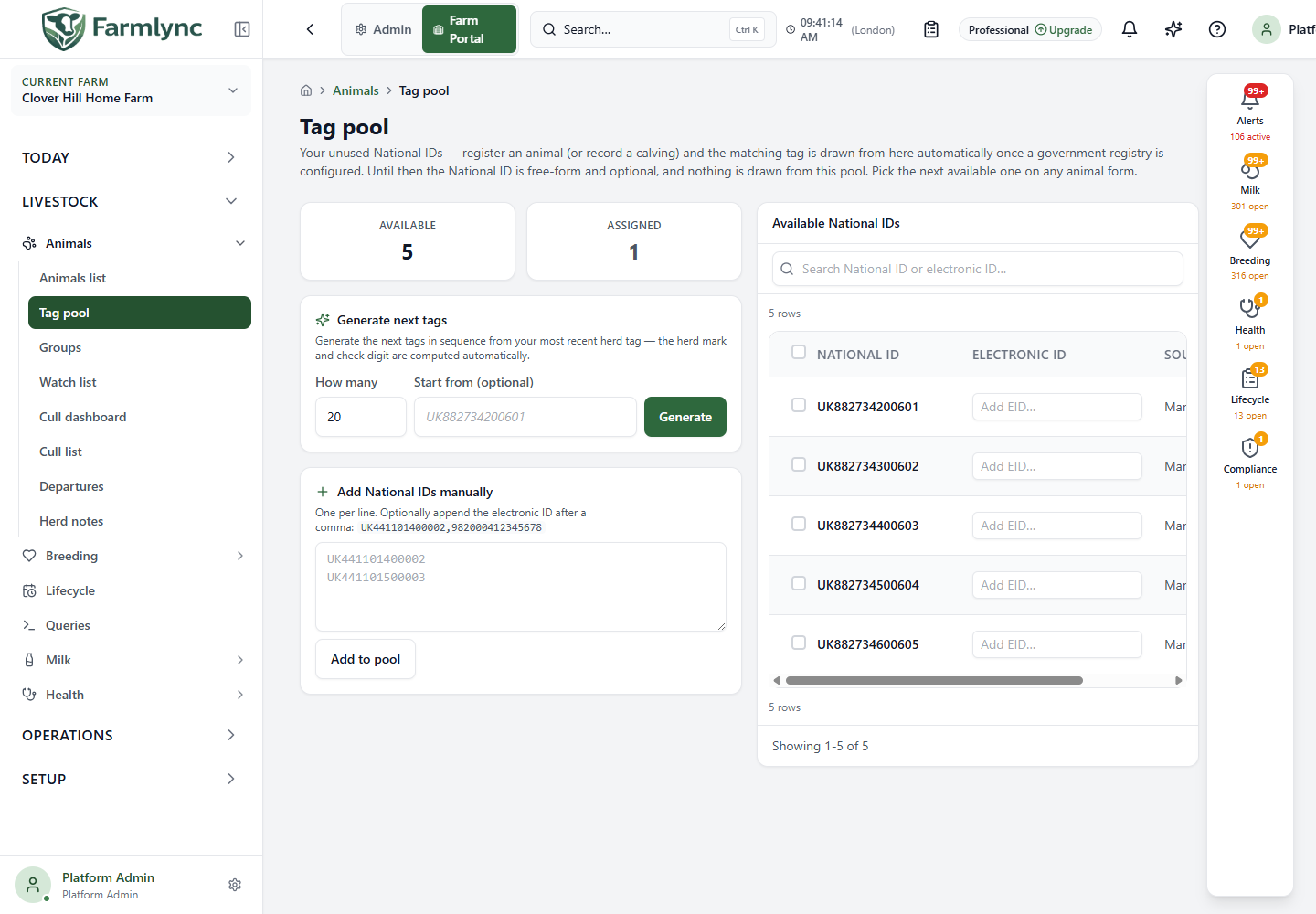
The page lists only available, unassigned pool entries. It is not an animal register and does not show which animal owns every assigned tag.
Who can use it
Section titled “Who can use it”Any signed-in farm user who can open the Animals area can read the available pool. Adding, generating, downloading, pairing or removing identifiers requires Manage Animals permission, which is normally held by a Farm Owner or Manager.
The current page can still display its change controls to a read-only user. If that user tries one, the API refuses the change with Only Owners and Managers can manage the tag pool. Ask an Owner or Manager to perform the action rather than retrying it.
Understand the counts
Section titled “Understand the counts”| Count | Meaning |
|---|---|
| Available | Pool entries that have not been assigned to an animal and can still be selected or removed. |
| Assigned | Pool entries already consumed by animal creation. They remain counted for traceability but are not shown in the available list. |
A removed entry is retained internally as Voided for history. Voided entries are not included in either tile and do not appear in the available list.
When an animal-creation workflow uses a National ID that exactly matches an available pool entry, Farmlync marks that entry Assigned in the same transaction as the animal. This applies to individual registration, calving, animal CSV import and bulk beef intake. A custom ID that is not in the pool remains valid when the surrounding form permits it and does not create or consume a pool entry.
Government-registry configuration controls whether Farmlync can generate or download allocated identifiers and whether the National ID is mandatory. It does not change the rule above for an identifier that already exists in the pool.
Current uniqueness boundary
Section titled “Current uniqueness boundary”Farmlync currently prevents a National ID from appearing twice in one farm’s pool and skips a generated or downloaded candidate when that ID is already in the same farm’s pool or assigned to an animal in that farm. Valid candidates in the same request are still added.
This check is currently farm-scoped. It does not yet search another Farmlync farm or tenant that uses the same registry account or identifier namespace. Registry providers can define different uniqueness boundaries, so treat the registry’s own allocation as authoritative and do not deliberately reuse an identifier across holdings while that product gap remains open.
Add identifiers manually
Section titled “Add identifiers manually”Add identifiers manually is available without a connected registry provider, but saving still requires Manage Animals permission.
- Paste one identifier per line.
- To pair an electronic ID at the same time, add it after a comma.
- Select Add to pool.
For example:
UK441101400002,982000412345678UK441101500003Blank lines are ignored. The first value is the visible or national identifier; the optional second value is its RFID/electronic identifier.
You can submit at most 5,000 lines at once. Farmlync removes spaces and hyphens from national identifiers and stores them in uppercase. It also normalizes supported scanned EID forms before storing them. Only the first two comma-separated values on a line are used, so do not add notes or other columns.
The result reports:
- how many tags were added;
- how many were skipped; and
- the first issue when one or more rows failed.
Adding is not an overwrite operation. Existing or invalid entries may be skipped while valid new entries are accepted, so always read both the success and warning messages.
There is one useful exception: if the printed identifier already exists in this farm’s pool without an EID, submitting the same identifier with an EID pairs it and includes that pairing in the added count. A row is otherwise skipped when the identifier is already in this farm’s pool or already belongs to an animal on this farm. Registry validation can also reject a row. The accepted rows still save when other rows are skipped.
The current local duplicate lookup is farm-scoped. Until provider-defined registry-namespace reservation checking is implemented, review provider allocations carefully when the same registry organisation is connected to several Farmlync farms or tenants.
Generate the next identifiers
Section titled “Generate the next identifiers”Generate next tags appears only when the configured registry/provider supports generation.
| Control | Valid value and effect |
|---|---|
| How many | Whole-number count from 1 to 1,000. It initially shows 20. |
| Start from (optional) | Provider-specific starting identifier. If omitted, Farmlync continues from the lexicographically highest identifier the farm has ever held in this pool, including assigned or voided entries. On the first generation, enter a starting identifier. |
| Generate | Requests the batch and adds accepted identifiers to the pool. |
Read the provider-specific hint before generating. Generated printed identifiers start without an electronic ID because the physical RFID number cannot be derived from the printed number; pair it after the tags arrive.
If generated candidates duplicate identifiers already known in this farm, Farmlync skips those candidates and reports them in the result. It does not currently extend the generated sequence to replace every skipped candidate, so the number added can be lower than How many. Review the added and skipped counts before printing or allocating tags.
The placeholder is based on the lowest currently available identifier, while a blank submission uses the historical highest pool identifier. Treat the placeholder as a viewing aid: enter the intended start explicitly whenever sequence choice matters.
Download allocated identifiers
Section titled “Download allocated identifiers”Download from registry appears only when the provider supports it.
Select Download allocated tags to retrieve the identifiers allocated by that registry and add new accepted entries to the pool. This action does not register animals and may skip allocations already known to Farmlync.
Find and read available tags
Section titled “Find and read available tags”| Control or column | What it does |
|---|---|
| Search tags | Matches the visible/national identifier or electronic ID. Results update 250 milliseconds after typing and return to page one. |
| Identifier column | The available official identifier. Its heading uses the farm’s configured registry label. |
| Electronic ID | RFID/electronic identifier paired with the printed tag. |
| Source | How the entry entered the pool: Manual, CSV, Generated, or Downloaded. |
| Select this page | Selects or clears every visible row on the current 50-row page. A partly selected page shows an indeterminate checkbox. |
| Row checkbox | Adds or removes that row from the current selection. |
The available list uses fixed pages of 50 entries. Selection is retained when you change pages or search, so the selected count may include rows that are not currently visible.
On a small screen, each entry appears as a card containing its identifier, source, EID field, selection checkbox and remove action.
Pair or change an electronic ID
Section titled “Pair or change an electronic ID”- Find the available printed identifier.
- Enter or scan its value in Electronic ID.
- Press Enter or move out of the field.
Farmlync saves only when the trimmed value changed. Clearing the field and leaving it removes the pairing. A successful update shows Electronic ID saved.
When a pooled tag with an EID is selected in a compatible animal form, Farmlync can fill both identifiers in the same action.
The current edit control does not check that an EID is unique within the pool and does not warn before the database’s 60-character storage limit. Scan or enter the identifier exactly, keep it within 60 characters, and check that it is not already paired to another printed tag. If a duplicate reaches animal registration later, the animal’s RFID uniqueness check can reject the registration.
Remove unused identifiers
Section titled “Remove unused identifiers”To remove one available entry, select its bin button. There is no confirmation step: the removal happens immediately and shows Tag removed.
To remove several:
- Select rows individually or use Select this page.
- Check the total in Delete selected (n). This total can include selections retained from other pages or searches.
- Select Delete selected (n).
These actions remove unused pool entries. They do not remove an identifier already assigned to an animal and are not a substitute for correcting an animal’s identity history.
Use a pooled identifier during registration
Section titled “Use a pooled identifier during registration”When available pool entries exist, the National ID control on a compatible registration form becomes a searchable selector:
- choose a pooled identifier;
- search within the loaded available identifiers; or
- type a different value and select Use “…” (custom) when custom IDs are allowed.
The selector states the pool count but currently loads only the first 1,000 available tags and filters that loaded list in the browser. It does not search the remaining pool on the server. If the required pooled identifier is outside those first 1,000, confirm the printed ID and EID on this page, type the exact printed ID as a custom value, and verify the animal’s RFID after registration. Saving can consume the matching pool row, but the form will not copy that row’s paired EID automatically.
When the pool is empty, the same control appears as a normal text box.
Use Register animal for an existing or purchased animal and Record a calving for a calf born on the farm.
Empty and error states
Section titled “Empty and error states”- No tags in the pool yet suggests generation, registry download or manual entry according to the available provider capabilities.
- No tags match “…” means the pool contains available entries but the current search did not match them.
- Loading displays placeholders for the counts and list.
- A load failure provides a retry action.
- A write failure remains on the page as an error message; correct the input or connection before trying again.