

Lifecycle dashboard and transition work
What this page helps you do
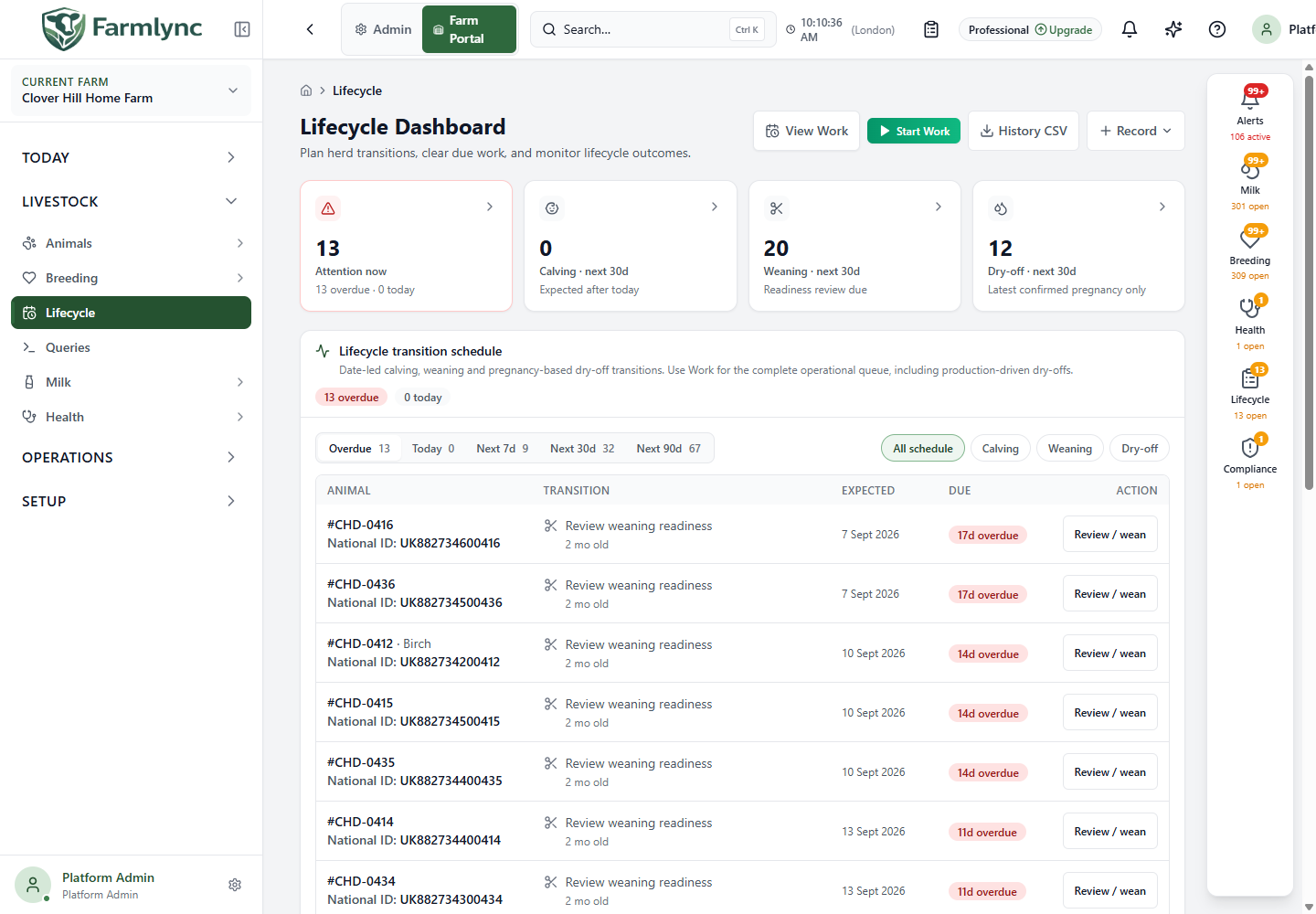
Section titled “What this page helps you do”The Lifecycle Dashboard brings together the farm’s current herd stages, due transitions, 90-day workload, completed-stage benchmarks, exit reasons and recorded lifecycle trail. Use it to find animals approaching calving, weaning or dry-off and then record the real event from the same page.
Open Farm Portal → Livestock → Lifecycle. You need lifecycle-view access to read the dashboard; recording actions also require the permission for the underlying calving, weaning, dry-off or departure command. History CSV and the dry-off forecast use dashboard-and-analytics access as well.
Page actions
Section titled “Page actions”| Action | What it does |
|---|---|
| View Work | Opens the full Work page filtered to the Lifecycle domain. Use it when the schedule is capped or production-driven work is needed. |
| Start Work | Opens Execution Mode focused on lifecycle work. |
| History CSV | Downloads recorded lifecycle timeline events for the farm. It does not export the due-transition schedule. |
| Record → Record Calving | Opens the calving form without a preselected animal. |
| Record → Batch Weaning | Opens the batch weaning workflow. |
| Record → Batch Dry-Off | Opens the batch dry-off workflow on dairy farms. |
| Record → Batch Exit / Death | Opens the batch farm-exit form, where the actual exit reason is chosen. |
| Pull down to refresh | On touch layouts, refreshes the core statistics, forecasts and due-work data. |
On a phone, the + floating action button contains the same Record actions. It does not appear on wider screens.
Change an animal’s lifecycle stage
Section titled “Change an animal’s lifecycle stage”Use Change Lifecycle Stage from an animal action when the animal genuinely moved to another production classification and no more specific Farmlync event represents that change. The panel identifies the animal and shows its current stage before loading the allowed next stages for this farm’s Dairy, Beef or Mixed herd type.
Use the dedicated workflow whenever the transition was caused by calving, dry-off or weaning. Those forms record the event facts and related effects as well as the stage. The generic selector can currently list some of these stage pairs, but selecting one records only a stage change and can leave the calving, lactation, dry-off or weaning evidence incomplete. Use Record Calving, Dry-off or Weaning instead. Use Record Exit for Sold, Culled or Deceased; terminal stages are deliberately absent from the stage selector.
| Control | What to enter or check |
|---|---|
| Current stage | Read-only context in the panel heading. If the animal has no active stage, or the server has no transition rules for it, Farmlync refuses to offer a change. |
| New Stage * | Choose one of the server-provided next stages that is valid from the current stage and for the farm’s herd type. The current stage and terminal exit stages cannot be selected. |
| Effective Date * | The actual farm-local date the animal entered the new stage. It defaults to today. The form currently accepts dates up to 30 days ahead and applies the stage immediately, so do not enter a planned future change: wait for the transition or use the schedule/Work page. |
| Reason | Optional short reason for ending the previous stage, up to 200 characters. |
| Notes | Optional context for the new stage, up to 1,000 characters. |
| Change Stage | Closes the existing active stage, opens the selected stage and records the timeline event. It is unavailable until transition options load successfully. |
| Cancel | Closes without changing the animal. |
The available manual paths are controlled by the current stage:
| Current stage | Possible non-terminal next stages before herd-type filtering | Preferred dedicated workflow where applicable |
|---|---|---|
| Calf | Heifer, Bull or Weaner | Use Weaning for the real Calf transition so Farmlync records the event and chooses the post-weaning stage from the animal and herd type. |
| Heifer | Lactating | Use Calving so the birth, calf and lactation records are created together. |
| Lactating | Dry | Use Dry-off. |
| Dry | Lactating | Use Calving so the next lactation is opened correctly. |
| Weaner | Stocker, Cow or Bull | Use Change Lifecycle Stage when this is the real production classification change. |
| Stocker | Finisher | Use Change Lifecycle Stage. |
| Bull, Finisher or Cow | No non-terminal next stage | Use Record Exit when the animal leaves the farm. |
The farm herd type can remove choices from this table. For example, a Dairy farm does not offer beef-only Weaner, Stocker, Finisher or Cow stages. The list shown in the form is authoritative for the selected farm and animal.
After saving, Farmlync immediately updates the animal’s current-stage projection and adds a StageChange entry to Farm lifecycle activity and the animal timeline. The change can also update lifecycle work and alerts. Entering a vaccination-protocol target stage can create a vaccination prompt when the required vaccine is not recorded. A female moving from Calf to Heifer can be enrolled automatically in the breeding programme when she is active, eligible, not marked Do Not Breed and not already enrolled.
Open the animal after saving and confirm the new stage and effective date. If the transition should have carried calving, dry-off, weaning or exit details, do not add a second stage change to compensate; use the appropriate event workflow and correct the incomplete record through the supported path.
Headline tiles
Section titled “Headline tiles”| Tile | Meaning and action |
|---|---|
| Attention now | Exact canonical Lifecycle work count due today or overdue. Its context separates overdue and today. Select it to open the Lifecycle Work queue with a zero-day horizon. |
| Calving · next 30d | Expected calvings from tomorrow through day 30, based on active lifecycle records with an expected calving date. Select it to focus the schedule on Calving / Next 30d. |
| Weaning · next 30d | Calves reaching the system’s weaning-review age from tomorrow through day 30. Select it to focus Weaning / Next 30d. |
| Dry-off · next 30d | Dairy farms only. Pregnancy-based dry-off candidates from tomorrow through day 30, using the latest confirmed-pregnancy forecast. Select it to focus Dry-off / Next 30d. |
| Active herd | Shown instead of Dry-off for non-dairy farms. It links to the Animals list. |
The page loads these sources separately. A dash and “status unavailable” mean that source failed; zero means it loaded and found none. If any core source fails, the page shows Some lifecycle information could not be loaded. Available sections remain usable, but select Retry before making a whole-herd decision.
Records that need review
Section titled “Records that need review”An amber review banner appears when a lifecycle record needs data correction. The current review candidate is a Dry animal with no expected calving date. Such an animal is not presented as a calving action. Select Review records to focus the schedule on Data review and the most relevant time window, then open the animal record from the row action.
Lifecycle transition schedule
Section titled “Lifecycle transition schedule”The schedule combines date-led calving/weaning candidates and, on dairy farms, the pregnancy-based dry-off forecast. It is not the entire operational Work queue; production-driven dry-offs and other tasks can appear only under View Work.
Choose a time window
Section titled “Choose a time window”| Window | Included candidates |
|---|---|
| Overdue | Expected date before the farm’s current date. |
| Today | Expected on the farm’s current date. |
| Next 7d | Tomorrow through day 7. |
| Next 30d | Tomorrow through day 30. |
| Next 90d | Tomorrow through day 90. |
The number beside each window counts loaded schedule items in that window. The default is Overdue, unless the page was opened with a valid window selection from another Farmlync screen.
Choose a transition type
Section titled “Choose a transition type”- All schedule — every loaded type in the chosen window.
- Calving — Dry animals with an expected calving date.
- Weaning — calves reaching weaning review age.
- Dry-off — shown only when loaded candidates include Dry-off.
- Data review — shown only when loaded candidates include Review.
Changing the window or type returns the local list to page one and clears its selection.
Read a schedule row
Section titled “Read a schedule row”| Field | Meaning |
|---|---|
| Animal | Configured primary identity, name and secondary identifier. |
| Transition | Why the item is listed. Supporting readiness facts can include Pen, age in months, latest weight, latest yield, SCC, BCS and active withdrawal. Missing facts are omitted. |
| Expected | Farm-local expected date used by the schedule. |
| Due | overdue, Today, In 1–7d, or a neutral future-day badge. |
| Action | Opens the relevant Calving, Weaning or Dry-off form. A Review item opens the animal profile. |
Use Rows to show 10, 25 or 50 items per local page. Previous page and Next page move within the filtered, loaded set and scroll back to the top of the schedule.
The API supplies exact headline counts even when the dashboard loads only the first 500 candidates. When the list is capped, an amber message shows how many items are loaded and the full candidate total. Narrow the filters or use View Work; do not treat local pagination as access to the omitted candidates.
Batch from the schedule
Section titled “Batch from the schedule”Batch controls appear only when the type is specifically Weaning or Dry-off:
- Select individual row checkboxes, or choose Select all.
- Review the selection count on Batch wean or Batch dry-off.
- Open the batch form.
- Check every animal, actual date and shared values before submitting.
- Read the batch result because individual animals can fail while others succeed.
Select all selects every item in the currently filtered, loaded list, including items on its other local pages. It cannot select candidates beyond the dashboard’s 500-item load cap. Weaning and Dry-off explain their single and batch fields.
For an actual sale, death or cull, use Departures or Batch Exit / Death. Record an exit; do not delete the animal. A cull decision and a completed farm exit are different states.
90-day planning
Section titled “90-day planning”This table groups expected Calving, Dry-off and Weaning workload into the current farm-local calendar month and the next two months, plus a 90d total.
- Calving counts come from the calving forecast.
- Dry-off and Weaning counts come from loaded schedule events.
- Dry-off is omitted for non-dairy farms.
- Selecting a transition label focuses the schedule on that type and Next 90d.
Dry-off planning uses the complete dry-off forecast returned for this 90-day window. Weaning planning uses the loaded lifecycle schedule, so a dashboard capped at 500 lifecycle candidates can understate the Weaning row even while its exact headline count remains correct.
Herd composition
Section titled “Herd composition”Herd composition counts current active lifecycle stages: Calves, Heifers, Lactating, Dry, Bulls, Weaners, Stockers, Finishers and Cows. The active total comes from the current animal register. Selecting the total opens all Animals; selecting a colored stage or its label opens Animals filtered to that lifecycle stage.
Additional values appear below when present:
- Needs stage — active animals not represented by one of the classified active stages; select it to review Animals.
- Culled, Sold, Deceased — current terminal lifecycle-stage counts. They are displayed for context and are not part of the active total.
Herd performance
Section titled “Herd performance”This section is derived from completed history:
- Average time in stage uses completed stage intervals whose end occurred in the last 24 months. Each value shows rounded days and
n=sample size. - Productive life averages the time from the first productive stage to the first Culled/Sold/Deceased stage for animals with both boundaries, shown in years.
- Exit reasons groups animal exits from the last 12 months. It shows up to six reasons with count and percentage of that 12-month total.
Select an exit-reason label to open Animals filtered to a terminal status inferred from its wording: death/deceased/died → Deceased, sold → Sold, otherwise Culled. These are management summaries; use the animal and departure record for exact evidence.
If performance loading fails, select Retry. If no completed data exists, continue recording transitions and exits to build the benchmark.
Farm lifecycle activity
Section titled “Farm lifecycle activity”Expand Farm lifecycle activity only when you need the recorded audit trail. Opening it loads 20 rows at a time. Filter chips are All, Calving, DryOff, Weaning, StageChange and Exit.
Each row links to the animal and shows its identity, type, title, optional description, source and farm-time event date. A manual timeline entry is labelled Manual note and shows its user-entered creation time; the underlying event type remains in the source text. Use Previous and Next to page through all matching recorded events.
History CSV
Section titled “History CSV”History CSV exports recorded lifecycle events, not schedule candidates, forecasts or analytics. The current page sends no date, animal or event-type filters. The server refuses a synchronous export when the farm has more than 10,000 matching lifecycle events, but this page does not provide export filters; use the farm lifecycle activity for on-screen review and follow the data-export/technical support process for a larger extract.
Support staff cannot download the CSV unless their current support context permits exports. A success message confirms that the download was initiated; an error message means no complete export was confirmed.
When the schedule looks empty
Section titled “When the schedule looks empty”- Check whether Overdue is selected; try Today, Next 7d, Next 30d or Next 90d.
- Return the type to All schedule.
- Read any partial-load warning and select Retry.
- Check View Work for production-driven or other canonical Lifecycle tasks.
- Check Herd composition for Needs stage.
- Remember that a recorded event belongs in Farm lifecycle activity, while a future candidate belongs in the schedule.