

Purchase orders
What this page helps you do
Section titled “What this page helps you do”Operations → Inventory → Purchase Orders records what was ordered from a supplier and how much has arrived. Use it to reconcile partial deliveries instead of counting an order as stock. Start a new order from the Purchase list; this page tracks existing ones.
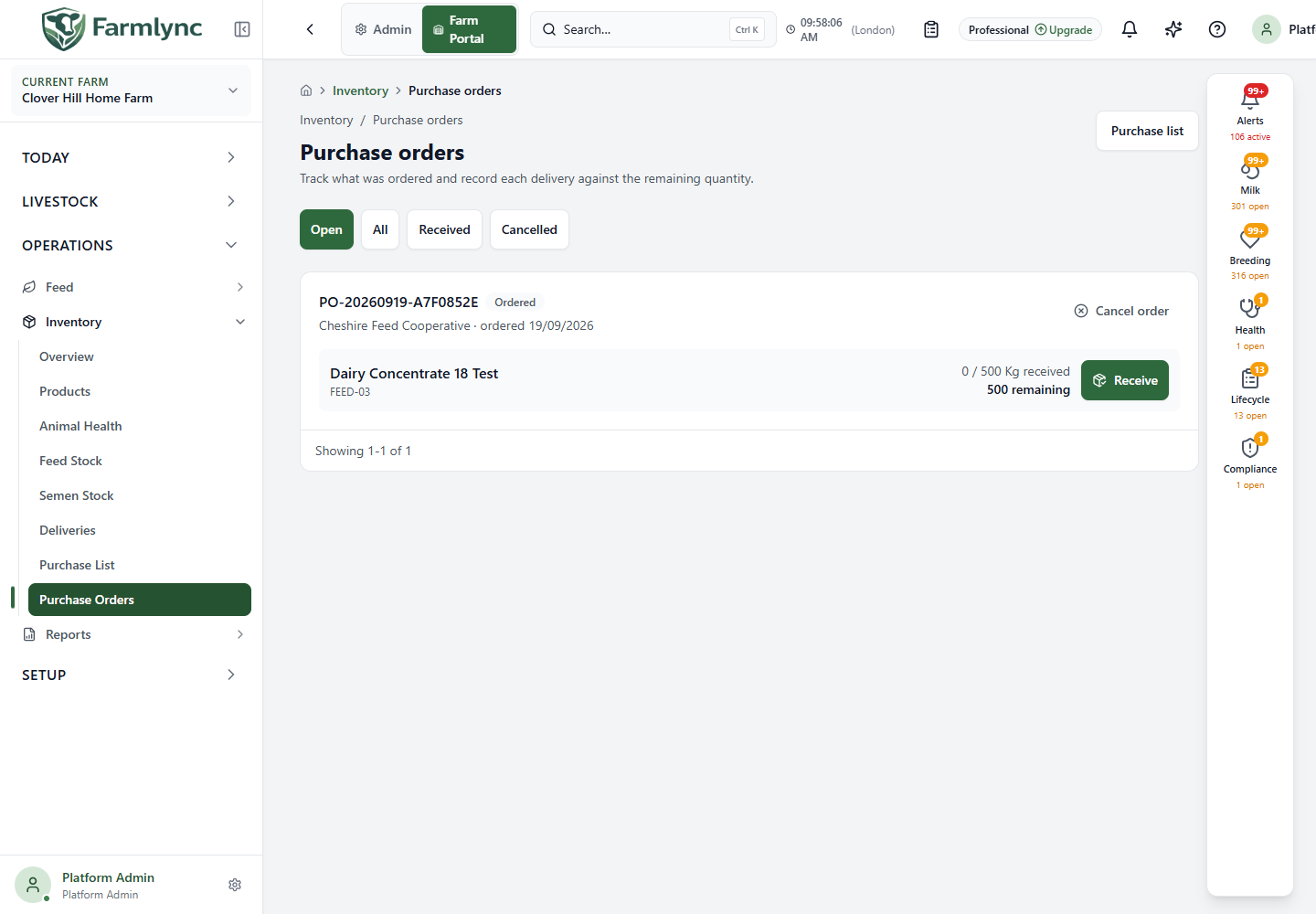
An order is a purchasing commitment, not a stock receipt. Creating it removes the selected products from the working purchase list and counts their quantities as already ordered. The on-hand balance changes only when you record the goods that actually arrived.
You need permission to view inventory to open this page. Creating, receiving or cancelling an order requires inventory-management access, which the standard farm roles grant to Owners and Managers.
Create a purchase order
Section titled “Create a purchase order”Orders start on the Purchase list, where you can either:
- choose Create order on one product; or
- select several visible products with their checkboxes and choose Create order (n) to put them on one supplier order.
One order can contain between 1 and 50 distinct purchase-list products and has one supplier. Review these controls in Create purchase order:
| Control | What to enter |
|---|---|
| Product card | Confirms the product name, code, reorder level and Farmlync’s suggested quantity. |
| Quantity to order | The positive amount to order, in the product’s displayed stock unit. The form starts with the reviewed quantity from the purchase list. |
| Reason for changing the suggestion | Required when the quantity differs from a non-zero suggested quantity. Enter a practical reason such as the supplier’s pack size. Maximum 240 characters. |
| Supplier (from register) | Optional saved party with the Supplier role. Selecting one fills and locks the supplier name to the registered name. |
| Supplier name | Required when you do not choose a registered supplier. You may enter an ad-hoc name, up to 200 characters. Farmlync initially suggests the first product’s preferred or last supplier when available. |
| Supplier reference | Optional quote, confirmation or supplier-order number, up to 100 characters. |
| Expected cost per unit | Optional non-negative estimate shown for a single-line order. Multi-line orders capture each line’s actual cost when the delivery is received. |
Choose Create order only after checking every line and the common supplier. Farmlync generates an order number in the form PO-YYYYMMDD-XXXXXXXX, creates one line per selected product, and removes those products from the purchase list. If another user changed one of the selected proposals after you opened it, Farmlync rejects the stale submission; reload the purchase list and review the current quantities before trying again.
Find an order and read its status
Section titled “Find an order and read its status”The page shows 20 orders at a time. Use the page controls to browse older records. The status filters mean:
| Filter or status | Meaning |
|---|---|
| Open | Orders in Ordered or Part received state that still have stock outstanding. This is the default view. |
| All | Open, received and cancelled orders together. |
| Received | Every ordered line has been received in full. No further receipt or cancellation action is available. |
| Cancelled | The unreceived balance was cancelled. Stock received before cancellation remains in inventory. |
Each order card shows its generated order number, current status, supplier, ordered date and optional supplier reference. Each product line shows the catalog name and code, the received / ordered quantity, the stock unit and the remaining quantity. Part received means at least one receipt has been posted while some ordered quantity is still outstanding.
The Purchase list link returns to proposed purchases. If the selected status has no orders, use Open purchase list; an empty Open view does not mean there are no received or cancelled orders.
Receive one order line
Section titled “Receive one order line”For an outstanding line, choose Receive. The form is linked to that exact order line; the product is fixed and the remaining quantity is prefilled. Check and complete the receipt rather than assuming the full amount arrived:
- Confirm the Received date and supplier details.
- Enter a Batch number or Lot number, and an Expiry date, when the selected clinical product requires traceability.
- Under Quantity received, choose Total quantity or Packs / containers. For packs, enter the pack count, quantity per pack and purchase-unit name; Farmlync calculates the total stock quantity.
- Under Delivery cost, choose a total line cost or cost per base unit. Cost is optional and must not be negative.
- Choose the required Storage location.
- Add optional receipt notes and, when useful, one supplier docket, invoice or product-label file. Accepted evidence is PDF, JPEG, PNG, WebP, HEIC or HEIF, up to 10 MB.
- Choose Receive Stock.
You may reduce the prefilled quantity for a partial delivery. Farmlync does not allow a line’s cumulative receipts to exceed its ordered quantity. A successful receipt creates the stock batch and movement, increases on-hand stock, updates the line’s received and remaining quantities, and changes the order to Part received or Received as appropriate.
If the order changed after you opened the receipt, Farmlync stops the save instead of applying it to an outdated balance. Reload the order, review the remaining quantity and submit again.
Receive several lines from one delivery
Section titled “Receive several lines from one delivery”When at least two lines still have a remaining quantity, Receive whole delivery opens one multi-line delivery linked to the order. The supplier and delivery details apply to the whole docket; batch or lot, expiry, quantity, invoice cost and notes remain specific to each product line.
Remove a line from the form if that product did not arrive. Removing it from this receipt does not cancel the order line; its quantity remains outstanding. All remaining delivery lines save together or none do. Farmlync blocks the save if the linked order cannot be loaded, has been closed, has changed since it was opened, or a receipt would exceed an ordered line. See Deliveries for every multi-line field and evidence rule.
Cancel an open order
Section titled “Cancel an open order”Choose Cancel order and review the confirmation. Cancellation is available while the order is Ordered or Part received. Stock and receipt evidence already recorded remain unchanged; only the unreceived quantities stop being treated as on order. A fully received order cannot be cancelled.
Farmlync checks the order version before cancelling. If another user received or changed it after your page loaded, the cancellation is rejected so that you do not close a stale order. Reload and review the current state. Repeating an already completed cancellation is safe and does not create another effect.
Troubleshooting and checks
Section titled “Troubleshooting and checks”- No open purchase orders means no order is currently awaiting stock. Check Received or Cancelled for history, or return to the Purchase list.
- If a product is missing from the order form, reload the Purchase list. It may already have been ordered or removed by another user.
- If Create order asks for a reason, the requested amount differs from Farmlync’s calculated suggestion. Explain the operational reason rather than copying the quantity.
- If Receive whole delivery is absent, fewer than two lines have a remaining quantity. Use the line’s Receive action instead.
- After receiving, verify the line’s remaining quantity here and inspect Stock batches or Deliveries for the physical stock and receipt history.