

Add and edit farm products — every control
What this page helps you do
Section titled “What this page helps you do”Product setup defines a farm item’s identity, unit and operational defaults. Use it to choose the correct library or farm-only item so stock, clinical and feed records all refer to the same product.
Open Farm → Inventory → Products → Add product. A product is the farm’s definition of what can be received or used. It does not itself create a physical delivery, an on-hand balance, a medicine administration or a feeding event. The same add workflow can open from Animal Health, Feed Stock and a receipt. Those entry points may fix the category in advance.
Find a library product before creating one
Section titled “Find a library product before creating one”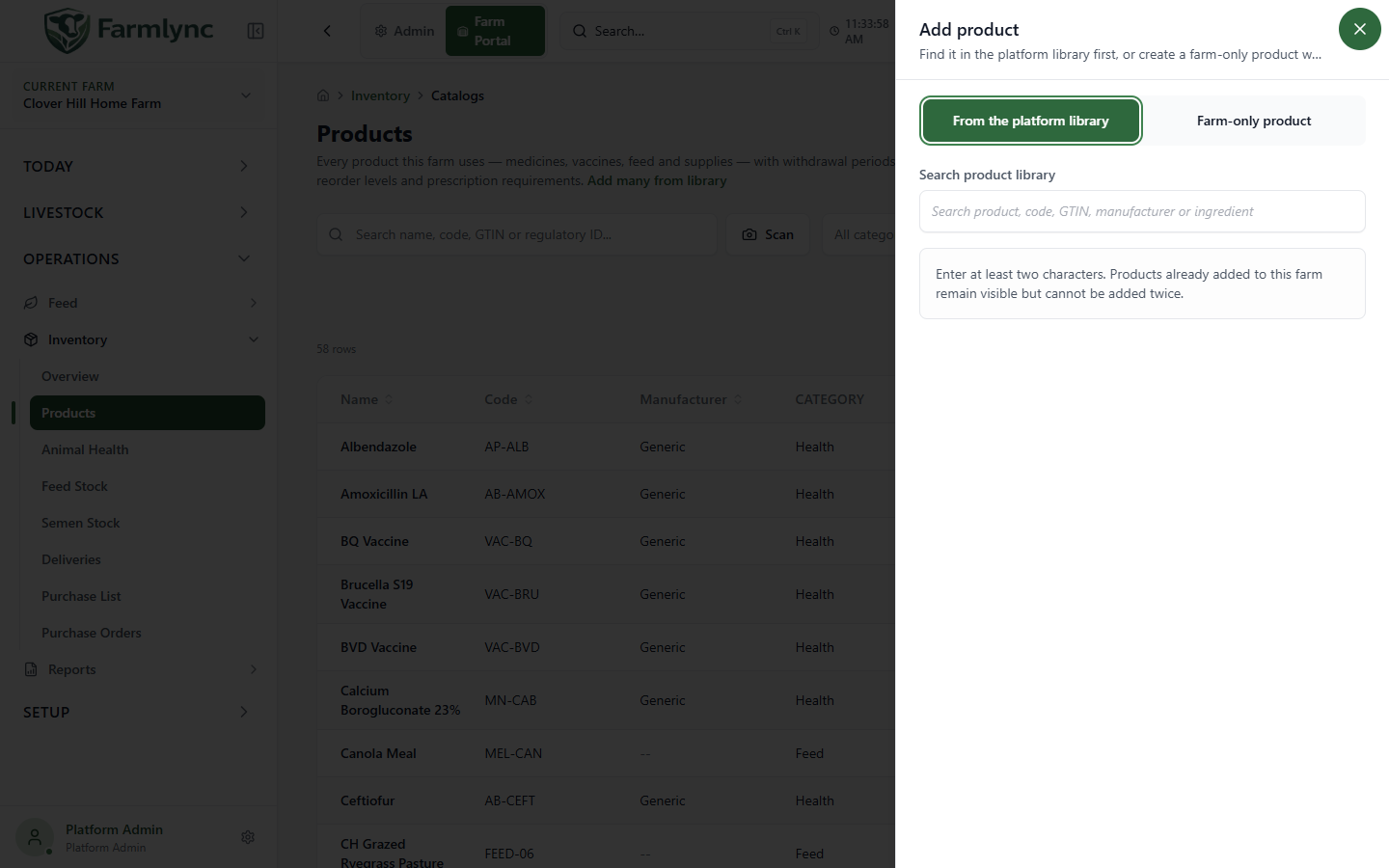
- Keep From the platform library selected and enter at least two characters in Search product library. You can search product name, code, GTIN, manufacturer or ingredient.
- Review the result’s name, code, manufacturer, category and sub-category. Already added means it is on this farm already and cannot be adopted a second time.
- Select the right result. Its shared identity and clinical defaults appear for review; set this farm’s code, unit, reorder rules, supplier and default receipt location. Choosing a library entry does not mean its old stock or batches transfer to this farm.
- Select Add product to create only the farm catalogue entry, or Add & receive first delivery to continue into a separate receipt. Finish and save the receipt before assuming any quantity is on hand.
Use Change to return to search if you selected the wrong library result. If there is no matching product, choose Farm-only product and enter its full identity. A custom item remains local to this farm; it does not add a product to the shared platform library.
Farm-only product: identity and counting unit
Section titled “Farm-only product: identity and counting unit”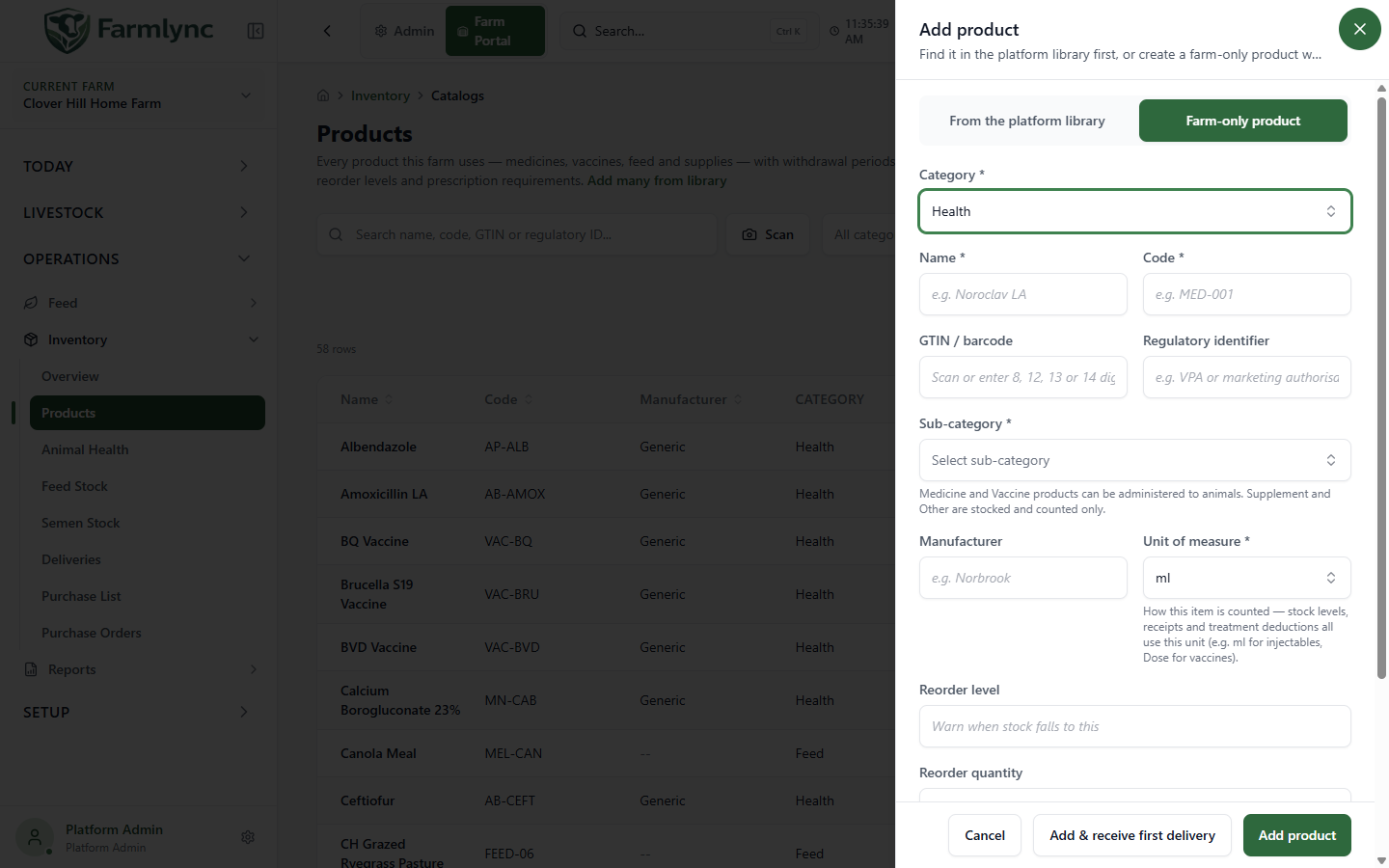
| Field | Accepted value and purpose |
|---|---|
| Category * | Choose Health, Feed or Farm supplies where the category has not already been fixed by the page. The offered categories come from the backend and the farm’s entitlements. Changing category changes the available sub-categories and fields. |
| Name * | Product’s recognisable name, 1–200 characters. Check the possible-existing-product suggestions before making a near-duplicate. |
| Code * | Farm product code, 1–50 characters. Do not confuse it with an animal tag, stock batch number or GTIN. |
| GTIN / barcode | Optional 8, 12, 13 or 14 digits with a valid check digit. A number of the right length but wrong check digit is rejected. |
| Regulatory identifier | Optional product authorisation/registration reference, up to 100 characters. Use the actual published identifier. |
| Sub-category | Pick from the list for the chosen category. Required for Health creation because Medicine and Vaccine can appear in clinical pickers, whereas Supplement and Other are stocked and counted but cannot be administered through those pickers. Feed and Supplies have their own sub-categories. |
| Manufacturer | Optional name, up to 200 characters. |
| Unit of measure * | The unit used by stock balances, receipts and deductions; choose from the offered unit list. Feed starts with Kg, Vaccine with Dose, farm supplies with Unit and other Health products with ml, but confirm the actual product. A clinical dosage such as “10 ml” does not make the stock unit 10 ml. |
| Volume per stock unit (ml) * | Appears for a Vaccine counted in a unit other than ml or Dose. Enter a positive labelled total volume in one unit (for example a vial’s total ml) so a clinical dose can convert correctly to stock usage. |
| Reorder level | Optional non-negative on-hand threshold that raises low-stock work when crossed. Blank means no threshold, rather than zero. |
| Reorder quantity | Optional non-negative suggested purchase-list quantity. Blank means enter it when purchasing. |
| Preferred supplier | Optional saved Supplier party to prefill future purchasing. It does not create a supplier or place an order. |
| Default receipt location | Optional saved stock location that prefills receipts. Check the actual destination at each delivery. |
Possible existing products may appear as you type a custom name or code. Open the existing product or use the offered library match when it is the same product; don’t manufacture a second code to avoid a duplicate warning.
Health products: clinical defaults
Section titled “Health products: clinical defaults”Choose the sub-category that matches actual use:
| Sub-category | Additional controls and effect |
|---|---|
| Medicine | Active ingredient (up to 200 characters), Default dosage (up to 100), Default route, default withdrawal days for milk, meat, organic and other, plus Antibiotic, Controlled substance and Requires prescription switches. Withdrawal days are non-negative whole numbers. Set these from the approved product directions; a default is a starting value for a clinical record, not proof of today’s administration. |
| Vaccine | Default dosage, Default route, Requires prescription and, for certain counting units, the Volume per stock unit conversion. Medicine withdrawal and controlled-substance controls are not offered in this create path. |
| Supplement | Active ingredient and the drug-like default dose/route controls are offered. Medicine withdrawal fields and antibiotic/controlled switches are not. It is stocked but not administered by the Medicine/Vaccine clinical picker. |
| Other | No clinical dose or withdrawal defaults; use this for Health stock that does not fit the administerable categories. |
If a medicine’s official withdrawal basis is more complicated than these catalogue day defaults, capture the actual use declaration, prescription and evidence when recording the treatment. A catalogue default never overrides that clinical decision. See Record a treatment and check clearance.
Feed products: stock and nutrition
Section titled “Feed products: stock and nutrition”Feed can be tracked or untracked. Leave Track inventory for this feed on when deliveries establish on-hand batches and feeding deducts from them. Turn it off for genuinely grazed, fresh-cut or contractor feed when there is no farm stock ledger. You can still record feed intake and cost, but Receive Stock is unavailable and feeding does not deduct on-hand stock. Do not switch it off to make a real stock shortage disappear.
The optional nutrition controls are Dry matter (%) and Crude protein (%), each 0–100, and Energy (MJ/kg), non-negative. Leave an unknown figure blank; blank does not become a measured zero. Feed nutrition is saved through a separate feed-catalog request after the product is added. If that request fails, the product still exists and a warning asks you to add nutrition from its item page. Do not repeat product creation in response to that warning.
Farm supplies use the shared identity, unit, reorder, supplier and location controls, without medicine or feed-nutrition fields.
Save, receive, then verify
Section titled “Save, receive, then verify”| Action | Result |
|---|---|
| Add product | Saves the farm catalogue entry and normally opens its item page. The confirmation states that no stock was recorded yet. |
| Add & receive first delivery | Saves the product, then opens a separate receipt for physical quantity, batch and other delivery details. The second save records stock. This button is absent for untracked feed. |
| Add & continue receipt | When this workflow began inside an existing receipt, adds the product and returns it to the receipt; finish the receipt separately. |
| Cancel | Leaves the unsaved product form. A full-page custom form asks before discarding changed values. |
After saving, check the item’s name, code, category, sub-category and unit. Then check its actual stock separately under Animal Health stock or Feed Stock, as appropriate, or receive a delivery. If a clinical product does not appear in the treatment or vaccination picker, check its Health sub-category and available stock rather than creating another catalogue row.
Edit, archive and restore an existing item
Section titled “Edit, archive and restore an existing item”On Inventory → Products, search for the item and choose its Edit (pencil) action. The editor loads the product’s current values and shows Name, Code, identifiers, Category/Sub-category, counting unit, manufacturer, storage requirements, tags, reorder level and quantity, and planning unit cost. Category-dependent fields show clinical dose/route, withdrawal and controlled/prescription settings or the Feed tracking switch. Storage Requirements accepts up to 500 characters. Default Unit Cost (planning) is non-negative and helps ration planning before an actual purchase price is received; it is not a receipt or invoice price. Tags are cross-cutting classification; choose existing suggestions where suitable to avoid spelling variants.
Review the category before changing it: the editor resets fields that no longer apply. For example, changing to Feed clears clinical fields. Changing the unit affects how future receipts and deductions are counted; check existing batches and related operations first. A stale edit version is rejected; close and reopen the editor to inspect the latest item before retrying. Saving an edit does not rewrite historical medicine administrations or stock transactions.
Archive hides the product from new receipt and clinical selections. The confirmation shows current on-hand quantity; archiving does not delete batches or history and does not dispose of physical stock. Manage remaining stock through the appropriate stock action. Restore makes the item active for new selections again. Use archive rather than inventing a duplicate product when a product is temporarily not ordered.