

Batch milk recording
What this page helps you do
Section titled “What this page helps you do”Batch milk recording handles a milking session for several animals. Use it to enter shared context once while checking every animal’s quantity and result before saving.
Use Milk → Record → Batch Record, the dashboard’s Batch record button, or the milk batch action from Work. This form records several animals for one date and session.
Prepare the batch
Section titled “Prepare the batch”- Check the farm, Date, Session and Milked By.
- Review animals supplied by the page that opened the form. If the form uses your animal-selection tray, check its selection banner and any skipped animals.
- Add missing animals through Add Animal, unless the launching workflow has locked the animal list.
- Enter each animal’s actual measured yield.
- Review withdrawal warnings, unusually low yields and any shared quality measurements.
- Select Save All, then read the result for every animal.
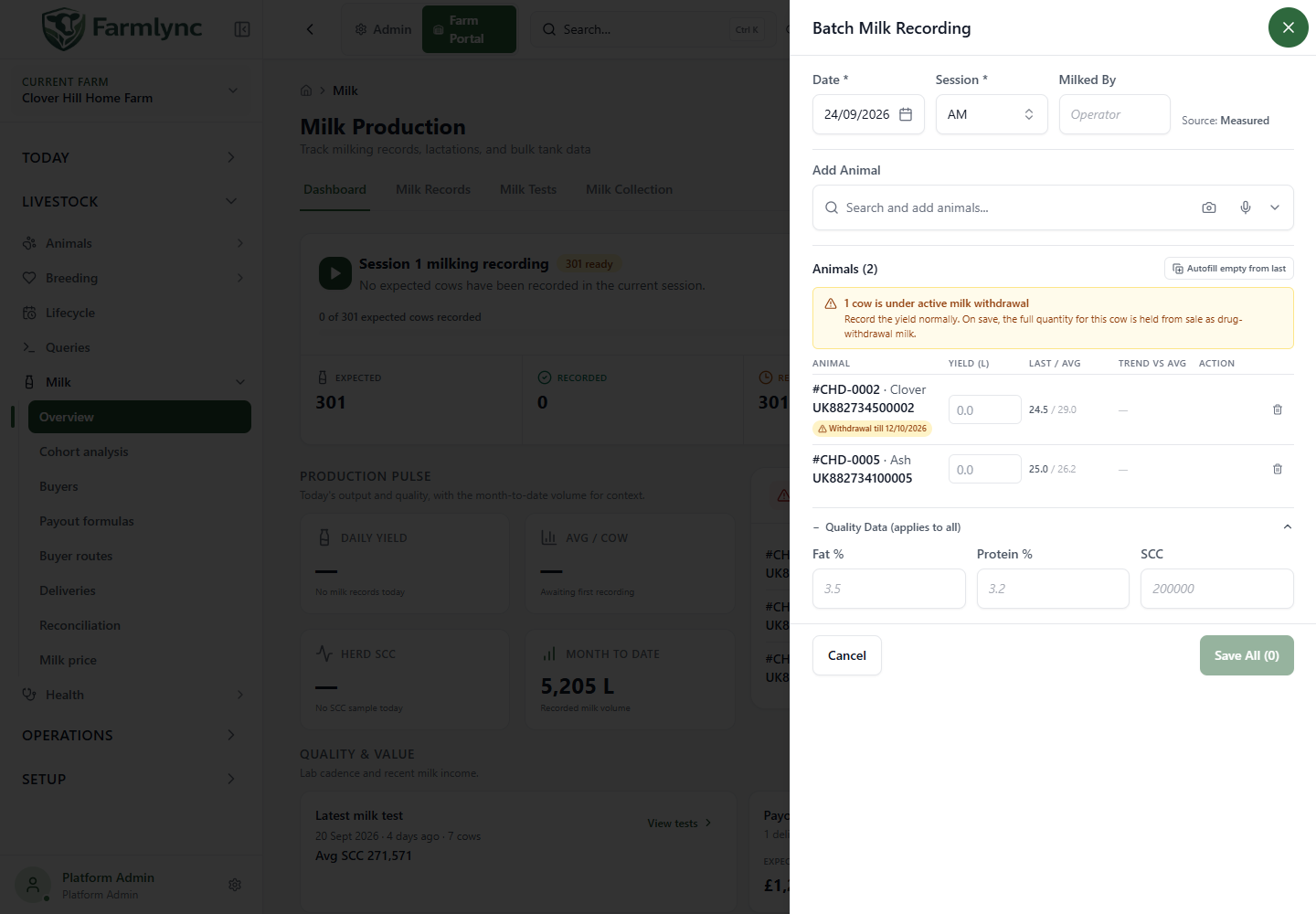
Shared controls
Section titled “Shared controls”| Control | Meaning |
|---|---|
| Date * | The farm-local day being recorded. Use the date the milking took place. |
| Session * | The same session for every row. Labels include AM, PM and Night, according to farm configuration. |
| Milked By | Optional operator name. Keep it within 100 characters, the current saved-record limit. The batch form currently permits up to 200 characters before submission, so a longer value can fail when Farmlync saves the records. It initially uses the current user’s name where available. |
| Source: Measured | The batch form records measured entries. Use the single-animal form when you need to explicitly mark an estimate. |
| Add Animal | Search and add an eligible milking animal. An animal already in the list is not added twice. |
| Selection banner / Clear | When populated from the animal-selection tray, inspect how many animals were supplied and clear the form selection if it is not the batch you intended. |
| Autofill empty from last | Fill only blank rows that have a previous yield. It leaves values you already entered unchanged. Verify every copied number. |
| Save All (number) | Submit rows with a positive entered yield. The number indicates how many rows will be submitted. |
| Cancel | Close the unsaved milk batch. Separately saved health checks or treatments remain saved. |
The server accepts up to 500 submitted animals per batch. Split a larger herd into distinct batches without repeating an already-saved animal/date/session.
Current limitation for farms with four or five sessions: although those sessions can appear in the selector, the batch form’s validation currently accepts only session numbers 1–3. Use single-animal recording for a configured fourth or fifth session until the batch form supports them consistently.
Animal grid
Section titled “Animal grid”| Column or action | Explanation |
|---|---|
| Animal | The selected animal’s identity. A withdrawal badge, where present, stays visible after selection. |
| Yield | The measured amount in the displayed kg or litre unit. Entering a value updates the row’s comparison indicators. |
| Last / Avg | Previous recorded yield and the average of up to five recent records. Unlike the single-animal form, this batch lookup is not restricted to the selected session. |
| Trend vs avg | Percentage difference from that recent-record average. A dash means a comparison has not been calculated. |
| Health / Treat | Shortcuts for a separately recorded health check and, where appropriate, treatment. They appear for the form’s severe-drop workflow. |
| Remove / bin | Remove the animal from this unsaved batch. It does not delete the animal or an earlier milking. |
Press Enter in a yield cell to move to the next row’s yield input. On small screens, the table prioritises animal, yield and remove controls; some comparison and action columns are hidden.
The quantity must be at least 0.1 in the displayed unit and convert to no more than 99.9 kg per animal. For litres the form calculates the upper limit from the configured milk density. Zero or blank is not saved as an observation of zero production; only positive filled rows are sent.
Read comparison colours carefully
Section titled “Read comparison colours carefully”- A drop of 30% or more is marked severe.
- A drop of 10% or more, but less than 30%, is marked mild.
- Other calculated results receive the normal indicator.
The screen uses the wording 5-day average, but this lookup uses up to five recent records across sessions. It is not necessarily five full days, and an AM/PM difference may affect it. A green indicator does not certify that a value is clinically normal or even close to average: this batch comparison primarily classifies drops. Check the actual measurement.
Shared quality data
Section titled “Shared quality data”Open Add Quality Data to enter:
| Field | Accepted input |
|---|---|
| Fat % | 1.0–9.0 |
| Protein % | 1.0–6.0 |
| SCC | Positive whole number in cells/mL, for example 200000. |
These values apply to every submitted animal. They are not per-row measurements. Do not copy one cow’s test result or a bulk-tank sample into these fields for the entire herd. Leave them blank if you do not have an appropriate shared value; use individual records or the relevant test/import workflow for different animal results.
Collapsing the quality section does not clear its values.
Blank rows and skip reasons
Section titled “Blank rows and skip reasons”The before-save summary counts normal comparisons, mild drops, severe drops and rows that will be skipped. When rows are blank, it offers Resting / dried off, Milk withdrawal, Injured / sick, Not in parlour, Different parlour / group or Other as a skip reason.
The selected reason is currently local to this form and its notification. It is not saved as a durable animal event or milk record, and it does not clear the underlying due work. For a genuine dry-off, absence, illness or lifecycle change, use the relevant recording workflow.
Do not leave a row blank merely because a milked cow is under withdrawal. Record the measured yield and follow the withheld outcome below.
Withdrawal screening
Section titled “Withdrawal screening”The form shows current withdrawal warnings and tries to load the farm’s withdrawal list before allowing Save All. The server checks withdrawal evidence again for the actual batch date and session.
This form has no per-animal milking time. Screening uses the applicable session window, or the whole farm day where a precise session window is unavailable. A withdrawal overlapping that window can hold the full recorded quantity from sale. If accurate individual times are required, use the single-animal recording form.
The batch can therefore record production successfully while identifying some rows as held from sale. Recording is not permission to put that milk into a clean tank.
Read the result before closing
Section titled “Read the result before closing”The result screen separates:
| Result | What to do |
|---|---|
| Milk recorded | These entries were accepted. Check their records rather than submitting the same rows again. |
| Skipped (already recorded) | An active entry already occupies that animal/date/session. Inspect the existing record and correct it through Edit if necessary. |
| Failed records | Read the reason beside each animal. Correct the affected selection or value, then submit only what remains necessary. |
| Withdrawal records held from sale | The listed quantities were recorded as discarded drug-withdrawal milk. Keep them out of saleable milk physically as well. |
| Health checks / treatments pending | Follow-up shortcuts derived from the form’s yield-drop comparison. They are not diagnoses or automatically recorded clinical events. |
| Done | Close the result after checking it. This does not create extra recordings. |
Expected per-animal problems, such as duplicate records, can leave a batch partly successful. A request-level failure is different; check existing records before repeating a batch if its outcome is uncertain.
Start Health Check for All and Start Treatment for All, where offered, open separate forms for the listed animals. Review the proposed group and record only work actually performed. Health and treatment saves are separate from the milk batch.
After finishing, check Milk Records for the selected date/session and return to Work or the dashboard’s current-session panel. Remaining jobs should be reviewed against the animals actually saved, skipped or left blank.