

Calendar — plan and record dated work
What this page helps you do
Section titled “What this page helps you do”The Calendar places dated farm work and records on a timeline. Use it to plan the next few days, inspect what is due on a date and open the action behind an event.
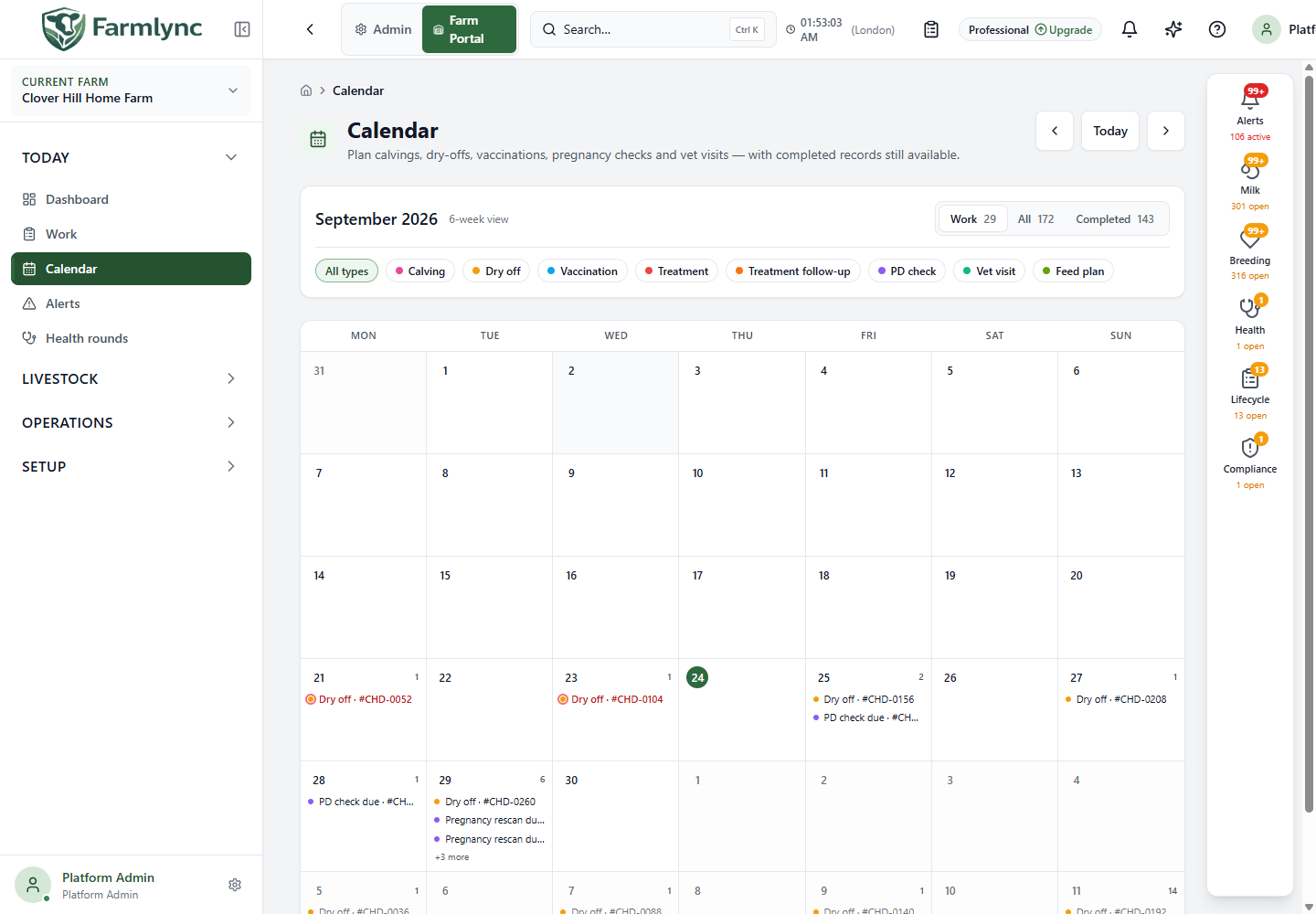
Open Today → Calendar. The calendar combines dated farm records and expected work. It is not a separate diary where clicking a blank day creates an appointment: new work is entered through its appropriate farm feature.
Navigate and filter the calendar
Section titled “Navigate and filter the calendar”| Control | What it does |
|---|---|
| Left arrow | Opens the previous month and closes any selected day’s details. |
| Today | Returns to the farm’s current month. |
| Right arrow | Opens the next month and closes any selected day’s details. |
| Work | Default view. Shows events that are not completed, including planned and due work. |
| All | Shows completed records together with planned and due work. |
| Completed | Shows recorded/completed events only. |
| All types | Re-enables every event type. |
| Type chips | Toggle Calving, Dry off, Vaccination, Treatment, Treatment follow-up, PD check, Vet visit and Feed plan. At least one type stays selected. |
| Pull to refresh | On supported touch layouts, refreshes calendar data. |
The grid always shows six Monday-to-Sunday weeks, including days from adjacent months. Counts beside Work/All/Completed cover the loaded six-week window after the event-type filter, not just the named calendar month. A dash during loading or an error means the count is unknown, not zero.
Dates are the farm’s local dates. For example, a farm in London still displays its farm-day events when its administrator is travelling abroad.
Read a day cell
Section titled “Read a day cell”The highlighted date identifies today. The number in the corner is the number of matching events on that day. Larger screens preview up to three event titles and show +… more for the remainder. Small screens use coloured dots. Select the day to read all matching entries.
Colour identifies the event type: pink for calving, amber for dry off, blue for vaccination, red for treatment, orange for treatment follow-up, violet for PD checks, green for vet visits and lime for feed plans. Also read the text label; colour alone does not establish the action or urgency.
| Status in day details | Meaning |
|---|---|
| Done | The event is completed/recorded. Muted styling distinguishes it from outstanding work. |
| Planned | A planned event or expected date. It is not evidence the action has happened. |
| Overdue | A due event with a date before the farm’s today. |
| Due today | A due event on the current farm day. |
Open the day’s details
Section titled “Open the day’s details”Select a day to open its slide-over. Its header shows the full date, number of events shown and, when relevant, how many are hidden by filters.
Read each event’s type, status, animal identity, title and description. An animal link opens that animal’s record. If events exist but none match your current filters, Show all … events restores All and every event type.
For recordable work, Farmlync checks the underlying job before offering an action. Checking… means that check is running. Retry is available if it fails. A missing or unavailable record button is not permission to bypass the source workflow; use the related Work or feature page to review it.
Record several due animals together
Section titled “Record several due animals together”Two or more due vaccination events on the same day can appear as a group for the same vaccine. Different vaccines remain separate. Two or more due pregnancy checks can also appear as a grouped card. Group cards list the animals and offer a batch recording action only when the underlying jobs are compatible.
- Select the day.
- Read the vaccine or check type and animal list.
- Open the available batch action.
- Enter actual results in the batch form; an expected calendar date is not a recorded result.
- Save and review the outcome. The calendar and Work views refresh after successful recording.
A single event remains an individual card. Completed events are for reference, not a shortcut to record the same action twice.
If something seems missing
Section titled “If something seems missing”- Check Work versus Completed: the default Work view deliberately omits completed history.
- Choose All types to undo hidden categories.
- Check the six-week window and the farm shown in the sidebar.
- Read the day’s hidden-event count.
- Review the source record or protocol when an expected event has no date. Calendar does not infer every possible farm job.
- An error is different from an empty day; use the error’s Retry action before relying on the display.