

Departures
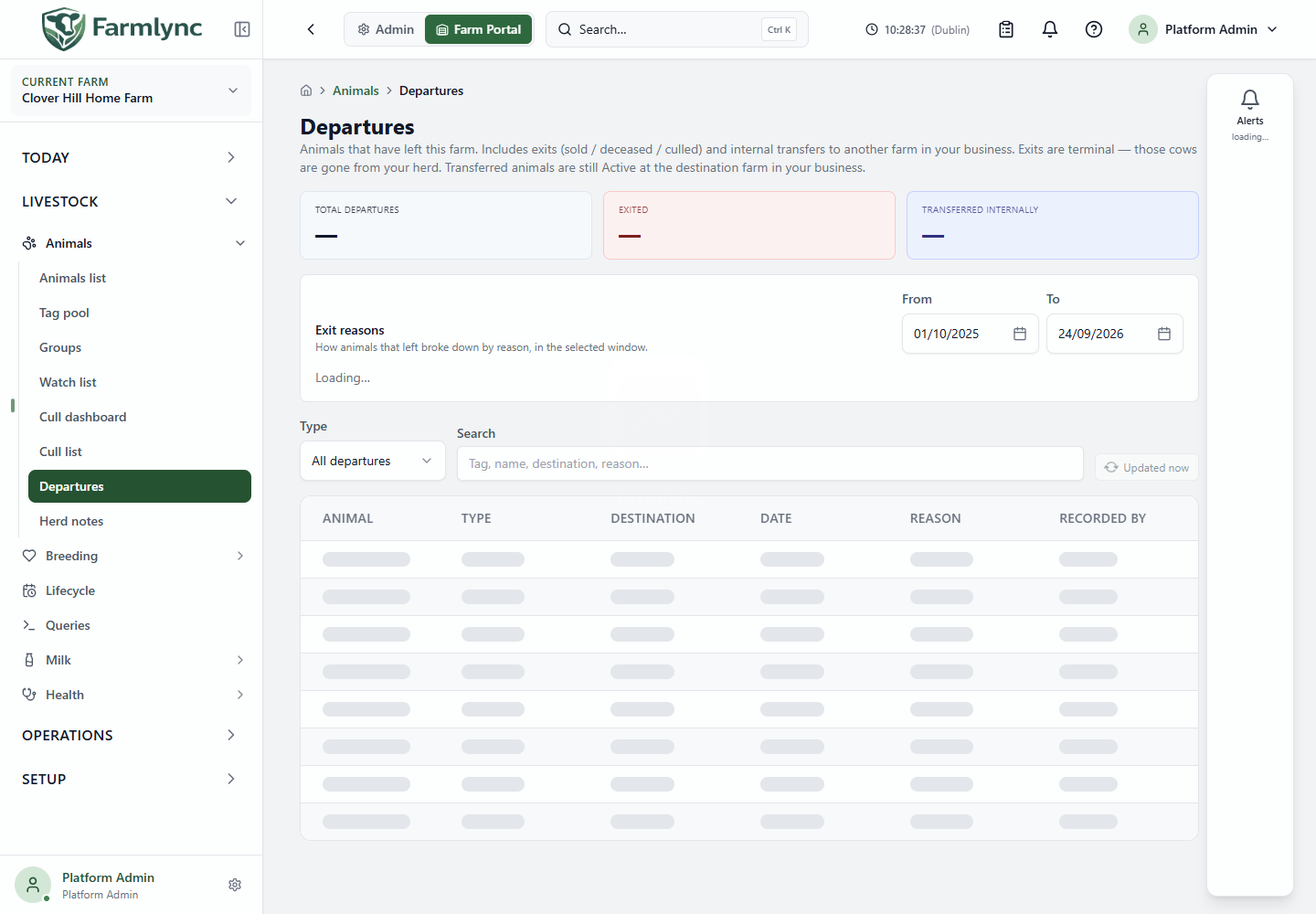
What this page helps you do
Section titled “What this page helps you do”Departures explains why an animal disappeared from the selected farm’s active herd. It combines:
- Farm exits such as sold, deceased or culled animals; and
- Internal transfers to another farm in the same organisation.
Open Livestock → Animals → Departures. This is a review page: it does not record, correct or reverse a movement.
Exit compared with internal transfer
Section titled “Exit compared with internal transfer”| Type | Meaning |
|---|---|
| Exited | A terminal departure from this farm’s herd. The animal retains its historical record on the source farm but is no longer active. |
| Transferred | The animal moved to another farm in the same organisation and remains Active at the destination. |
An exited animal’s identity links to its retained source-farm animal record. A transferred animal is deliberately not linked from the source farm because that source-farm detail route would no longer represent its current location. Switch to the destination farm and find the animal there.
Read the all-time summary
Section titled “Read the all-time summary”| Card | Meaning |
|---|---|
| Total departures | All exits and internal transfers recorded from this farm. |
| Exited | All terminal exits recorded from this farm. |
| Transferred internally | All transfers from this farm to another farm in the organisation. |
These three cards describe the farm’s complete departure history. They do not change when you search, choose a table type or alter the reason-chart dates. A dash while the page is loading is not a zero.
Review exit reasons
Section titled “Review exit reasons”The Exit reasons chart answers “why did terminal exits happen?” over its own date window.
| Control or result | Meaning |
|---|---|
| From | First included farm-local exit date. It defaults to the first day of the month 11 months before the current farm month. |
| To | Last included farm-local exit date. It defaults to today at the farm and cannot be later than today. |
| Reason bar | Count and rounded percentage of exits in that window for the displayed reason. |
| Total | Number of terminal exits in the selected window. |
The chart uses terminal farm exits only because internal transfers do not carry an exit reason in the same sense. Its totals therefore do not have to equal the all-time Total departures card.
The start date cannot be after the end date. If there are no exits in the range, the chart shows No exits recorded in this window.
Filter the departure list
Section titled “Filter the departure list”| Control | What it does |
|---|---|
| Type | Choose All departures, Exits only, or Internal transfers only. Changing the type returns to page one. |
| Search | Matches tag, animal name, destination or reason. Farmlync trims the text, waits 300 milliseconds after typing and returns to page one. |
| Refresh | Reloads the current filtered result and shows when the data was last refreshed. |
Changing the reason-chart dates does not filter this table. The chart and list are separate views on the same departure history.
Read the list
Section titled “Read the list”| Column | Meaning |
|---|---|
| Animal | Tag, name and government identifier according to the farm’s identity settings. Terminal exits link to the historical animal record. |
| Type | Exited or Transferred. |
| Destination | Destination farm for an internal transfer, or the external destination recorded for an exit. A dash means none was recorded. |
| Date | Movement day projected into the selected farm’s timezone. |
| Reason | Exit or transfer reason supplied by the movement record. |
| Recorded by | Display name of the person who recorded the event. A dash means no name is available. |
The server returns 20 rows per page. Use the paging controls to move through the filtered result. Column sorting is disabled because sorting one server page would misrepresent the order of the complete history.
Farmlync keeps the previous page visible while a new filter page is loading. The activity indicator shows that fresher data is being fetched.
Empty and error states
Section titled “Empty and error states”- Nothing has left this farm yet means the farm has no recorded exits or internal transfers.
- No departures match the current filters means history exists, but the current type or search removed every row.
- A list failure provides a retry action.
- A reason-chart failure shows Couldn’t load the breakdown. Please retry shortly without replacing the departure list.
Record or investigate a departure
Section titled “Record or investigate a departure”- Use the animal’s Record Exit action for a terminal departure, or use Record Exit on the Animals list for several animals.
- Use Internal farm transfer when the animal remains in the same organisation.
- For fallen-stock collection and disposal evidence, use the Animal and fallen-stock registers.
- If an animal appears missing, check this page and the possible destination farm before registering a duplicate.
Record one animal leaving the farm
Section titled “Record one animal leaving the farm”Open the active animal, open its actions menu and choose Record Exit. This action is for an animal that is leaving the organisation’s active herd. If the animal is moving to another farm in the same organisation, cancel this form and use Transfer to Farm instead.
Farmlync first verifies the current animal record. Record exit remains unavailable if the animal cannot be verified, has already left the active herd or changed after the form opened. Use Retry verification or Refresh verification when the panel offers it; do not register the animal again.
Exit-detail fields
Section titled “Exit-detail fields”| Field | What to enter |
|---|---|
| Exit date * | The day the animal left, interpreted in the farm’s timezone. It cannot be before the animal’s entry date. The form starts with today’s farm-local date. |
| Exit reason * | Choose Sold, Deceased, Culled, Transferred Out, Slaughtered, Lost, Gifted or Lease Ended. The reason controls which later fields appear and the terminal status saved for the animal. |
| Sold to | For Sold, choose Private buyer, Livestock market or Abattoir. This filters the saved-party picker to the appropriate party role. |
| Sent to | For Culled, choose Abattoir or Knacker / disposal. |
| Destination party | Select the buyer, market, abattoir, disposal collector or recipient from the tenant party register when available. A party must have the role required by the selected reason. |
| …or type a destination | Optional free-text fallback, up to 200 characters, when the external destination is not in the party register. |
| Destination farm | Free-text destination shown for Transferred Out. Use this only for an external farm; an organisation-owned farm belongs in the internal-transfer workflow. |
| Returned to (farm) | Free-text farm shown for Lease Ended. |
| Haulier | Optional saved party with the Haulier role. It appears for Sold, Slaughtered, Culled, Gifted, Transferred Out and Lease Ended. |
| Destination CPH | Optional holding or registry identifier for a destination that needs it. It accepts at most 20 letters, digits, spaces, slashes and hyphens. A connected registry can apply a stricter country-specific rule. |
| Sale price per animal | Optional non-negative amount shown for Sold, Slaughtered and Culled. The tenant currency is used. |
| Notes | Optional exit notes, up to 500 characters. The microphone control can dictate into this field when voice input is available. |
Changing Exit reason clears destination, party, haulier, CPH and price values that belonged to the previous reason. This prevents a hidden buyer or price from being saved against an unrelated reason.
Which fields each reason uses
Section titled “Which fields each reason uses”| Reason | Destination choices | Other fields shown | Saved terminal status |
|---|---|---|---|
| Sold | Buyer, market or abattoir; registered party or typed fallback | CPH, haulier and sale price | Sold |
| Slaughtered | Registered abattoir or typed fallback | CPH, haulier and sale price | Culled |
| Culled | Abattoir or disposal collector; registered party or typed fallback | CPH, haulier and sale price | Culled |
| Deceased | Optional registered disposal collector or typed fallback | Notes | Deceased |
| Gifted | Optional registered recipient or typed fallback | CPH and haulier | Sold |
| Transferred Out | Typed external destination farm | CPH and haulier | Sold |
| Lease Ended | Typed return farm | CPH and haulier | Sold |
| Lost | None | Notes | Deceased |
The saved status groups several business reasons into the terminal statuses used by active-herd filters. The original exit reason remains on the animal and departure history.
Food-chain withdrawal check
Section titled “Food-chain withdrawal check”Farmlync checks meat withdrawal at the selected exit date for Sold, Slaughtered, Culled and Gifted. The save is rejected if a meat hold is still active. Wait until the hold ends or use the factually correct non-food-chain reason; do not change the reason merely to bypass the safety check.
Deceased, Lost, Transferred Out and Lease Ended do not use this food-chain check. Milk withdrawal does not by itself block the exit, but the animal’s active milk and lifecycle records are ended when the exit succeeds.
Save and verify
Section titled “Save and verify”Select Record exit only after checking the animal, date and reason. A successful save:
- removes the animal from the active herd;
- records the external movement and retains the departure history;
- clears its current pen and active group memberships;
- removes it from an active breeding programme;
- closes related alerts and pending work;
- ends active lifecycle, lactation and milk-production participation;
- releases the animal’s capacity allocation; and
- queues any applicable government-registry integration using the recorded destination evidence.
The action is concurrency protected. If someone changes the animal while the form is open, Farmlync refuses the stale save and asks for fresh verification. After saving, confirm that the animal appears on Departures with the intended date, reason and destination, and review connected registry work where applicable.
Record several animals leaving together
Section titled “Record several animals leaving together”Use either route on Livestock → Animals → Animals list:
- Select rows, open the bulk actions and choose Record Exit to start with those animals; or
- choose the page-level Record Exit button, then use Add animal to search by tag or name.
The batch accepts 1 to 500 distinct animals. If a larger selection is supplied, the panel includes the first 500 and reports how many were omitted. A preselected batch is locked to that roster. When starting from the page-level button, use the remove control or Clear all before saving if the selection is wrong.
The same exit fields and reason-dependent rules described above apply to every selected animal. One batch represents one movement to one destination:
- the date, reason, destination party, haulier, CPH and notes are shared;
- Sale price per animal is copied to each successful animal and is not a batch total; and
- animals with different prices or different destinations require separate batches or individual exits.
Wait until every selected row shows Ready. Farmlync takes a current version snapshot for each animal and blocks the batch if any selected record cannot be verified.
Select Exit n Animals to run the batch. Animal-specific problems use partial-success handling: an animal that is missing, already inactive, changed since verification or remains under an applicable meat withdrawal fails without preventing eligible animals from exiting. Invalid shared input, such as a party with the wrong role, blocks the whole batch.
The result lists successful and failed animals. Review it before closing. Use Retry failed to create a fresh verified attempt containing only failed animals; already successful exits are not submitted again.
Correct an exit recorded by mistake
Section titled “Correct an exit recorded by mistake”Use Reverse exit only when the departure itself was recorded in error—for example, the sale fell through or the wrong animal was selected. It is not a way to record an animal returning after a real sale, movement or time away.
- Open the exited animal’s historical record.
- Open More actions → Reverse exit. The action appears for a terminal Sold, Deceased or Culled status when you can manage animals.
- Enter the required Why is this exit being reversed? explanation. This explanation becomes audit evidence after the exit fields are cleared.
- Select Reverse exit and wait for Exit reversed — animal returned to the herd.
Farmlync checks the version captured when the confirmation opened. If the animal changed, review the refreshed record and start again. A recorded active carcass blocks reversal because post-mortem evidence cannot belong to an active animal; void the erroneous carcass record first. The animal must also fit within the organisation’s current animal allowance.
A successful reversal:
- returns the animal to Active and clears the recorded exit date, reason, destination, parties, price and exit notes;
- removes the local farm-exit movement created by the erroneous exit while retaining a semantic audit entry with the previous status/reason and your explanation;
- removes the terminal lifecycle stage, reopens the stage closed by the exit and removes the Exit timeline event;
- reopens only the latest lactation when that lactation was ended by this exit, then reevaluates affected milk safety;
- restores breeding-program enrolment only when this exit removed an otherwise eligible female that is not marked Do not breed; and
- clears the old exit alert and schedules current alert conditions for reevaluation.
The reversal deliberately does not restore the old pen or group memberships. Assign the correct current pen and groups after checking where the animal physically is. Previously closed alerts are not blindly reopened; still-relevant conditions create fresh occurrences when reevaluated.
If a government-registry departure was already submitted or accepted, reversing the Farmlync exit does not currently cancel that remote movement automatically. Check the registry work area and follow the registry’s correction process before treating both systems as reconciled.