

Health imports
What this page helps you do
Section titled “What this page helps you do”Health imports bring supported treatment and vaccination events into the selected farm. Use Historical for old paper records and Periodic for recent routine activity. An import is a recording action: accepted rows create actual health records. Reconcile the result with the source file before relying on the animal’s timeline or stock position. The import handler checks permission to record treatments; its denial message identifies Owners, Managers and Vets.
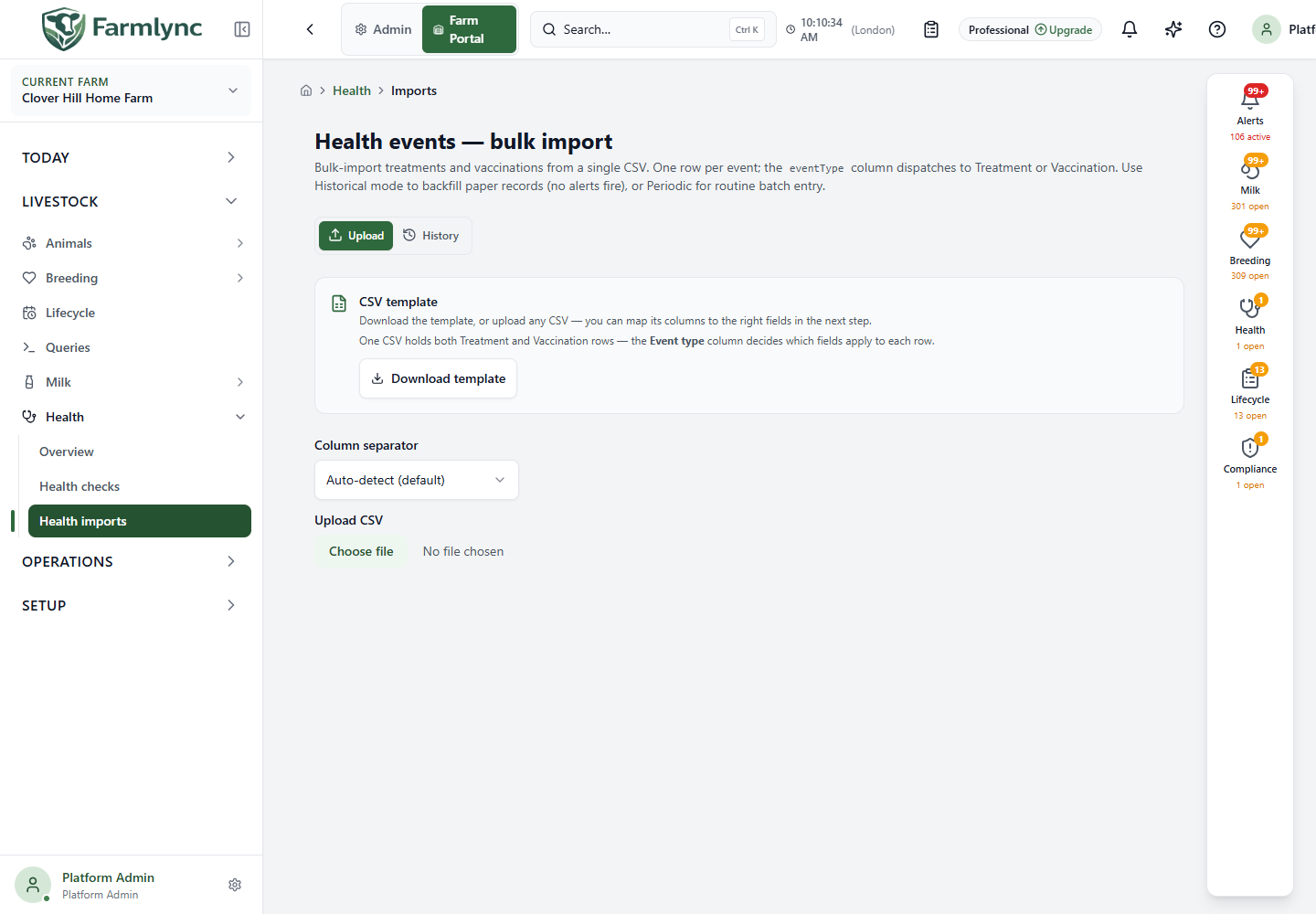
Open Livestock → Health → Health imports. Upload accepts one CSV with a header row and one event per data row; a file may mix Treatment and Vaccination rows. History shows earlier import sessions. The current service accepts 1–5,000 data rows per request. If the import form cannot load, Try again loads its schema; no file has been submitted at that point.
Prepare the source file
Section titled “Prepare the source file”Select Download template for the current headings and example values. A vendor CSV is also usable if you map its columns after upload. Keep the original file to reconcile accepted rows. Use a farm-local yyyy-MM-dd Event date for new files and do not enter future treatment or vaccination dates. A Treatment row represents one treatment and one drug; a Vaccination row represents one vaccine administration. The CSV does not encode a multi-medicine treatment.
The mapper requires these three common columns:
| Column | Content |
|---|---|
Event type (eventType) |
Treatment or Vaccination. This decides which other fields the server uses. The mapper recognises headings such as event type, event_type, type and kind. |
Animal tag (animalTag) |
An animal already registered on the selected farm. Aliases include tag, tag number and ear tag. Correct an unknown tag or register the animal before retrying. |
Event date (eventDate) |
Date of the event in farm-local time. Aliases include date, treatment date and vaccination date. Invalid or future dates cause that row to be skipped. |
Treatment-specific columns appear optional in the generic mapper because the same file may contain Vaccination rows. The server still requires Disease / condition for every Treatment. Drug and Dosage are additionally required for a Medical treatment. Use these columns only on relevant rows:
| Column | Meaning and accepted value |
|---|---|
Care type (careType) |
Medical or Non-medical; blank defaults to Medical. A Non-medical row represents husbandry care and does not use drug, dosage or withdrawal periods. |
| Disease / condition, Disease code | Condition name is required; catalog code is optional. |
| Drug, Dosage | Required for Medical rows. The dosage is text including its unit, such as 10 ml. One drug per row. |
| Route, Treatment type | Optional; use the values shown in the current mapping field hints/catalog. Route is administration method; Treatment type classifies the medical treatment. They are different from Care type. |
| Duration (days), Milk withdrawal (days), Meat withdrawal (days) | Optional whole-day values. Check product directions and the resulting withdrawal record before using milk or moving an animal. |
| Antibiotic? | Optional boolean. The uploader recognises true, yes, y, 1 and false, no, n, 0. Blank is treated as false by the command. |
| Vet, Administered by, Cost | Optional names and numeric cost. Cost contributes to the recorded health-spend figures. |
For a Vaccination row, Vaccine and Vaccine code are required even though the generic mapper marks their columns optional. Match the code to the intended catalog vaccine. The other vaccination fields are:
| Column | Meaning and accepted value |
|---|---|
| Batch number | Optional product lot number; include it when available for traceability. |
| Next due date | Optional yyyy-MM-dd date for a planned next dose. Invalid values skip the row; leave blank if there is no known next date. |
| Dose number | Optional whole number; a blank value becomes dose 1. |
| Injection site, Reaction, Performed by | Optional administration and observation details. |
| Dose volume (ml) | Optional positive numeric volume in general, but required when Periodic stock decrement finds a matching vaccine product. The server converts the clinical volume to that product’s inventory unit; incompatible units cause a row error. |
Notes is an optional common column. Avoid putting Treatment-only values into Vaccination rows or vice versa. For detailed single-entry fields, use Record treatment and Record vaccination.
Map, preview and choose import mode
Section titled “Map, preview and choose import mode”- Check Column separator. Auto-detect is the default; choose comma, semicolon, tab or pipe if the file is parsed into the wrong columns. Choose Upload CSV and select the file. This does not submit business records.
- Inspect the automatic matches. Select Review column mapping to change a source column;
*marks one of the three required common fields. An unmapped required field blocks submission. The field hints show allowed values where available. - Examine Preview. It shows the first five mapped rows, while the caption states the total parsed row count. Download validation errors gives client-side cell problems. Correct the file or mapping and upload it again. Passing the preview does not guarantee the server will accept every animal, product or clinical value.
- Choose Import mode. Historical — backfill is the default: it records old events without today’s inventory deduction or forward-looking batch alerts. Periodic — current activity emits the normal batch alert work for recent records. Periodic initially selects Apply stock decrement; clear it if stock will be reconciled separately. Switching modes resets the checkbox to that mode’s default. The stock checkbox is not offered in Historical mode.
- Select Import N rows only after checking the animal tags, event types, dates, products, mode and stock choice. Start over clears the current browser-side import selection. Submission processes rows by event date, not necessarily source-file order. A validation failure skips that row; other valid rows can still be recorded.
In Periodic mode with stock decrement, a matching drug or vaccine product is linked to the record and stock effects are issued through the batch process. A missing stock match or stock shortfall can produce a warning; a vaccine with a matched product but no convertible dose volume produces a row error. Historical imports do not consume current stock. A newly saved historical treatment still needs clinical review before relying on withdrawal safety; use the actual restriction and clearance views rather than assuming import mode settles release decisions.
Reconcile the outcome and history
Section titled “Reconcile the outcome and history”The result shows Total, Success and Failed, with Treatment/Vaccination imported and skipped counts plus warnings. Download errors exports rejected source rows from the result; the health-specific warning Download CSV exports warning row number, code and message. Compare those line numbers with the original CSV header and rows. A warning can accompany an imported row; a failed row was not accepted. Inspect the resulting treatment or vaccination records for a few representative animals, particularly where withdrawal or stock mattered.
History lists 20 sessions per page with Started, Mode, File, Rows, Imported and Skipped. Select a session to see Status, completion time and saved error/warning messages, then Close its detail panel. The history messages can each be downloaded as CSV. When a file partly succeeds, isolate and correct only the rejected rows before retrying. Uploading the entire file again is a new operation, not an edit to the first import.